

Choose or create a panel
Use an existing panel, or describe and create a new audience with Iris.
Every survey run needs a panel. If one of the existing panels fits, use it. If none does, describe the audience to Iris and have a new panel generated.
Choose an existing panel
On the home page, before your first message:
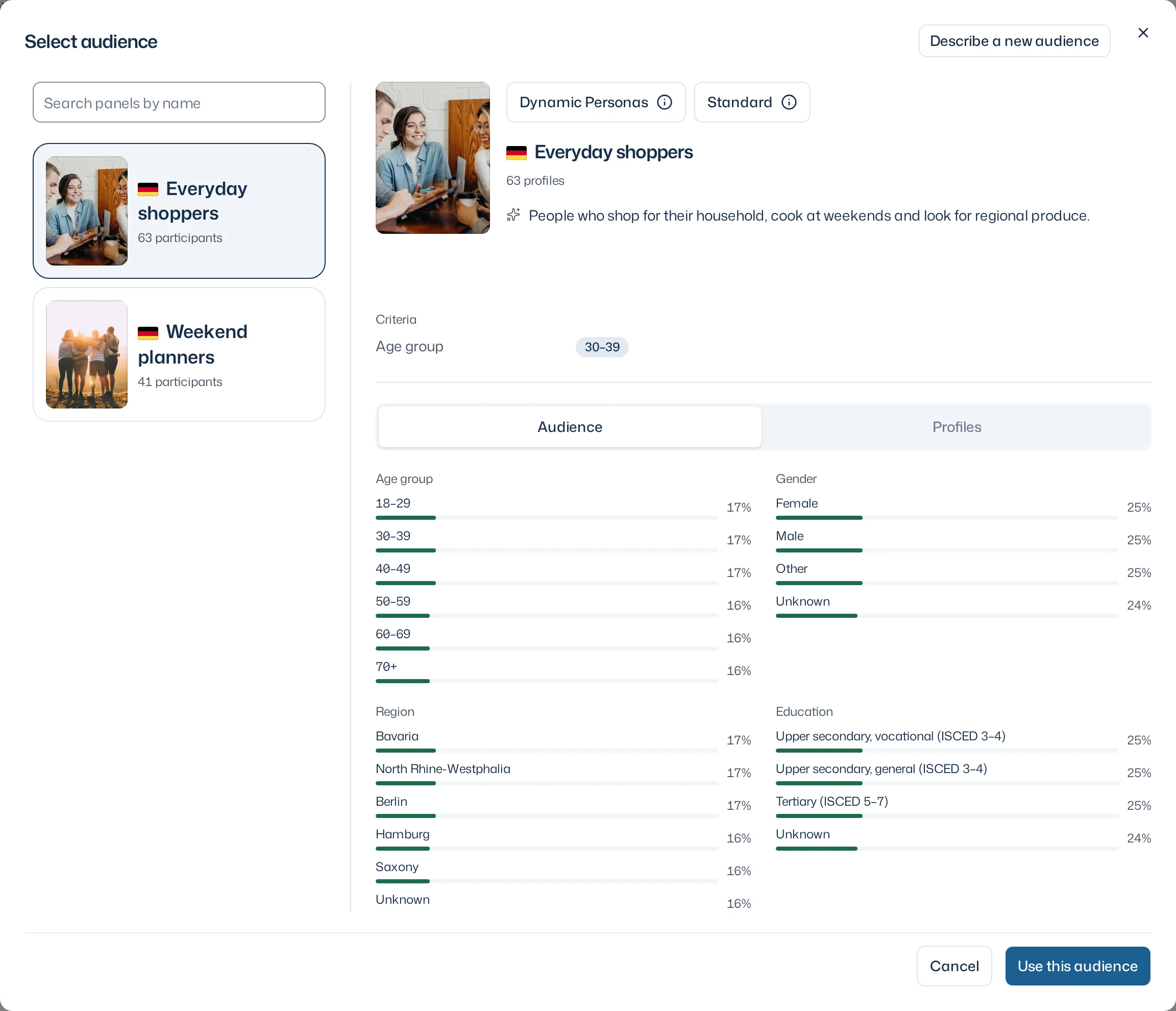
- Click Audience in the message field. The Select audience dialog opens.
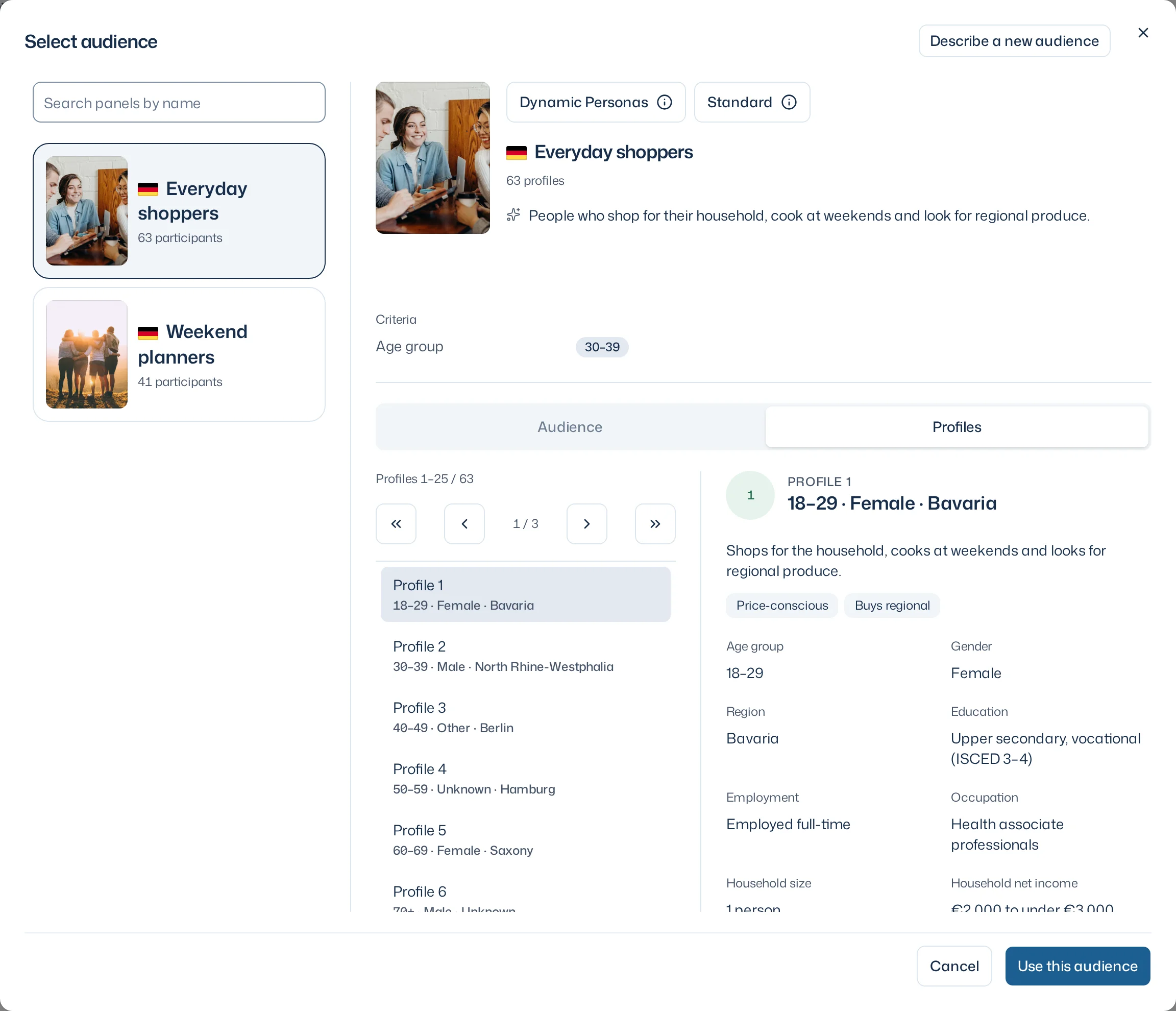
- Search with Search panels by name and click a panel in the left-hand list. The preview shows its name, size, type, scope, description and draw criteria. Audience shows the distributions across the whole panel; Profiles opens the complete profile list in pages of 25 with individual details. On phones, the panel list sits above the preview.
- Click Use this audience. The message field now shows Audience: … with the panel's name.
Selected marks the applied audience. Browsing another panel or changing tabs only changes the preview; Cancel keeps your previous choice. Clear audience removes the choice again. Alternatively, click a panel's tile in the Panels tab; the dialog then opens on that panel.
In the chat: when a study needs a panel, Iris shows the card Select audience with matching panels. The name, participant count and panel kind appear beside the image. When Iris provides a reason for the choice, it is highlighted. The image tiles above the card change only the preview. The card has the same content and flip control as in the library. Use this panel applies the displayed panel. Preview and confirmation are locked while the choice is being sent; the card then folds. Details reopens the chosen panel card with its flip control. You can also type the name of a listed panel into the message field. If you write something else in the input field instead, the choice ends; the card shows Panel choice cancelled, and Iris replies to your message.
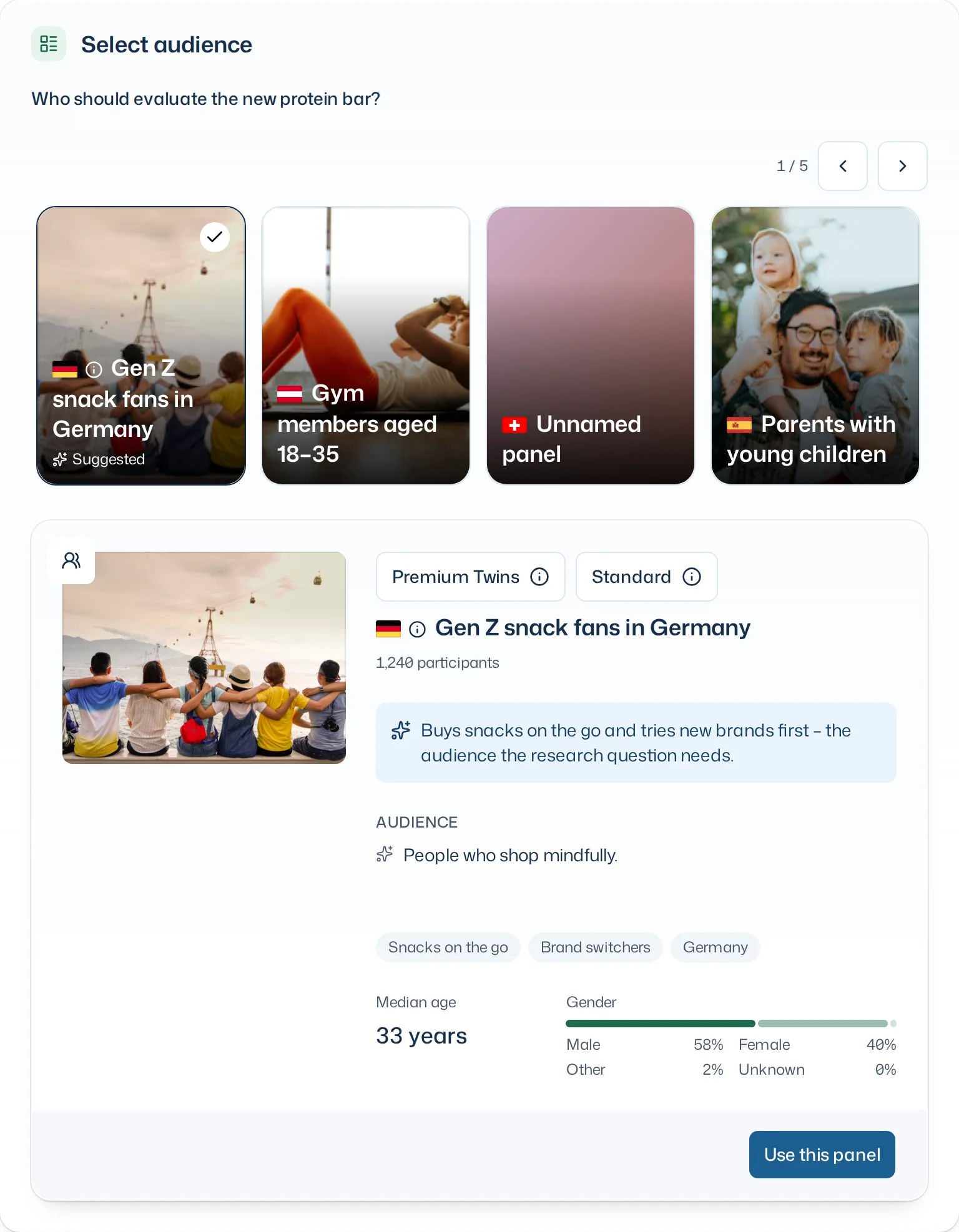
The neutral type and Team or Standard labels have an info icon. Hover, focus with the keyboard or tap to read their explanations. Type describes the profiles; scope describes where the panel is available.
In the Dock: in a survey run's Setup view, pick a panel with Use, or swap it with Change panel. The panel of the previous survey run comes first. Once a survey run has started, its panel is fixed.
The run's Setup view shows the same details as the audience picker: criteria, description and demographic distributions, plus the profile list and individual details under Profiles. The run keeps its exact saved audience version. For a launched run, the header with study name, run status and view buttons keeps the same structure when you switch to Setup or Result. See Research details.
Create a new panel
- Click Describe a new audience in the Select audience dialog, or tell Iris directly who you want to survey, for example: "Create a panel of 30 parents of children aged 4 to 12 who want healthy snacks."
- Iris asks follow-up questions if needed. The card Preparing your audience appears immediately; when the description has been interpreted, it shows Create a new Panel?.
- Check the description, adjust Name and Size, and click Create.
Preparation continues in the background after Iris finishes its answer or you close the tab. When you return, you can confirm the ready card. Audience temporarily unavailable offers Try again, which starts a new preparation. A preparation still running after 25 minutes ends with this message.
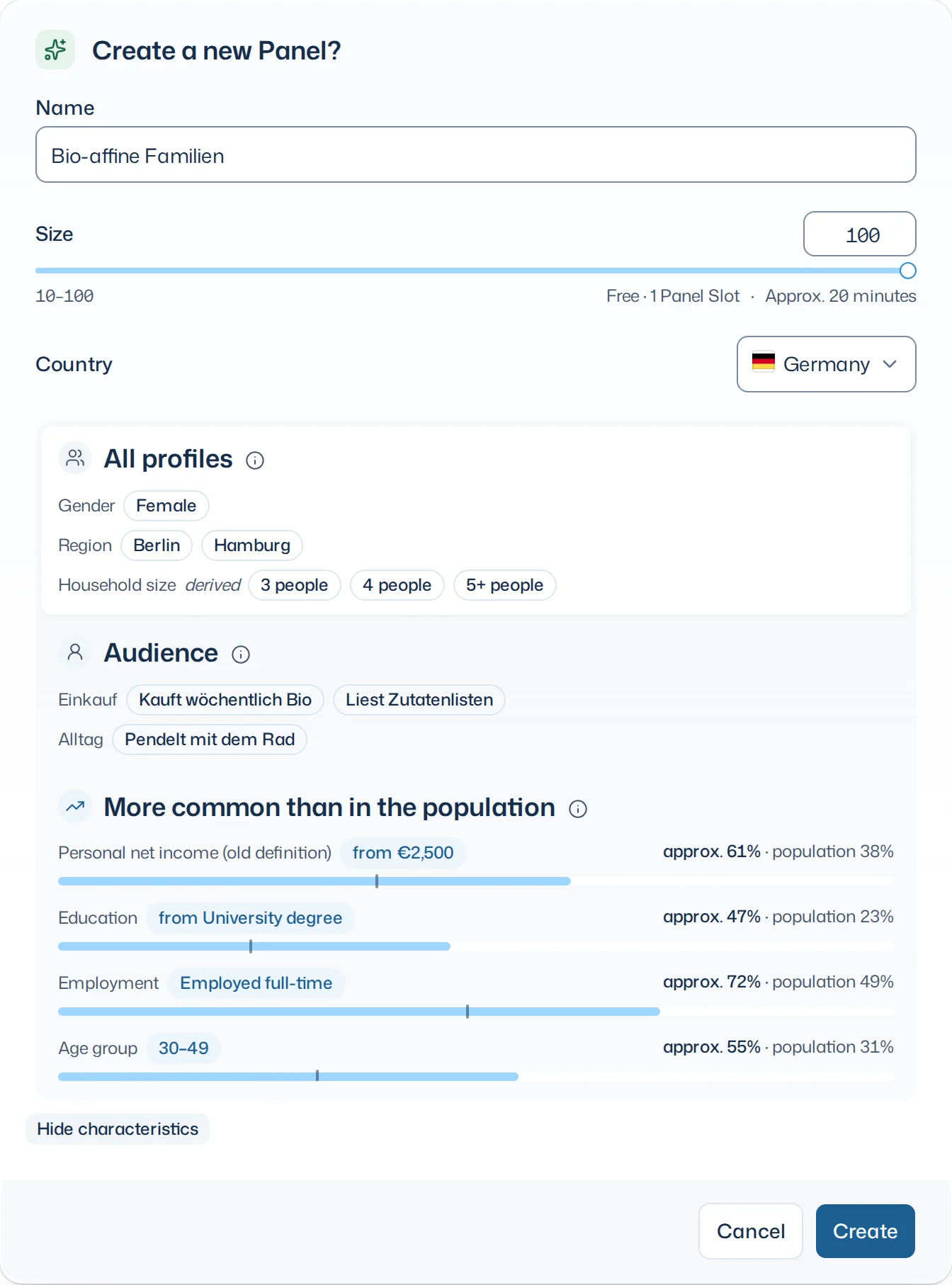
The Create a new Panel? card shows:
- All profiles: attributes that apply to every profile in the panel, such as an age range. Attributes marked derived were inferred by Iris from your description.
- Audience: describes who belongs to the audience. Individual profiles may differ.
- More common than in the population: values expected to be more common in the panel than in the population with the same demographic settings. The bar shows the expected share in the panel, the line the share in the population, for example approx. 35 % · population 20 %. These values are typical for the audience but not a requirement.
- Country: the country whose population the panel is drawn from. Iris sets it before the card: from your description, otherwise from the newest message in the conversation that names a country, otherwise Germany. What counts is where the audience lives: "Viennese …" gives Austria, "holidaymakers in Spain" Germany. You can pick another available country; the description is then interpreted again for that country in the background. The chosen country replaces a country of residence from the description: "Gen Z in Italy" with Switzerland becomes Gen Z in Switzerland. You can create the panel once the new card is ready; the name and chosen size are kept.
- Size: the number of profiles, with an input field and a slider. Below it are the range, the price and the estimated duration, for example Free · 1 Panel Slot · Approx. 6 minutes.
Show all characteristics expands long lists. The i on each heading explains the section.
Panels exist for Germany, Austria, Switzerland, Spain, France and Italy. If the audience lives only in another country ("families in London"), in several countries ("dog owners in DACH") or abroad with no particular country ("Germans living abroad"), Iris asks in the chat which of these countries the panel is for. After your answer, Iris removes only the residence details that contradict the chosen country and shows the card for it. If you answer "both", the card for the first country comes first; the panel for the second follows after it. A panel is always created in the country the card shows when you create it, and keeps it.
If preparation cannot identify a single available country of residence, the card shows Choose the audience country. Pick a country to continue preparation. If the card says "This audience cannot be prepared for Panel generation.", you can likewise pick another country or cancel.
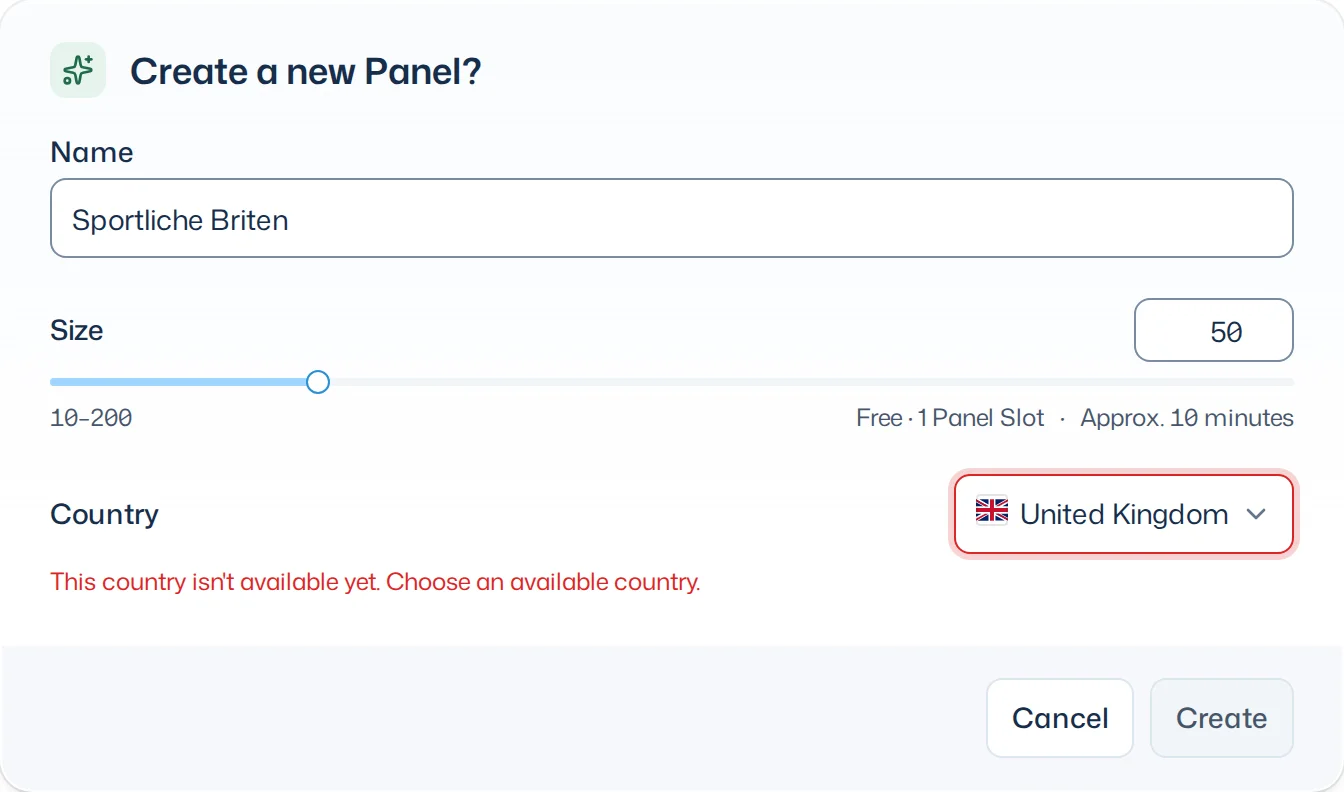
Cards may also show a known country that has no panels, with "This country isn't available yet. Choose an available country." You can create the panel only after picking an available country under Country.
If you tell Iris a size, the card is already set to it. If it lies outside what your plan allows, the card sets the nearest possible size and shows your request as Requested: 500.
During and after generation
Generation runs in the background, about 10 minutes per 50 profiles. The card shows the progress as 12 / 30 profiles, a study's Overview as 12 of 30 profiles. You can leave the chat, as the card points out: “We'll email you when the Panel is ready.” When the panel is ready, the card says Panel created and you get a notification and an email. View Panels takes you to the Panels tab.
Sometimes not all ordered profiles can be generated consistently. The panel then has fewer members, and the card and panel show, for example, 19 of 20 participants. If too few succeed, generation fails with a message such as "Only 4 of 20 persons could be generated consistently for this target group." plus a hint about the usual cause. A more precise description often helps.
Who can create a panel
Every team member can generate panels and confirm creation in their own chat. Switching between Member and Owner keeps an existing audience card usable.
While a free panel slot is left, a panel costs nothing. Once all are in use, an Additional Panel costs 0.30 credits per person, once; the card shows, for example, Additional Panel · 45 Credits. If not all profiles are generated, you get the credits for the missing ones back; if generation fails, all of them. How to free a slot is covered in Manage panels.
Your plan sets the free panel slots: On Demand 1, Start 3, Grow 10, Enterprise 15. A panel has at most 100 profiles, 200 in Enterprise. The plans at a glance are in Pricing and credits.
When only one slot is left, the card shows Last free Panel Slot. If the card says "This audience cannot be generated.", the settings contradict each other or are too narrow. Describe the audience more broadly.