

Manage panels
Rename and archive team panels and free up panel slots.
All of your team's panels are on the home page in the Panels tab, the first tab of the library. Above it, Current project takes you to your most recently active project.
The Panels tab
The panels are grouped by Dynamic Personas and Premium Twins, each a row of image tiles. A section only appears when it contains panels. This also applies with a country filter and to archived panels. The number next to each heading counts the loaded panels. A + after it means there are more; Load more shows them. When a row is wider than the page, the arrows next to the heading scroll it.

Clicking a tile opens Select audience on that panel, the same dialog as the audience button in the input field. Use this audience makes the panel the audience of your next message. You can then ask Iris, for example, to set up a study with this panel or to compare it with another one. More in Choose or create a panel.
Rename and archive team panels
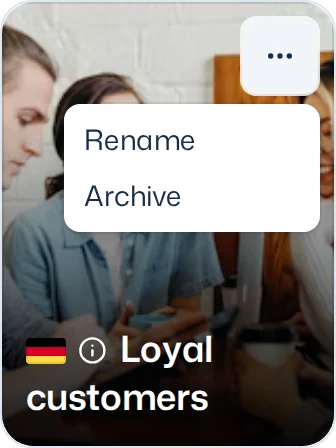
Team panels have a … menu at the top of their tile:
- Rename: enter a new name (at most 120 characters) in the dialog and click Save.
- Archive: removes the panel from the list and frees its panel slot.
- Unarchive: brings an archived panel back. A panel generated for free needs a free panel slot for this, an additional panel doesn't.
Renaming and archiving apply to the whole team. Standard panels have no menu; they can be neither renamed nor archived.
You see archived panels with the Show archived filter. An archived panel can't be chosen as an audience, so its tile opens nothing. Survey runs already started and their reports keep the same members as their basis.
Panel slots
Every team panel you generated for free takes up a panel slot. How many slots your team has depends on your plan. Standard panels, archived panels and additional panels don't take up a slot. Archiving an additional panel refunds no credits.
To free a slot:
- Open the Panels tab.
- Pick a team panel you no longer need.
- In its … menu, click Archive.
Unarchiving a panel generated for free also needs a free slot. If all are in use, the Panels tab says "All panel slots are in use." Archive another panel first, then unarchive. An additional panel can be unarchived at any time.
If your subscription ends or you move to a smaller plan, every panel stays and remains usable. If you then have more free-generated panels than slots, they stay; new panels cost credits until the occupied slots drop below the quota again.
Talk to Iris about a panel
Iris can explain a panel in more detail. Ask, for example, "Who is in this panel?" or "How many women over 50 are in it?". Iris answers questions about panel members and corpus profiles in text, for example with a summary or individual profile examples. For an assessment of the whole panel, such as "What stands out about the members?", she reads up to 200 members in the background. For larger panels she says that her assessment rests on the first 200 members. If you explicitly ask, Iris can also rename, archive or unarchive team panels.
Iris can't save an existing panel, or a subset of it, as a new team panel. New team panels only come from generation, see Choose or create a panel.