

Working with Iris
How you talk to Iris, what Iris does for you and where you step in.
Iris is the AI assistant in theconsumer.ai. You write to her in plain language, and Iris does the work: she searches and compares panels, drafts and saves survey designs, prepares studies and ad-hoc questions, checks progress, reads results, computes over every answer, creates charts, adjusts reports when you ask and builds decks. Anything that costs credits or can't be undone, you confirm yourself on a card in the chat.
In this section
- Projects and chats: start, share and archive projects, rename chats and use the queue.
- Files: upload files, read and search PDFs with Iris and manage them in the project.
- Tools & approvals: the cards in the chat for follow-up questions, choices and confirmations.
- Ad-hoc questions & recontact: a quick question to a whole panel and conversations with single respondents.
- Analysis in the chat: calculations, numbers with a small base, quotes and theme lists.
- Research details: open audiences, files, ad-hoc questions, studies and Decks in Research.
Writing good requests
Write to Iris the way you would brief a colleague. The more Iris knows, the fewer follow-up questions she needs to ask.
When you say clearly what you want, Iris gets going and names the assumptions she makes. When you are still thinking it over, Iris thinks along: she offers options and asks how you want to continue, without creating anything or opening a card yet.
- What do you want to learn? "How does the new pack of our oat bar come across?" works better than "Test the pack".
- What is being tested? Name the product, the concept or the claims. Upload images directly.
- Who should answer? Describe the audience or name a panel.
- One piece of research per project. For new research, start from the home page with New project. Further chats about the same research start on the project page.
What applies to every conversation, such as industry, brands and usual audiences, is stored by an owner in the team context. Iris reads it with every answer. What only applies to one piece of research goes into the project's project context.
While Iris is working
After your message, a line shows what Iris is doing: Thinking or the step that is running, such as Loading the panel catalog, along with a running clock. Sometimes it shows a short English sentence from Iris' current train of thought instead.
Above it is the phase Iris is in: Panel, Design, Survey, Analysis, Report, Deck or Clarification. When Iris builds a report or a deck, the line names the step, for example Computing or Building slide 3 of 8. Below it you see the last three steps. Click the phase to see all steps.

Iris explains when work starts, shares important findings or changes of direction, and describes the outcome. Internal attempts do not each need a chat message. Text and cards appear in the order Iris creates them.
When Iris is done, the display shrinks to one line with the result and the time taken, for example "Design created with 6 questions · 38 sec". If the result took Iris more steps, their number comes before the time, such as "6 KPIs found · 12 steps · 20 sec". Click it to expand the steps again. A failed step is listed below with its reason. If the connection drops for a moment, you see Reconnecting … and Iris keeps working.
Iris works on the server. You can close the tab or open another chat, and Iris carries on. When you come back, you see what she has done in the meantime, and the rest appears live.
Writing while Iris works
While Iris is working, the input field has two send buttons next to Stop:

- Send now (or the Enter key): your message goes into the running work. Iris reads it after the current step and adjusts, for example "Only the women" or "Leave out the price question". She doesn't cancel a running step for it.
- Send after: your message waits until Iris is done and then runs as a request of its own. Until then it shows as Queued in the chat. More in Projects and chats.
Send now only takes text messages. If you send a file or an object along, there is only the send button, and the message waits in the queue. If you answer a question from Iris, such as choosing a panel, that is your answer, not a new instruction.
Several surveys
When you ask Iris to prepare several surveys, she shows them together for review. You start each survey individually at its displayed price. The chat stays available while you review them.

Follow each started survey on its card and in the study overview. Each survey has its own state, even while others in the same study are still being prepared or have already finished. The current state remains visible after a reload. Completed results also arrive as a separate message in the chat.
Stopping Iris
While Iris is working, the input field shows a Stop button. Iris halts the current work and waits for active model calls and calculations to finish cleaning up. Results already saved remain available. Meanwhile the line reads Stopping after this step …, then Stopped by you. Write a new message to carry on.
Working time alone does not end a task. When a server execution needs to hand over, Iris automatically continues from its saved checkpoint. After 300 steps, the chat shows Step limit reached with a Continue button. Click it to let Iris pick up where she left off. If a chat has grown too long, it shows Context limit reached, and you carry on in a new chat.
Completed steps stay saved in the chat. After a reload, you can still use Continue to carry on from a step or time limit.
Bringing objects into the chat
Iris works best when you tell her exactly what you mean. To do that, add objects to your message:
- Ask Iris: you find this button on a design's page and on a study's page, among others. It opens the home page with the object already in the input field. You just add your question.
- + > From the Library: pick studies, single survey runs, designs, panels and files.
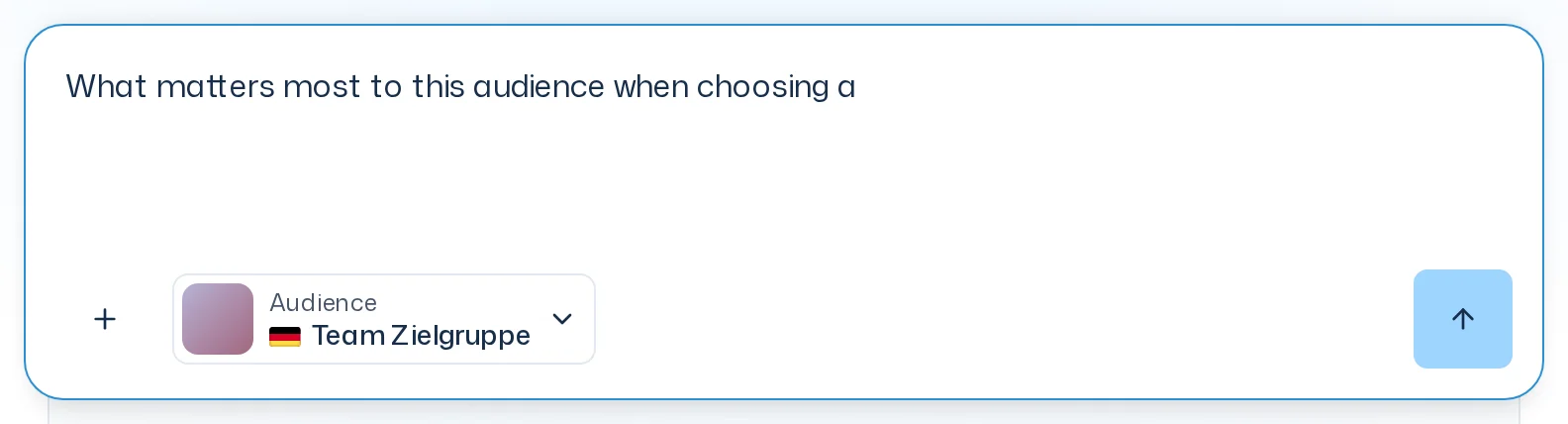
You can add up to ten objects per message. Iris then reads exactly those objects instead of guessing which one you mean.