

Tools & approvals
The cards in the chat: follow-up questions, panel choice and confirmations before paid steps.
Iris doesn't only answer with text. For real steps she shows cards in the chat: some ask you something, some need your confirmation, others show a result. Cards stay in the chat, so you can look back later at what you chose and confirmed.
One open decision per chat
A chat never has more than one card waiting for your decision. It sits right above the input field. Only once you have answered it does Iris ask the next thing. A result message for a finished survey run also waits until the open card is decided.
Answer follow-up questions
When Iris needs more detail, Answer follow-up questions appears. The card walks you through the questions with Question 1 of 3 and so on.
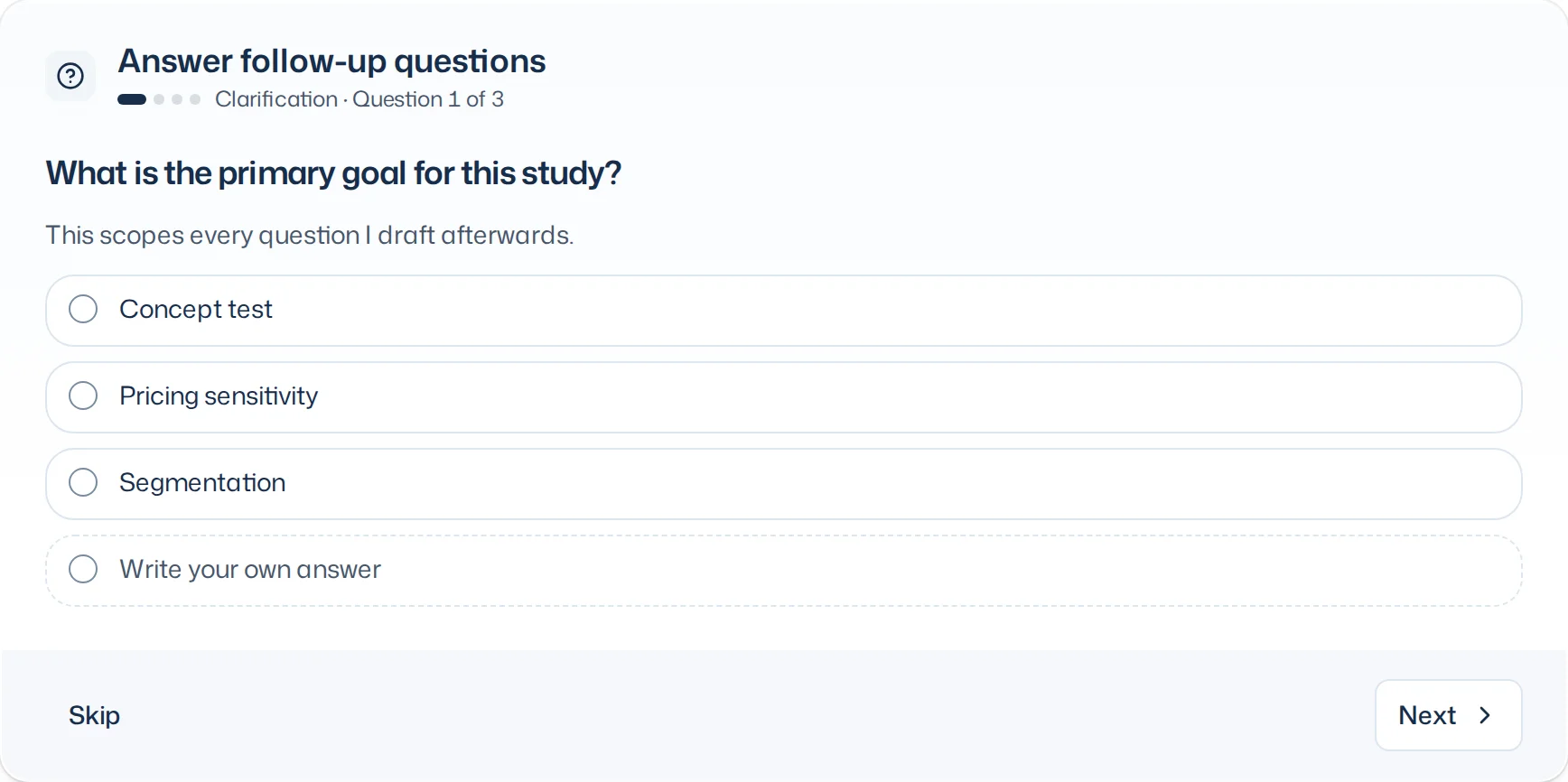
- Pick one of the suggested answers or write your own with Write your own answer.
- If you don't mind either way, Skip moves on without an answer. Iris then decides it herself.
- Next and Back move between the questions.
- Review and submit shows all answers once more. Skipped questions read Iris decides there. Clicking an answer takes you back to its question. Submit answers sends them.
You can also just type into the input field. The card then shows Answered in the chat.
Choose the panel
With Select audience, Iris shows suitable panels to browse. The recommended one carries Suggestion, with its selection reason highlighted. Click Use this panel on yours. Alternatively, type the name of one of the offered panels into the input field. If you write something else in the input field instead, the choice ends; the card shows Panel choice cancelled, and Iris replies to your message. More in Choose or create a panel.
Confirmations before important steps
Anything that costs credits, takes up a panel slot or ends a running survey only starts after your click. Iris prepares the step, you decide on the card.
| Card | What for | Buttons |
|---|---|---|
| Start survey? | Launch a survey run. Shows Panel, Participants, Questions, Estimated duration, Price, Stimuli and your available credits. | Start, Cancel |
| Ask this question? | Ask a panel a question | Ask, Cancel |
| Create a new Panel? | Create a new panel. Takes up a free panel slot; once all are in use, it costs credits. | Create, Cancel |
| Cancel the survey? | End a running survey | Cancel survey, Keep running |
If you decline, nothing starts and nothing is charged. The card then shows, for example, Start cancelled and No Credits used. If you confirm, the card turns into the step's progress display.
Rarely, a general Review tool request card appears with Allow and Cancel. It works the same way.
Cancelling a survey
If you ask Iris to stop a running survey, Cancel the survey? shows how far it got, for example So far at most 12 of 20 respondents complete. Only respondents who have answered completely when you cancel are charged, and the rest of the reserved credits comes back. The answers so far stay readable, there is no report, and the cancellation can't be undone.
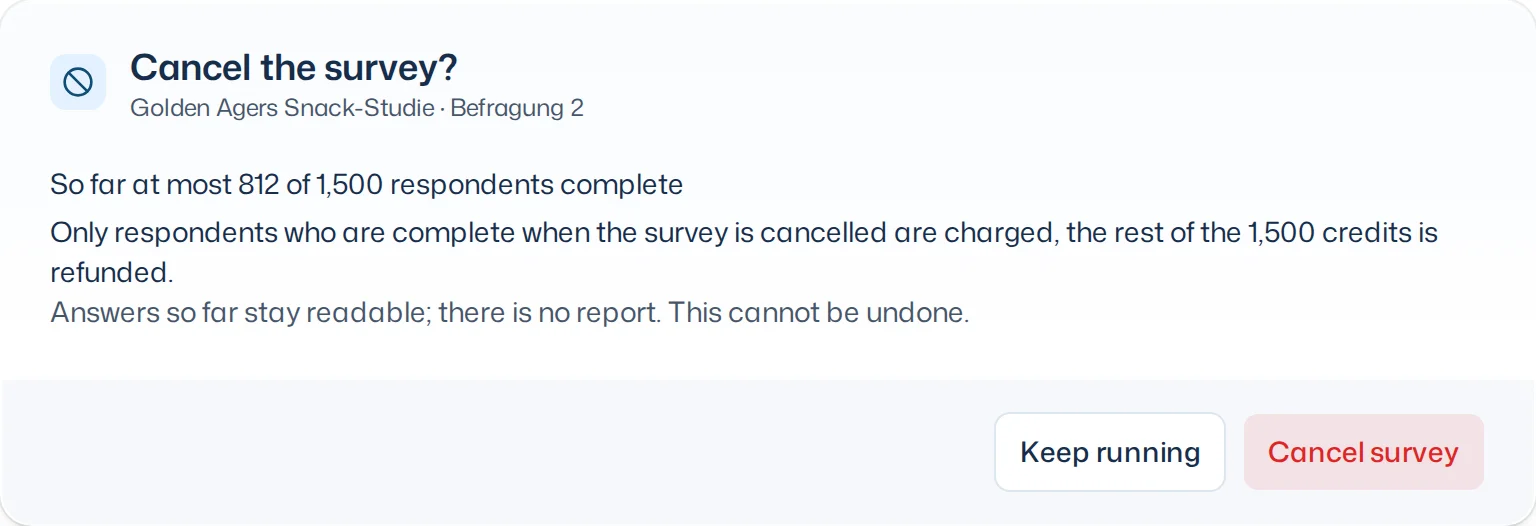
More about cancelling and refunds in Problems & refunds.
When a confirmation no longer applies
A confirmation only covers exactly what it shows. If the design, the panel or the price changes afterwards, you can't confirm it any more:
- Confirmation expired with the reason, for example This confirmation is no longer valid because the audience changed. Request a fresh confirmation. Ask Iris to prepare the step again.
- The price has changed: 30 Credits instead of 20: nothing has started yet. The button now names the new price, for example Start for 30 Credits. Check it and confirm again.
- There are not enough Credits to start this study. or Your credit limit has been reached.: Buy credits or Change plan gets you further if you are an owner. Otherwise, contact an owner of your team.
If a launch can't go ahead, the card sometimes offers buttons such as Request a new preparation or Ask to review the Design. They put a matching request to Iris into the input field. Nothing is sent until you send it.
Cards with results
Many cards simply show what Iris did. There is nothing to decide.
- Panels: panel cards when you ask Iris for suitable audiences or the details of a panel.
- Report and Presentation, when Iris changes a report's key statement or summary at your request or builds a presentation. While she works, the card shows a skeleton, afterwards, for example, Report updated or Presentation changed and a summary of the change. More in Change a report and Presentation.
- Theme list, when Iris sorts open answers into themes. The card names its question. Calculation results appear directly in Iris's answer. More in Analysis in the chat.
- Result message: when a survey run you launched in the chat is finished, Iris reports back there with the study, the run, the panel, n and field end, the key statement, KPIs, Open report and Mark for presentation.
- Failed survey run: the card carries the status Survey failed and shows how many answer cells were completed. Repeat asks Iris to prepare a new launch. You still start it yourself.
Iris creates and changes survey designs in the conversation. To review or edit one, open a study's Design view in the Dock or the design page; more in Survey design. Iris answers questions about panel members and corpus profiles in text, for example with a summary or individual profile examples.