

Manage your team
How your team is set up and where you configure it.
A team is the shared workspace in theconsumer.ai. Team panels, Brand Kits, KPI templates, team context, team templates and credits belong to the team. Studies, presentations, files and questions lie in projects you share with each other, see Projects and chats. This section is mainly for owners who set up and run the team.
Switch or create a team
The name of your current team sits at the top left of the header. Click it to see all your teams. From there you switch teams or create a new one with Create a Team. Whoever creates a team becomes its Primary Owner.
Settings
Open the settings from the account menu at the top right with Settings. Members, Billing and Usage in the account menu and in search take you straight to that area of the settings.
The Overview shows every area by group, each with one line on what you find there:
| Group | Areas |
|---|---|
| My account | Profile: your personal details, valid in all your teams, see My account |
| Team | General (team name, team logo, Danger Zone), Members, Team context, KPIs, Brand Kits |
| Credits & billing | Usage and Billing, if your team has this page |
| Connections | Integrations |
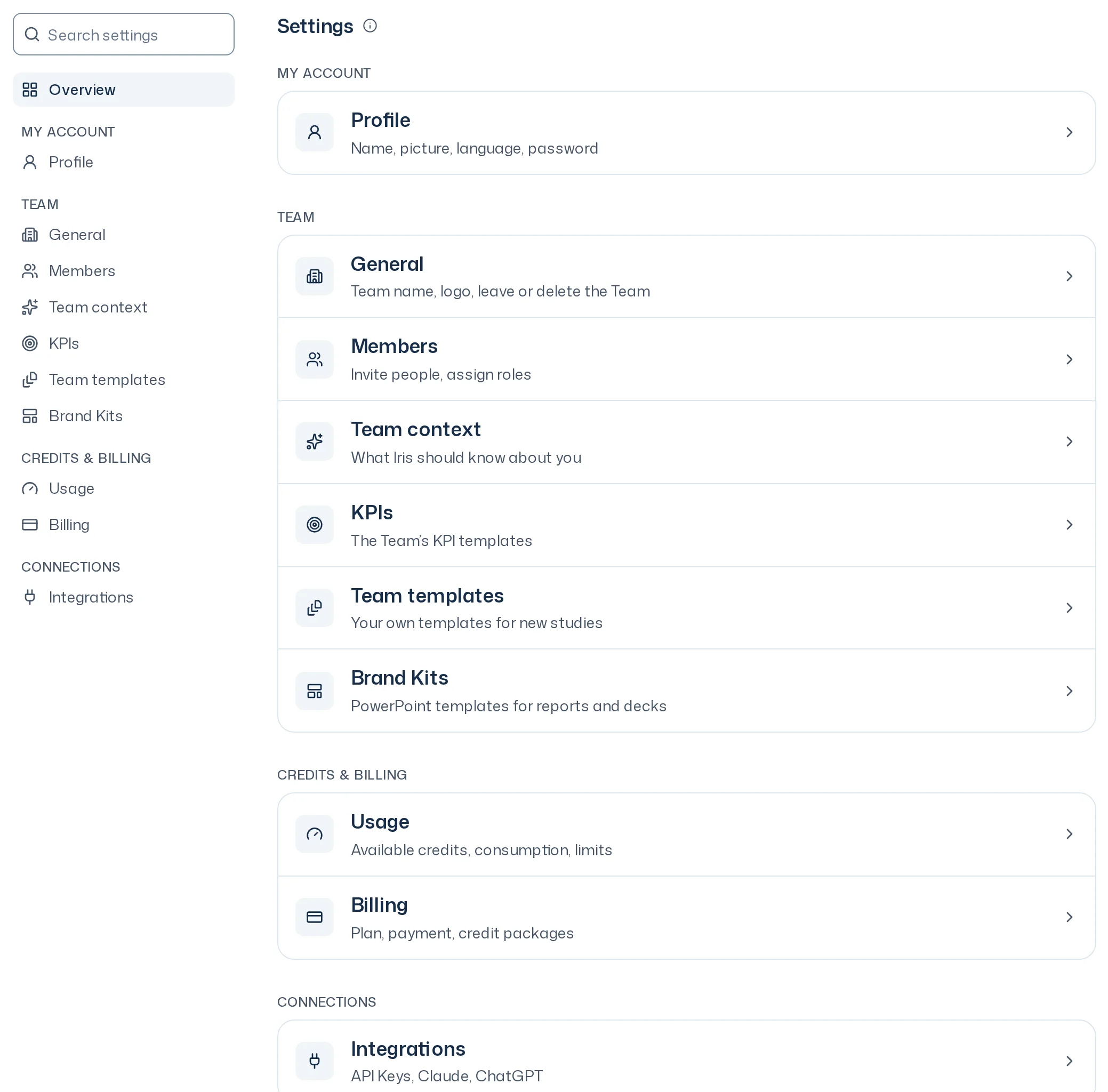
On the left, the same structure appears as a sidebar with the Search settings field. Search also finds areas by words that are not in their name, such as “subscription” for Billing or “invite” for Members. Press Enter to open the first match. On a phone there is no sidebar; the Overview leads into the areas.
Above its title, each area shows where it sits, such as Settings › Team. The ? next to the title explains the area briefly and links the matching page of this guide. The team's KPIs are covered in KPIs.
What you can change
The info icon next to Settings shows your role in this team and who the owners are, for example: Your role in Acme: Member. Areas with a lock are view-only for you. Owners: Anna Weber and Ben Kraus. Which role may do what? leads to Members & roles.
- Areas where you cannot change anything carry a lock and View only in the Overview. For members these are Team context and Billing.
- If there is something in an area you may not do, a line with a lock sits below the title. It says who may and names them, such as Only Owners change the Team context: Anna Weber and Ben Kraus.
If your role changes, the settings adjust without a reload as soon as you return to the window.
Team name and logo
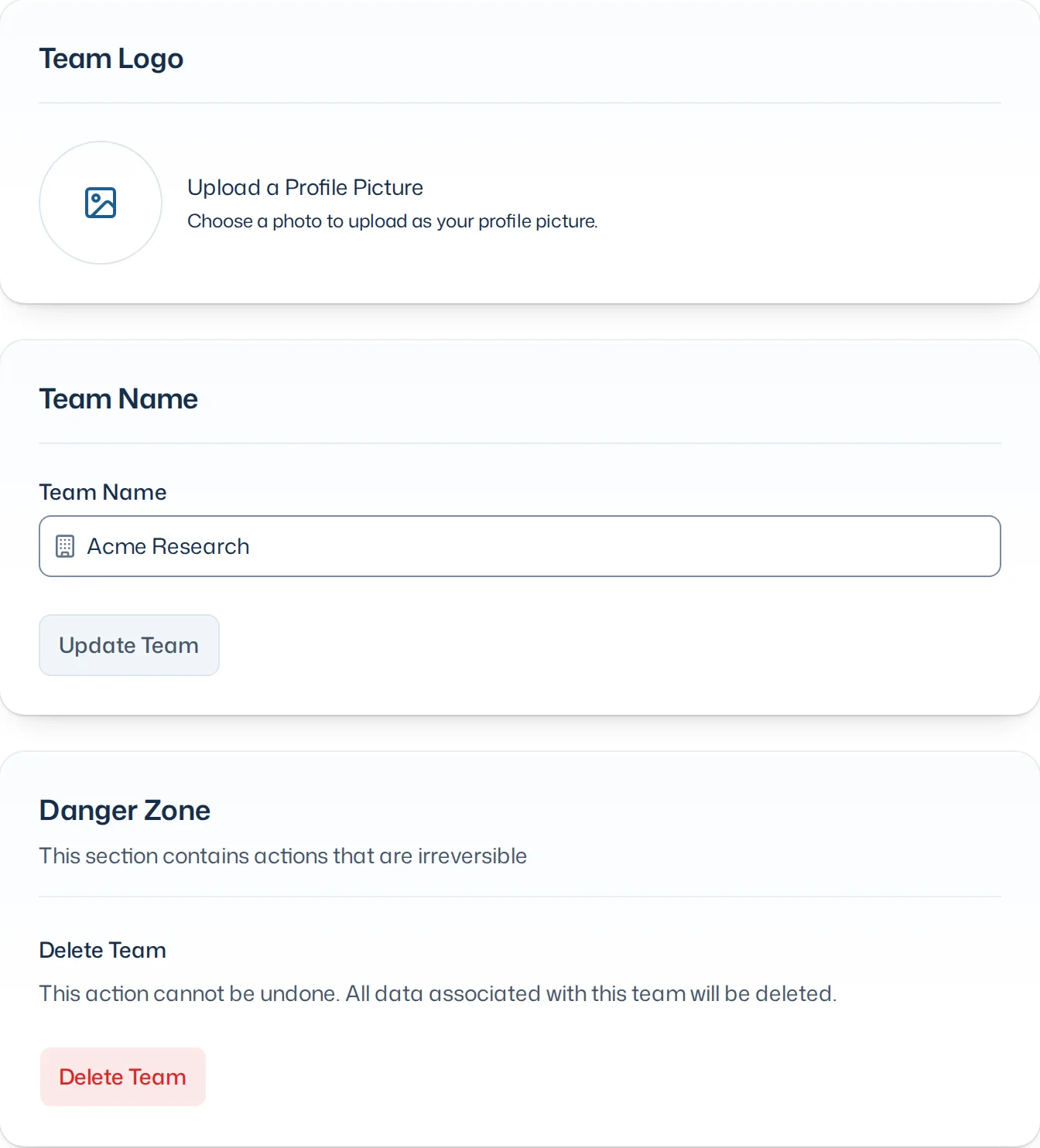
General holds the Team Logo, the Team Name and the Danger Zone. Only the Primary Owner changes the name and logo. Everyone else sees both read-only, with Only the Primary Owner changes the Team name and logo: and their name above. How to leave or delete the team is in Members & roles.
Roles at a glance
Everyone in a team is an Owner or a Member. Exactly one owner is also the Primary Owner.
| Task | Member | Owner | Primary Owner |
|---|---|---|---|
| Research with Iris, start studies, read reports | yes | yes | yes |
| Invite people as members, remove invitations | yes | yes | yes |
| Create, edit and remove KPI templates | yes | yes | yes |
| Connect Claude or ChatGPT as a connected app | yes | yes | yes |
| Create and revoke your own API Keys | yes | yes | yes |
| Manage team templates | yes | yes | |
| Invite people as owners | yes | yes | |
| Change or renew member invitations | yes | yes | |
| Change members' roles, remove members | yes | yes | |
| Write the team context, switch on integrations, revoke any API Key | yes | yes | |
| Set credit limits, manage billing | yes | yes | |
| Generate panels | yes | yes | yes |
| Change or renew owner invitations, change owners' roles, remove owners | yes | ||
| Change the team name and logo | yes | ||
| Transfer ownership, delete the team | yes |
Details are in Members & roles.
In this section
- Members & roles: invite people, assign roles, transfer ownership.
- Team context: tell Iris once who you are and what to keep in mind.
- Brand Kits: upload your PowerPoint template for presentations.
- Credits, usage & limits: how credits work, where you see usage and how credit limits work.
- Pricing and credits: the plans, the credit formula, packages, additional panels and Premium Twins.
- Billing: your team's plan and credits.
- Integrations: use studies and questions from other tools via REST or MCP.