

Notifications
What the bell and the emails tell you.
Survey runs and panel generations run in the background. When something finishes or goes wrong, theconsumer.ai tells you with a notification, so you don't have to wait for a study to finish.
Who gets notified
A notification goes to the person who confirmed the start, not to the whole team. If you started a survey run, you are told when its report is ready. Your colleagues still see the study in the Studies tab. Ad-hoc questions don't send notifications; you see their answers and any failure on their card in the thread.
Types
| Notification | Meaning | Opens |
|---|---|---|
| Report ready | The analysis is done and the report is available. | the study page |
| Survey cancelled | A running survey was cancelled. | the study page |
| Survey failed, Credits refunded | The survey run could not be completed. Your team got all credits back. | the study page |
| Panel generated | A new panel is finished and ready to use. | the Panels tab |
| Generation failed | A panel could not be generated. | the Panels tab |
What to do after a failure is covered in Problems & refunds and Choose or create a panel.
The bell
The bell sits at the top right of the header. A number on it shows how many notifications are unread. Click it to open the Notifications list, grouped into Today, Yesterday, This week and Older. Each type has its own icon, and unread ones are highlighted.
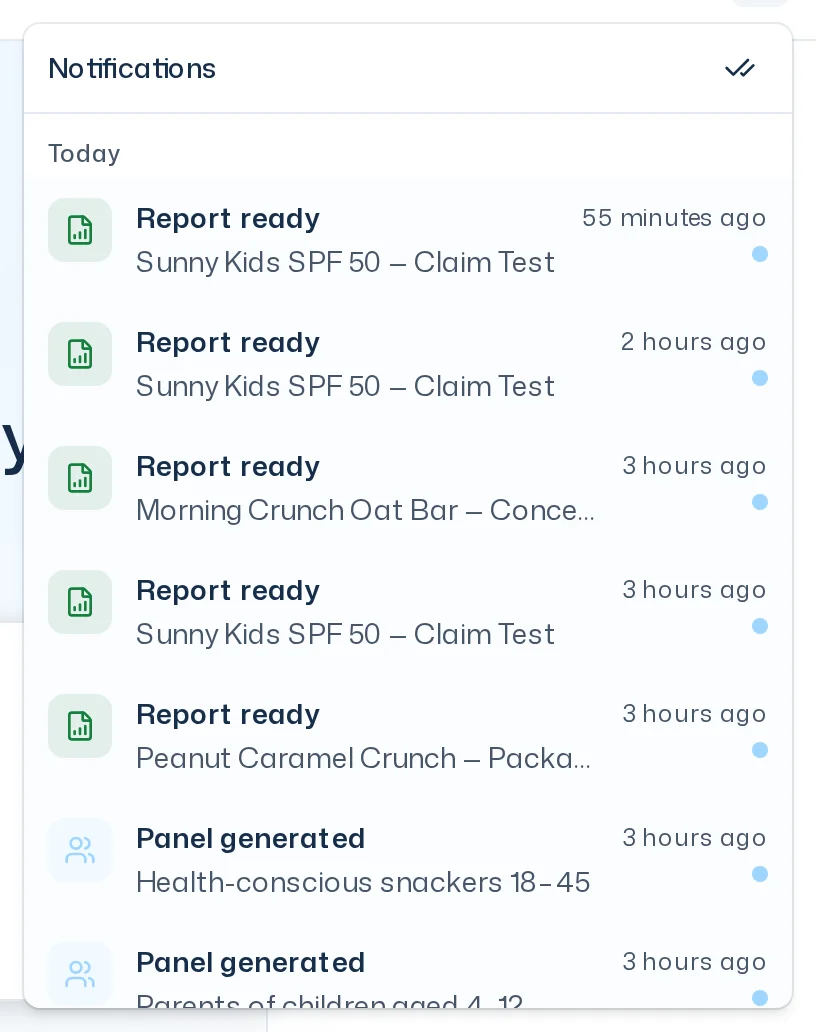
- Clicking an entry opens its target and marks only that entry as read.
- Just looking at the list doesn't mark anything as read.
- Mark all as read at the top of the list marks them all at once.
- You can't mark an entry as unread again.
The bell shows the notifications of the team you're currently in. Inside a thread it's hidden; go to the home page to see it.
If a team on the On Demand plan has 5 credits or fewer left, the bell carries a dot: Credits running low. It is not an entry in the list. Where your team gets more credits is covered in Billing.
If a notification arrives while you're using the app, a short message pops up. Open takes you straight to the target.
You also get an email for every notification. It names the team and the study or panel and links to the target. Emails are currently in English. There are no settings yet for turning off individual types.