

KPIs
Mark questions as KPIs, use and adapt KPI templates.
A KPI is a single closed question whose answers the report sums up as one value, for example "Purchase intent: 62 % top 2 box". KPIs appear in the report as their own cards right after the summary.
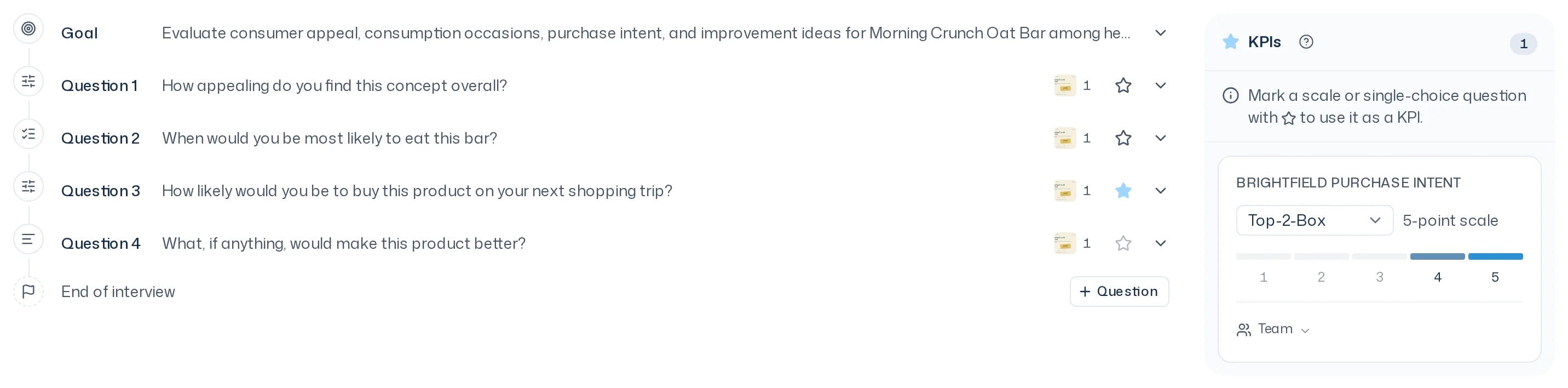
Mark a question as a KPI
- Open the design in the Dock or in the Designs tab.
- On a Closed scale question, or a Choice question with One answer (Single), click the star (Mark as KPI).
- Set the Calculation in the KPIs area.
Open questions and multiple-answer choice questions can't be KPIs; their star is locked. If you switch a starred choice question to Multiple answers (Multi), the editor says "A multiple-answer question can't be a KPI. Choose one answer or remove the star."
On wide screens, the KPIs area sits next to the questions. With less space, switch between the Questions and KPIs tabs. Remove KPI takes the star off again; the question stays in the design.
Calculations
| Calculation | Meaning |
|---|---|
| Top-2-Box | Share of respondents who pick one of the two highest scale points |
| Top-Box | Share who pick the highest scale point |
| Bottom-2-Box | Share who pick one of the two lowest scale points |
| Mean | Average of all answers on the scale |
| Share “option” | Choice questions only: share who pick one particular option. Pick the option under Share: choose option. |
KPI templates
A KPI template fixes the wording, scale and anchors of a scale question. Using the same template means measuring the same thing across studies. That is what makes values comparable.
Below a starred scale question, the KPIs area shows what it is based on:
- Standard: a KPI template by theconsumer.ai.
- Team: a KPI template of your team.
- Own question: no template. The report names the KPI after the question.
If it also says adapted, the wording or an anchor differs from the template. Clicking the source opens a menu:
- Choose KPI template (or Choose another KPI template): takes the wording and scale from the catalog.
- Remove KPI template: the question stays but no longer counts as this KPI.
- Reset wording: restores the template's wording and anchors.
- Save as KPI template: keeps the question as a new team KPI template for future studies.
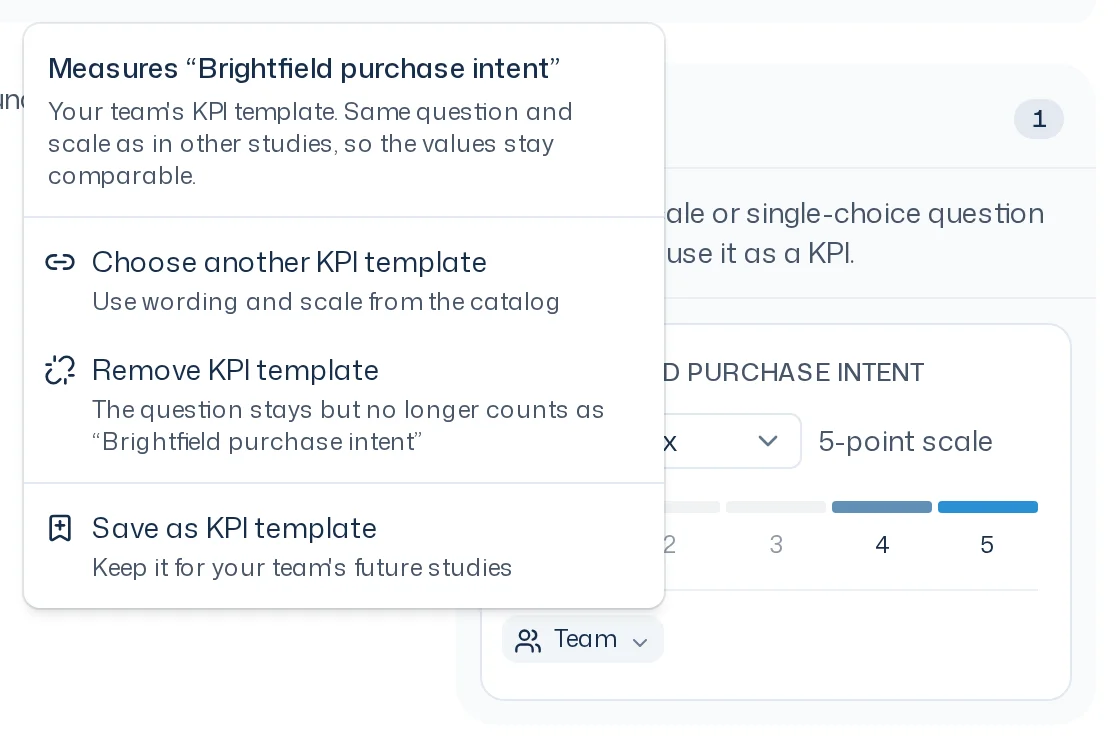
If you change the scale of a linked question, the editor asks Change scale?. With a different number of scale points, the question measures a different KPI. You can create a KPI template of its own for it, remove the link, or cancel the change.
The standard KPI templates
All six use a 7-point scale and the Top-2-Box calculation. The standard templates for concept, pack and key visual tests build on them.
| KPI | Wording |
|---|---|
| Liking | Overall, how much do you like or dislike this product? |
| Purchase intent | How likely would you be to buy this product? |
| Relevance | How relevant is this product to you personally? |
| Differentiation | How different is this product from other products you know? |
| Believability | How believable do you find the claims about this product? |
| Quality impression | How high-quality does this product look to you? |
Manage your team's KPIs
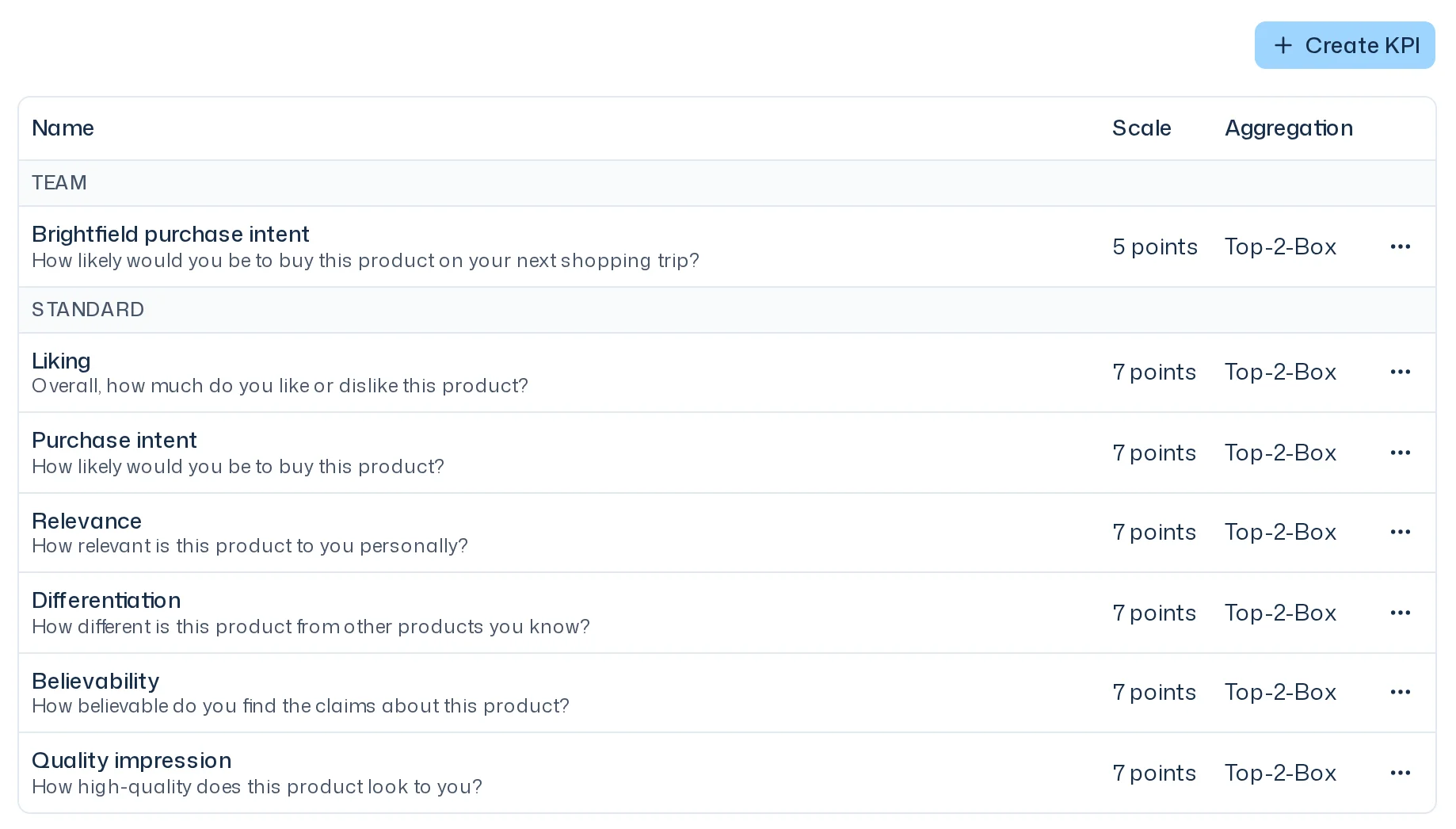
Under Settings > KPIs you see all KPI templates with Name, Scale and Aggregation, split into Team and Standard.
- Create KPI: a new team KPI with Name, Wording, Lower anchor, Upper anchor, Scale points (2 to 11) and Default aggregation.
- Adapt on a standard KPI: creates a team copy, for example "Purchase intent (adapted)", that you can reword.
- Edit and Delete on a team KPI. Questions linked to a deleted KPI keep running without a link.
Owners and members can create, edit and delete them.
A KPI template's scale points are fixed once it is created; a different scale is a different KPI. Iris knows your team's catalog and uses matching KPI templates when it drafts a design.
KPIs in the report
Each KPI appears in the report under KPIs as a card with the value, the calculation, the scale (such as Top 2 box · 7-point scale) and the number of answers. A KPI without a template carries the note Question without a KPI template. How to read the cards is covered in Read a report.