

Integrations
Use studies, ad-hoc questions and results from other tools via REST or MCP.
An integration lets another tool access your team, for example an AI assistant that speaks MCP or your own script using REST. There are two ways in: a team API key, created by an owner, which acts on the team's behalf, and a connected app, where you connect Claude or ChatGPT to your team by signing in and which acts on your behalf. Anything that costs money or ends a running survey is always confirmed by a member in the browser.
What an integration can do
- list the team's studies, survey designs, materials, panels and ad-hoc questions
- check a survey run's status, read its report and the individual responses
- create and update survey designs
- upload images and PDFs to the team
- request a survey start, an ad-hoc question or a cancellation, a start also with a background
The integration can't start, ask or cancel by itself. It receives a confirmation link that a member opens.
Both ways in can do all of this. The difference is on whose behalf:
| Team API key | Connected app | |
|---|---|---|
| Acts as | the team | you, the connecting member |
| Designs | the key is the author | you are the author; it edits your own designs directly, someone else's become a variant of yours |
| Confirm and upload | any member of the team | only you |
| Ad-hoc questions | belong to the team | stay private to you; it also reads your ad-hoc questions from your threads |
| Upload files | upload page or directly via an upload address | upload page only |
Designs a connected app created or changed appear in the design picker and among the team templates with the note via Claude · your name.
Switch on integrations
Only owners manage integrations, and they need a paid plan.
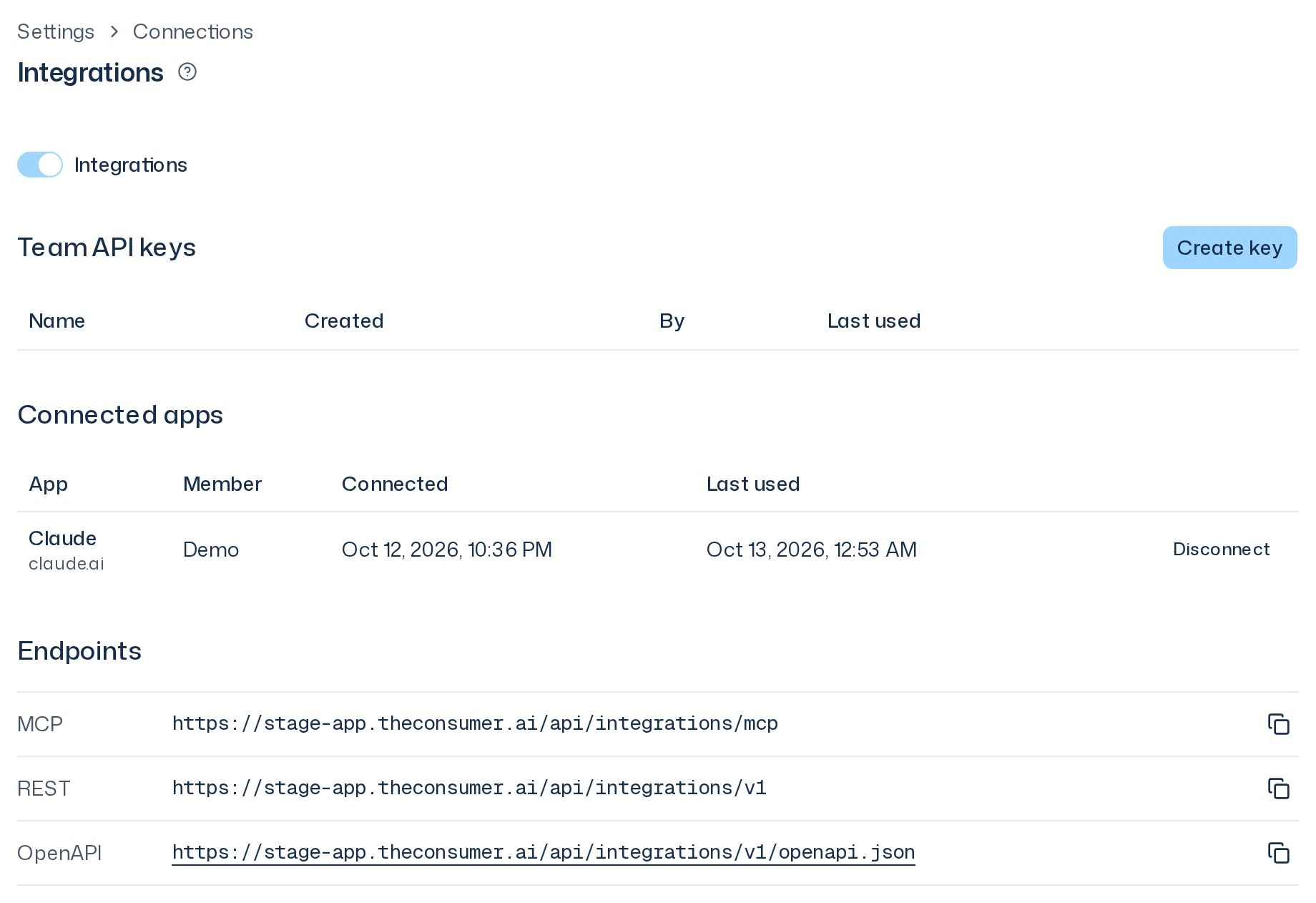
- In the account menu, open Settings > Integrations.
- Switch on Integrations. Without a paid plan, it says Paid subscription only next to it.
When you switch them off, the app asks Switch off Integrations?: open confirmation and upload links become invalid for good, even if you switch integrations on again. Members see the switch, the MCP address and their own connected apps on this page, and below the title the note You connect Claude or ChatGPT yourself. Only Owners create Team API Keys: with their names.
Create a team API key
- Under Team API keys, click Create key.
- Enter a Name that says where the key is used, such as
Claude DesktoporReporting script, and click Create. - The New team API key dialog shows the key. Copy the key now. It is shown only once. Click Copy, then Done.
From then on the table shows Name, Created, By and Last used, but never the key itself. If you need it again, create a new one.
Treat the key like a password. It belongs to the team, not to you: whoever has it can read and make requests on the team's behalf. If a key may have leaked or is no longer needed, click Revoke and confirm. It stops working immediately and the row shows Revoked on …. Open links created with that key become invalid.
Connect a tool with the key
Endpoints lists the addresses of your access, each with a copy button. Members see only the MCP address:
| Endpoint | Used for |
|---|---|
| MCP | AI assistants and other tools that support the Model Context Protocol |
| REST | your own scripts and automations |
| OpenAPI | the description of all REST endpoints, for developers or code generators |
The tool sends the key in the Authorization: Bearer <key> header. In an MCP-capable tool, add the MCP address as a server and store the key as that header. Your tool's documentation explains how. Claude and ChatGPT need no key: you connect them as a connected app.
Connected apps
You connect Claude and ChatGPT without a key: enter the MCP address, sign in to theconsumer.ai and choose a team. Any member can do this once an owner has switched integrations on. The team needs a paid plan for it.
Connect Claude
- Under Settings > Integrations, copy the MCP address.
- In Claude, open Customize > Connectors and click Add custom connector. Enter the MCP address and click Add. In a Team or Enterprise organization, an owner adds the connector under Organization settings > Connectors; you then click Connect on it.
- Claude opens the page Connect Claude to theconsumer.ai. Sign in if needed. If you have a second factor set up, confirm it too.
- Under Team, choose the team Claude should work in for you and click Connect. Cancel connects nothing. You then return to Claude.
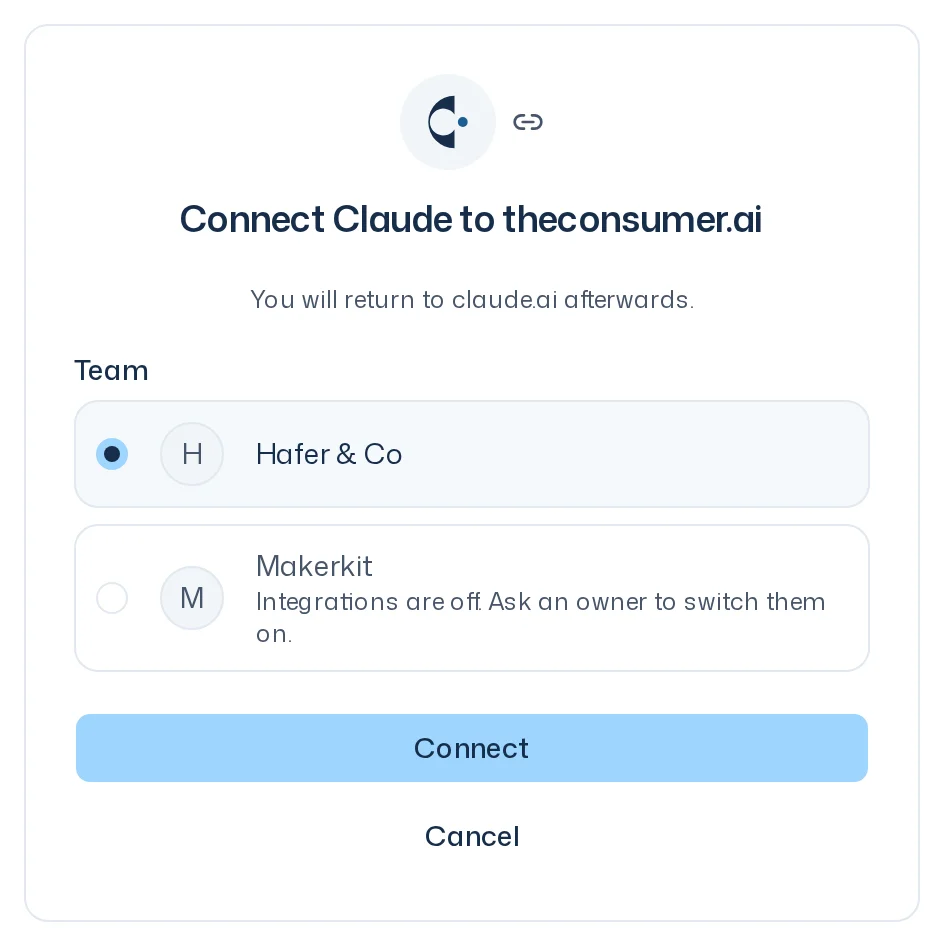
Teams where integrations are off or the plan is missing are greyed out and say why, for example Integrations are off. Ask an owner to switch them on. A connection is for exactly one team. For a second team, connect the app again.
Connect ChatGPT
In ChatGPT, add your own MCP server (Add custom MCP server), enter the MCP address and choose sign-in via OAuth. ChatGPT's documentation has the exact steps. The connection page and the team choice are the same as for Claude; ChatGPT shows up there as Codex.
See and disconnect connections
Under Settings > Integrations > Connected apps you see your connections with App, Connected and Last used. Owners see every member's connections, with a Member column.

Disconnect ends a connection at once: the app loses access to this team, the row shows Disconnected on …, and open confirmation and upload links of that connection become invalid. Surveys you already confirmed keep running. Owners disconnect any connection, members their own. A connection also ends when you leave the team or are removed from it, and by itself after 90 days. While integrations are off or the plan has ended, no connected app gets through until both are back. To reconnect, start the connection again in Claude or ChatGPT.
The confirmation page
When an integration requests a start, an ad-hoc question or a cancellation, it gives you a link. Open it in the browser and sign in if needed. For a team API key, any member of the team can confirm; for a connected app, only the member who connected it.
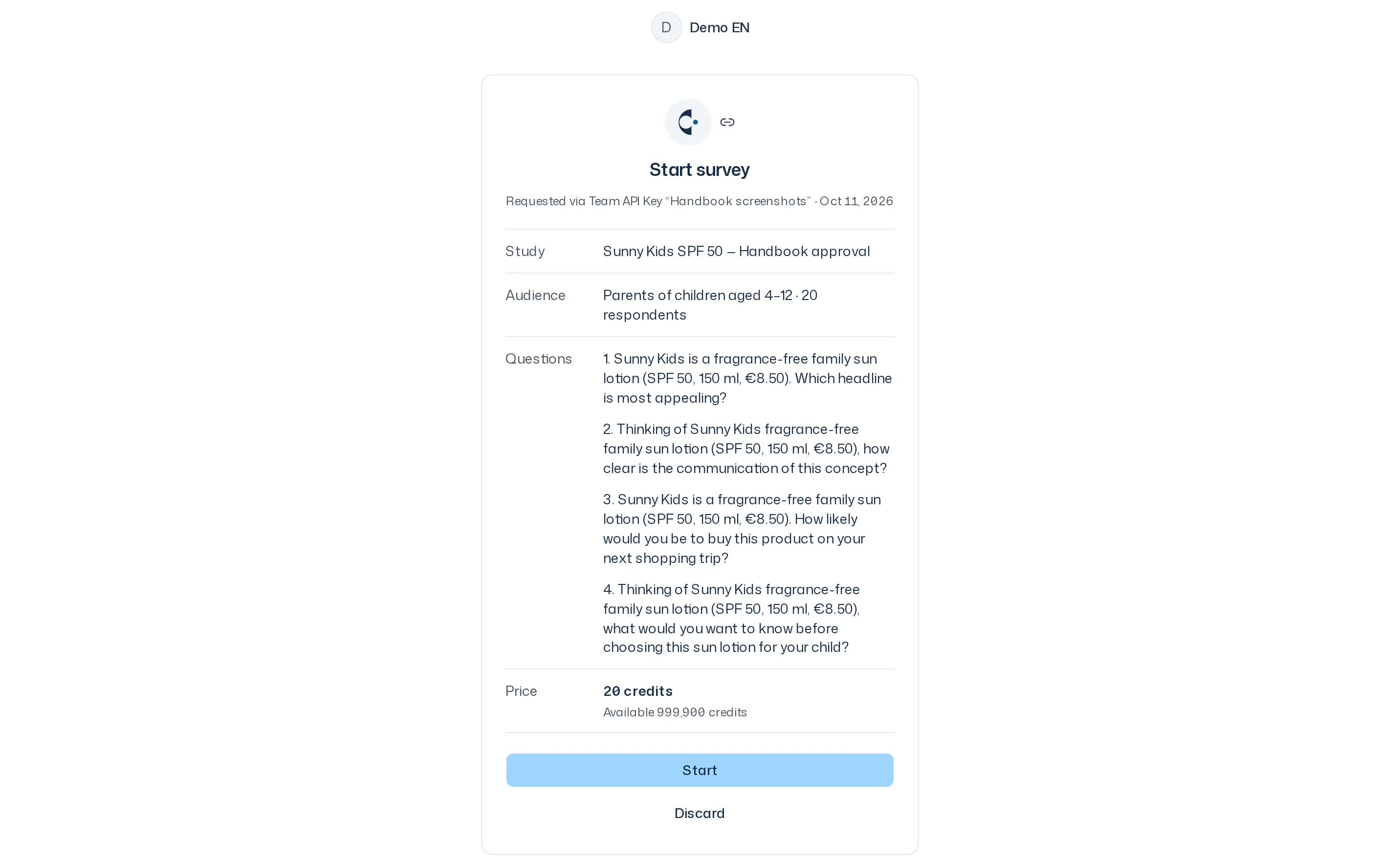
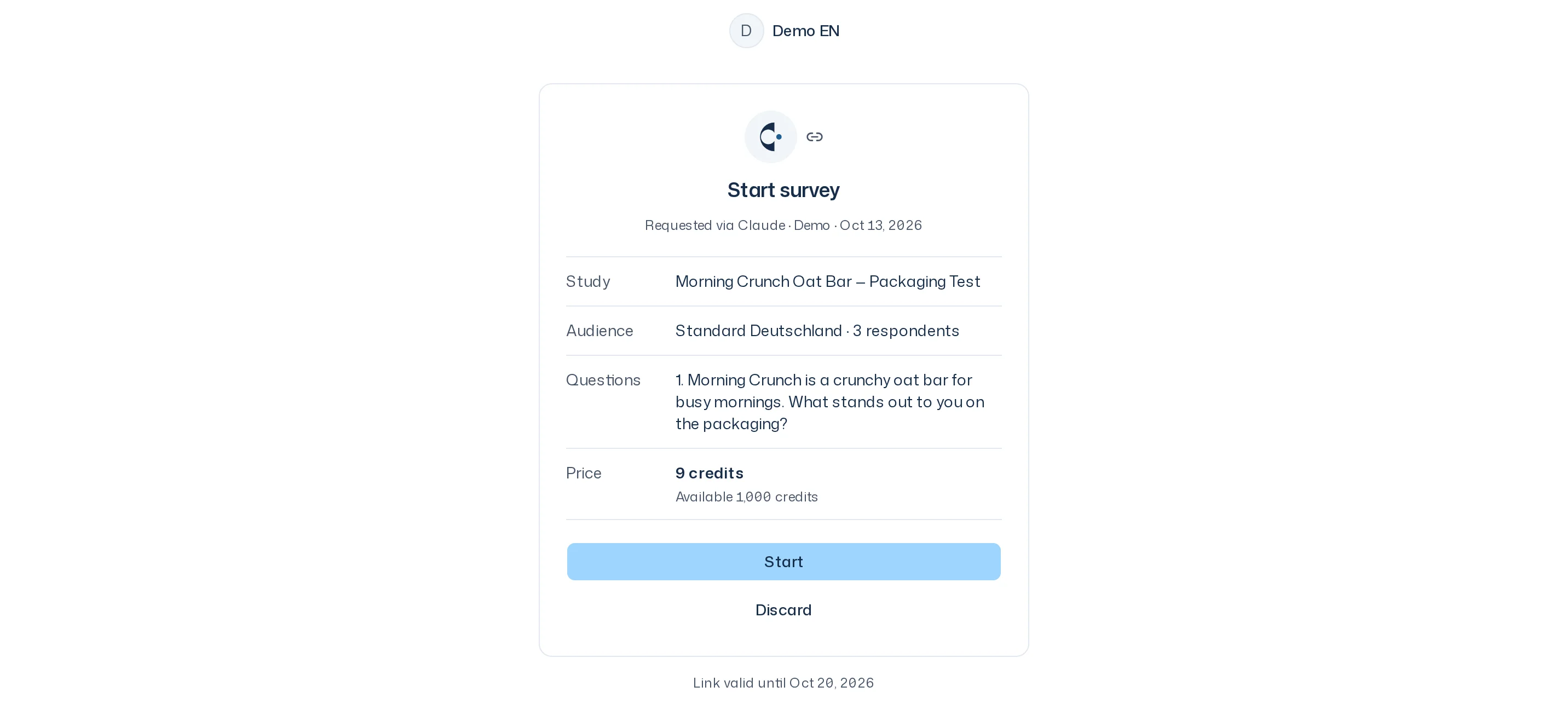
The heading names the action: Start survey, Ask question or Cancel survey. Below it you see where the request came from, with the date: Requested via Team API Key “…” with the key's name, or Requested via Claude · name with the app and the member, then the details:
- Study, Audience with the number of respondents, Questions with their stimuli, Price and Available
- for ad-hoc questions, the question itself and, if set, the Follow-up
- for a cancellation, the consequences: answers so far stay readable, there is no report, only respondents who answered fully are charged.
Confirm with Start, Ask question or Cancel survey, or decline with Discard without anything being charged. A link is valid for 7 days; the page shows the end as Link valid until ….
Whoever confirms counts as the starter: the price counts towards your credit limit and the survey's notifications go to you. For a team API key, the study belongs to the team from that click on. For a connected app, it belongs to you and stays invisible to the team until the first survey runs. If something changed since the request, the page shows a note such as Something changed. Review it and confirm again.
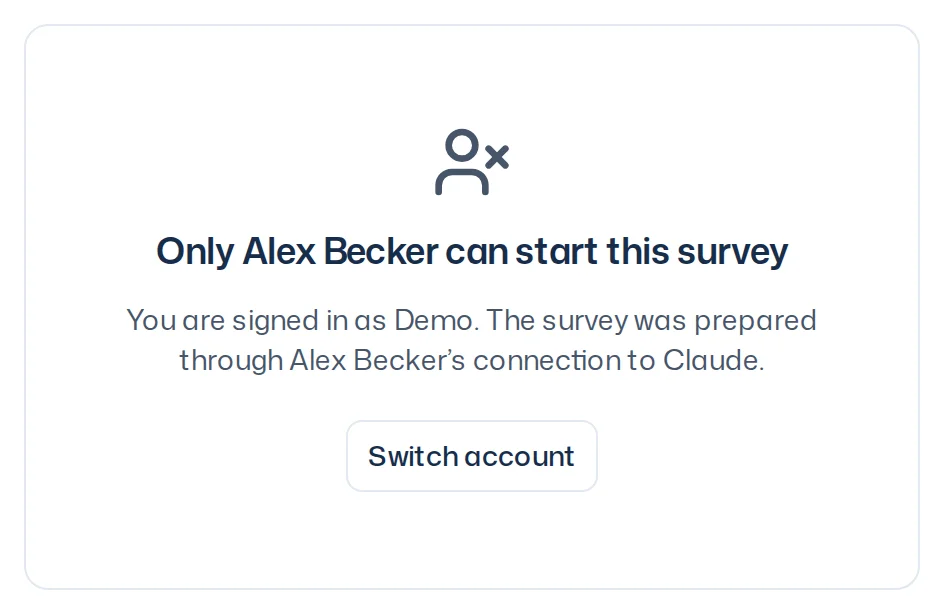
If another member opens a connected app's link, they see no details but Only name can start this survey (for questions … ask this question, for cancellations … cancel this survey) and who they are signed in as. Switch account signs you out and returns to the link after sign-in.
| Result | Meaning |
|---|---|
| Survey started / Question asked | Done. View study opens the study. |
| Discarded | Declined; no credits were charged. |
| Link expired | The 7 days are over. Have the integration request it again. |
| Link invalid | The key was revoked, the connection was disconnected or expired, the member left the team, Integrations were switched off, or the subscription ended. The reason is shown below. |
| Not started | The start didn't go through and no credits were charged. The reason is shown below. |
Ad-hoc questions via an integration
An integration can ask a whole panel one open question, without images. Once you confirm with Ask question, a question via a team API key belongs to the team: every member sees it under Studies with the Ad-hoc questions filter. A question via a connected app stays private to you, like a question from your thread. When it's answered, the confirmation page says Results ready and the integration can fetch the answers. There is no notification for it. How ad-hoc questions work is explained in Ad-hoc questions & recontact.
Images via the upload page
If a design needs images, the integration can request an upload link. The Upload images page names where the link came from, as on the confirmation page, the Design and how much room is left, for example 7 of 10 left. Only the connecting member can use a connected app's link; other members see Only name can upload here and Switch account.
- Drag the files into the field or choose them: JPG, PNG, WebP up to 10 MB · PDF up to 20 MB.
- Click Done. The page says Images are in the team.
The integration then assigns the images to the design. An upload link is also valid for 7 days.
Upload files directly
A team API key can also send files directly via an upload address, without the upload page; a connected app can't. This brings images (JPG, PNG, WebP) and PDFs up to 50 MB into the team, a PDF up to 150 pages. The file becomes a material of the team and can be a stimulus of a design or the background of a study. The tighter limits for stimuli (images up to 10 MB, PDFs up to 20 MB and 20 pages) are only checked when the integration assigns the file to a design as a stimulus.
The app then reads an uploaded PDF. The integration sees how far it has got when it fetches the material, see below.
Give a background
When an integration requests a survey start, it can pass up to 20 of the team's PDFs as background, in the order it wants. With the click on Start, the study takes them as its background and keeps each file as it stands then. The confirmation page doesn't show the background, because it is about scope and cost. After the launch, it is in the Study section under Background, in the Dock and on the study page.
Allowed are team PDFs the app can read or is still reading. The request is turned down for an image or a PDF that could not be read. Personal files are never allowed.
Give a goal
An integration can also give the study a goal: the business decision the study supports, in one sentence. With the click on Start, the new study takes it as its goal, and the survey keeps it as it stands then. Like the background, the confirmation page doesn't show the goal.
For developers: REST and MCP
REST and MCP offer the same tools under the same names. The full description of every tool is in the OpenAPI description under Endpoints. For materials and the background:
| Tool (MCP) | REST | What it does |
|---|---|---|
start_material_upload | POST /material-uploads | Starts an upload: returns a signed address for the bytes. Team API key only. |
finish_material_upload | POST /material-uploads/{uploadId}/finish | Finishes an upload: returns the material. |
list_materials | GET /materials | Lists the team's images and PDFs |
get_material | GET /materials/{materialId} | One image or PDF with a download address |
request_survey_start | POST /requests/survey-start | Requests a survey start, optionally with studyContextMaterialIds and studyGoal |
Processing of a PDF. get_material and list_materials return the field processing, null for images. For PDFs:
| Field | Values |
|---|---|
state | processing (being read), processed (read), partial (single pages missing), failed (can't be read) |
pageCount | number of pages |
failureReason | only with failed: too_many_pages, unreadable, content_mismatch or no_pages_extracted |
missingPages | only with partial: the missing pages |
indexState | whether the PDF is searchable: pending, indexed or failed; null while state is processing or failed |
After an upload, the integration polls get_material until state is no longer processing.
Background at launch. studyContextMaterialIds is a list of material IDs: at most 20, each at most once, in the order of the background. The list is part of the request's identity: without a requestKey, a different list or order is a different request. A requestKey belongs to exactly one request; a different list or order needs a new requestKey, otherwise the API answers invalid_request. Errors:
| Code | When |
|---|---|
material_unreadable | A material is not a PDF or its PDF could not be read (state failed). The error's materialId field names the material. |
invalid_request | A material is unknown, belongs to another team or is personal (then materialId names it), or the list has more than 20 entries or a material twice. |
Goal at launch. studyGoal is text of at most 500 characters; spaces at the start and end are dropped, and a blank goal counts as none. Longer is invalid_request. The goal is part of the request's identity like the list: without a requestKey, a different goal is a different request, and a requestKey with a different goal is invalid_request.
Upload limits. start_material_upload and finish_material_upload check the limits for materials: images and PDFs up to 50 MB (maxBytes is 52428800), a PDF up to 150 pages. Above that, start_material_upload (by the stated size) and finish_material_upload (by the uploaded file) answer with invalid_request. The limits for stimuli are only checked by update_survey_design. The upload page (request_image_upload_link) still checks the limits for stimuli.
API changes
October 2026
- Breaking change:
start_image_uploadis nowstart_material_upload,finish_image_uploadis nowfinish_material_upload. The REST paths move from/image-uploadsto/material-uploads. The old names and paths are gone. - An upload checks the limits for materials (50 MB, PDF up to 150 pages) instead of the limits for stimuli. The limits for stimuli are only checked when the file is assigned to a design.
request_survey_startoptionally acceptsstudyContextMaterialIds. New error codematerial_unreadable; an error about one material names it in thematerialIdfield.list_materialslists images and PDFs,get_materialalso returns PDFs. Both have the new fieldprocessing.request_survey_startoptionally acceptsstudyGoal, the goal of the new study (at most 500 characters). It is part of the request's identity.