

Read a report
How a report is built: report basis, summary, KPIs, recommendations and questions.
Every survey run gets its own report. It is created automatically once the analysis is done, and the status then reads Report ready. The report looks the same in the Dock and on the study page: the report basis at the top, then cards in four chapters. Chapters without content are left out.
The report basis
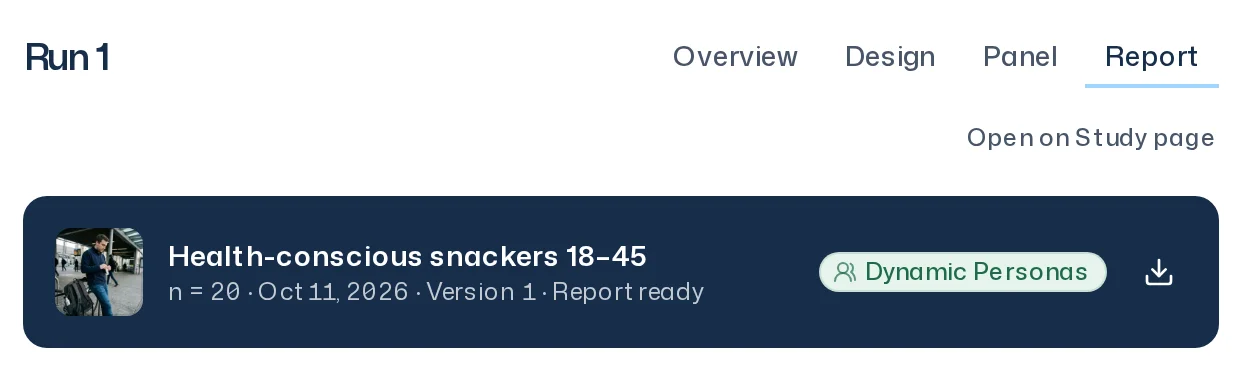
The head of the report tells you what everything below rests on:
- the panel's image and name
- n = 50: how many people answered
- the date the survey ended
- Version 3: the panel version that was surveyed
- Report ready
- the panel type: Dynamic Personas or Premium Twins
The download icon (Download) in the head leads to the Export. Read the head first. What it means for reliability is explained in Judge reliability.
Summary
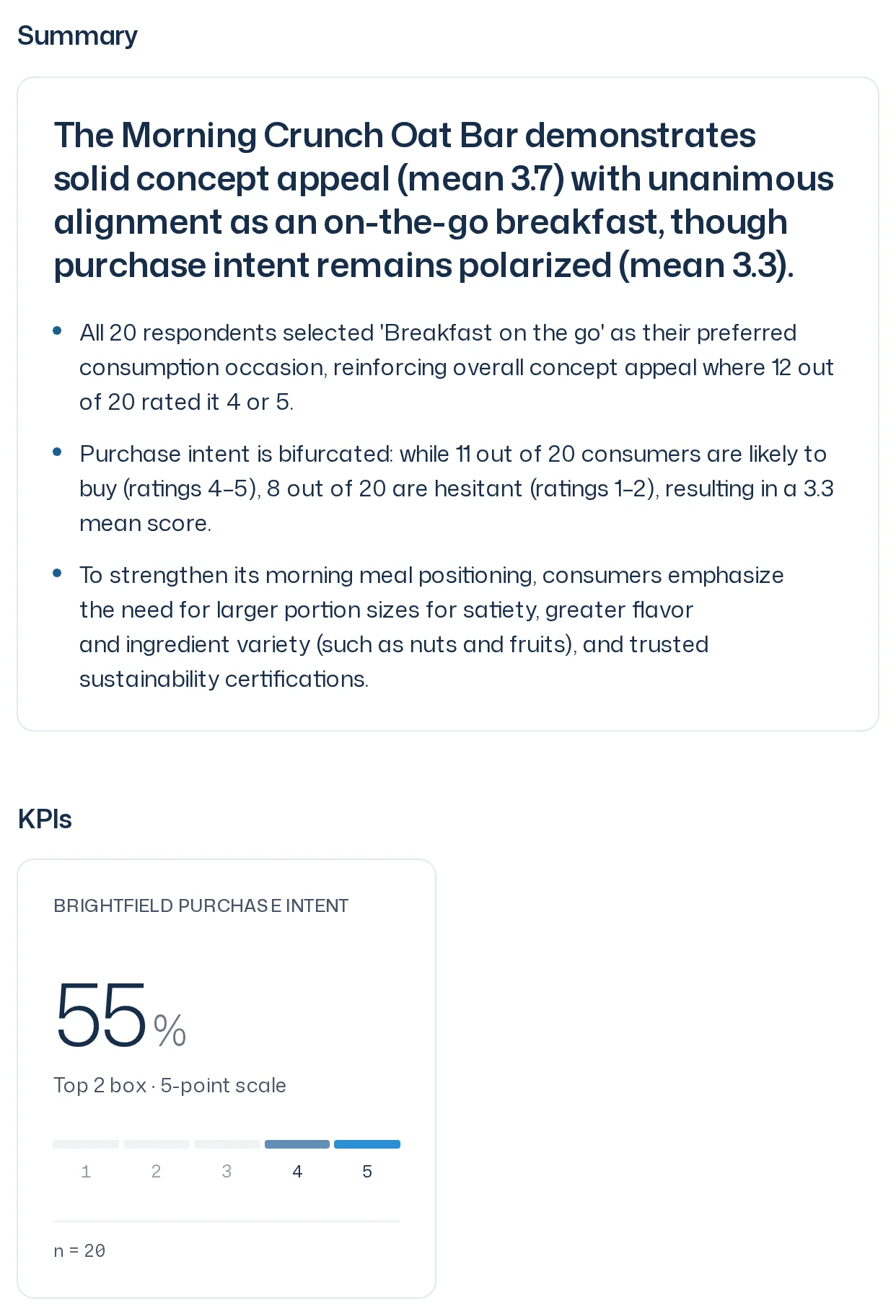
The Summary answers the research question in a headline and a few bullet points. It is the fastest way to the result. It does not show evidence directly; you find that in the recommendations and questions below. If the study has a goal, the headline, bullet points and recommendations frame the result for that decision. The evidence is still the respondents' answers: if they contradict what the goal assumes, the summary says so.
KPIs
If the design has KPIs, each appears as its own card in the KPIs chapter:
- Title: the name of the KPI template, for example Purchase intent. A KPI without a template shows its question text with a speech bubble icon (Question without a KPI template).
- Value: a share, or a number for Mean.
- Basis: for example Top 2 box · 5-point scale or Share “Yes”.
- n = 50 and, where relevant, No answer (technical): 2.
How to set up KPIs is explained in KPIs.
Recommendations
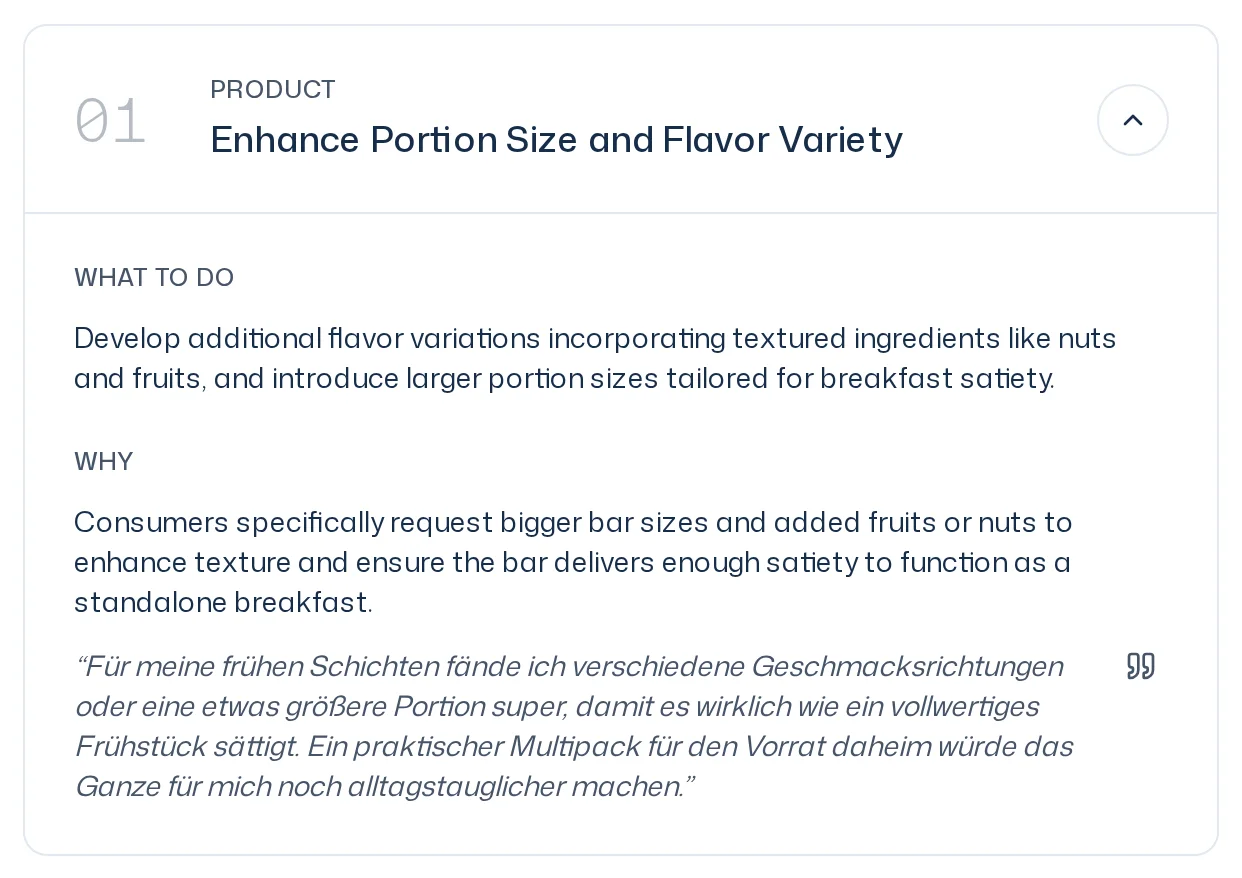
The Recommendations are numbered by priority, 01 first. Collapsed, you see the action field (Product, Price, Communication, Target group, Positioning or Distribution) and the title. Expand a recommendation to see:
- What to do: the concrete step.
- Why: the reasoning, a quote from the answers and the evidence icon, which opens all evidence for this recommendation.
Questions
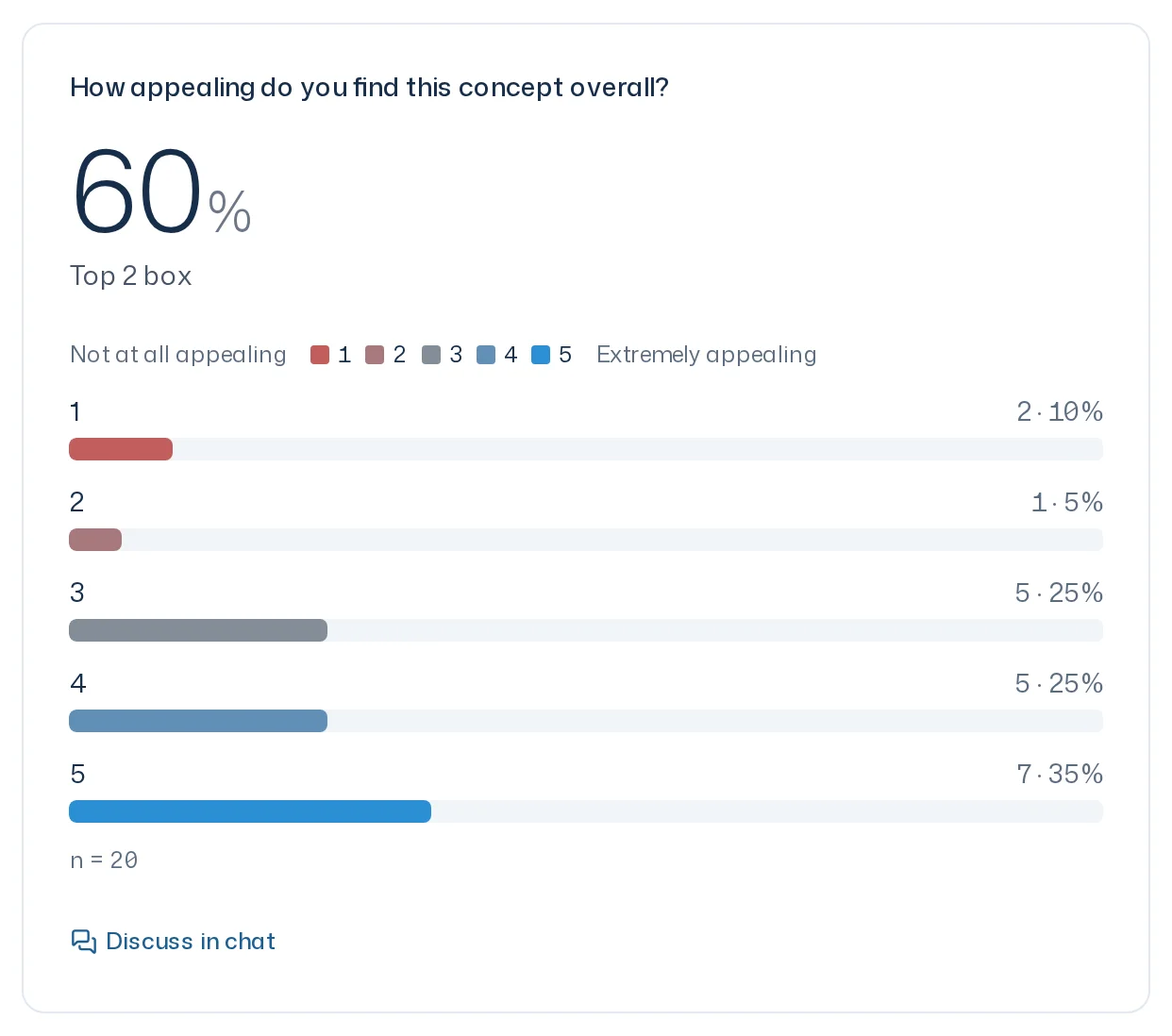
In the Questions chapter, every question of the design has a card. The question is at the top, often followed by a short reading and the key value in large type:
| Question type | Key value | Result |
|---|---|---|
| Scale question | Share of the Top 2 box | Distribution across the scale |
| Choice question | Share of the most frequent option | Distribution across the options, free texts under Other responses |
| Open question | Share of the largest theme | Themes with description and evidence |
On stacked bars, for example when comparing groups or stimuli, clicking n = 50 opens the Distribution details with the share of each answer. Plain bar charts already show the distribution, and n there is just a figure.
For open questions, the analysis groups similar answers into themes. Each theme shows how many answers belong to it, for example 12 / 50. One answer can belong to several themes, so the counts can add up to more than the total.
Background
If the study had a background at launch, a footer below the last chapter names the files the analysis knew, with their dates, for example Background: Briefing.pdf (as of Oct 12, 2026). If it says could not be read, the analysis ran without that file. The background is never evidence: findings and quotes come from the answers.
Navigate and follow up
- On the study page, the Chapters navigation jumps to summary, KPIs, recommendations and questions, each with its number of cards.
- In the Dock, every question card has Discuss in chat. It writes About “How do you like the pack?”: into the composer, and you ask Iris your question about it.
- Breakdowns by attributes such as Age group, Gender or Region are created by Iris on request and added to the report. When Iris compares a subset with all respondents, the chart shows Subset, Total and the difference Δ in percentage points.
- Iris can change the report at your request, for example add a chart or move a card. The Report update card in the thread lists the changes as Added, Replaced, Moved or Removed. Iris never changes the answers or the report basis.
Where to find the report is explained in Results.