

Progress
Follow a study's status, survey and analysis.
After the launch everything runs in the background. You can close the thread and come back later; no progress is lost. You can follow it in three places: the card in the thread, the Overview in the Dock, and the study page.
Survey run status
Every survey run passes through these statuses. You see them in the Dock on each survey run's status ring and, if the Dock is wide enough, as text in its row. Next to the study name is the status of the newest launched survey run, or Draft before the first launch.
| Status | What is happening |
|---|---|
| Draft | Design or panel is still missing. The status line says Design missing or Panel missing. |
| Generating panel | A new panel is being generated, for example 12 of 50 profiles. |
| Ready | Design and panel are set. You can launch. |
| Confirming start | You launched; the survey run is being set up. |
| Survey running | The panel is answering. |
| Analysis running | The answers are in and being analysed. |
| Report ready | The report is available. |
| Survey failed | The survey could not be completed. The credits come back. |
| Analysis failed | The answers are in, but the analysis stopped. You can resume it. |
| Abandoned | Someone cancelled the running survey. |
What to do about the last three is covered in Problems & refunds.
On the Studies tab of the home page every study shows a status badge with the same names. A study with several survey runs also shows the count, for example 2 runs.
During the survey
The Run 1 card in the thread shows:
- the status and the counter, for example 240 of 400 answer cells. An answer cell is one person's answer to one question: 50 people and 8 questions make 400 answer cells.
- Estimated remaining time: counts down from the duration estimated at launch. Once exceeded, it says Taking longer than estimated. That is not an error.
- the Field time once the survey is over.
- until the report is ready, the note “We'll email you when the report is ready.”
When the report is ready, the card folds into one line, for example Run 1 finished with the field time. Click it to expand the card again. In the Dock, the Survey step shows the same figure as 240 / 400 answers, plus start time, respondents and cost.
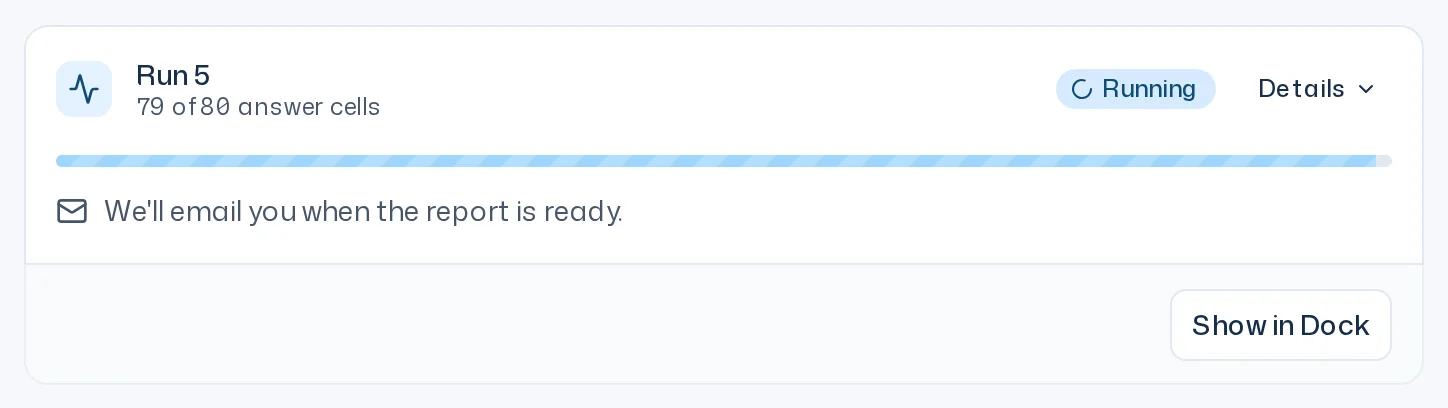
While the survey is running, any team member can end it with Cancel survey. What happens then is described in Problems & refunds.
During the analysis
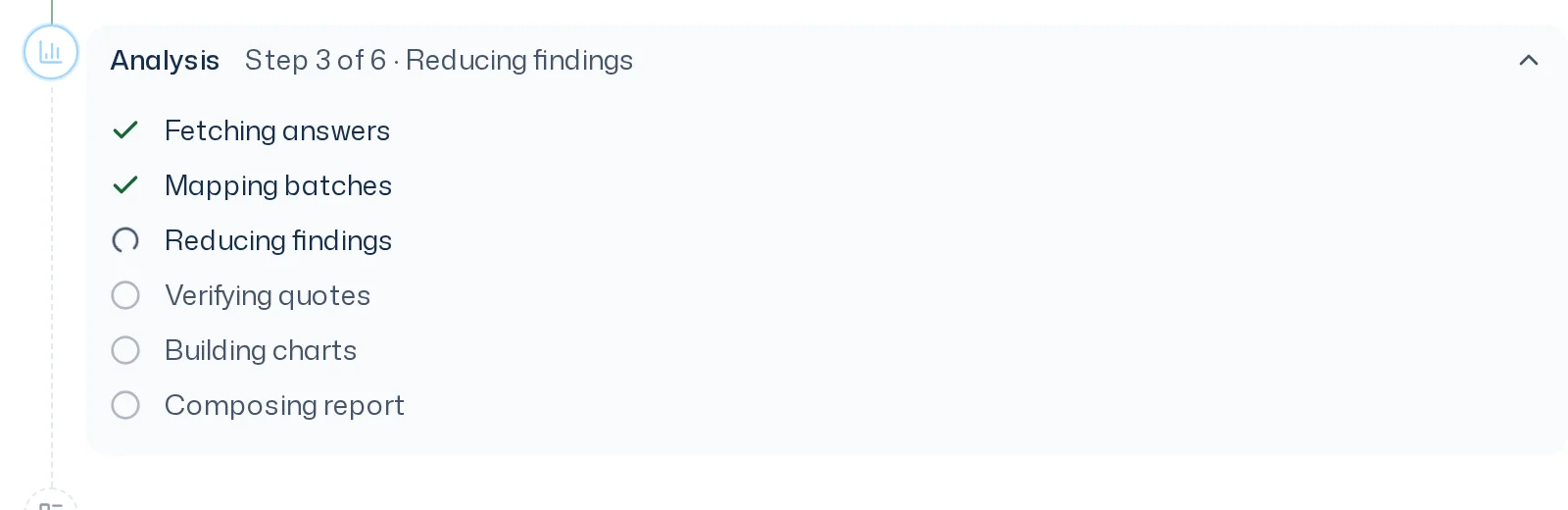
The analysis runs in six steps. The Analysis step in the Dock ticks them off one by one, and the status line shows, for example, Step 3 of 6 · Reducing findings.
- Fetching answers
- Mapping batches
- Reducing findings
- Verifying quotes
- Building charts
- Composing report
You don't need to do anything. There are no partial results during the analysis.
When the report is ready
The status changes to Report ready. Three things happen:
- A result message appears in the thread with the study, the survey run, the Field end, the Summary and the KPIs. Open report shows the report in the Dock.
- The person who launched the survey run gets the notification Report ready and an email.
- In the Dock, the unfolded survey run shows the report's Summary and KPIs, with Open report and Repeat below.
How to read the report is explained in Read a report.
Add more survey runs to the same study with New run or Repeat, see Run a study.