

Background
Give a study PDFs such as a briefing that its analysis reads as background.
A study can have PDFs as its Background, for example the briefing, a market study or the price list. The analysis reads these files too and puts the respondents' answers into that context. What applies to every conversation, such as your industry and brands, belongs in the team context instead.
The background is never evidence. Findings, quotes and numbers in the report always come from the respondents' answers. Recommendations may take the background into account, for example a budget or a requirement from the briefing.
What can be background
- PDFs only. Images and Office files can't be chosen.
- At most 20 files per study.
- Not files with a red warning icon, because Iris can't read them. A PDF that is still being prepared can already be chosen.
- Studies from ad-hoc questions have no background.
The background belongs to the study and therefore to the team, so it only lists team files. You save a personal file of your own for the team along the way, see below.
Manage the background in the Dock
In the Dock, the background sits in the Study section below the goal, each file as a chip. The study page shows it only to read.
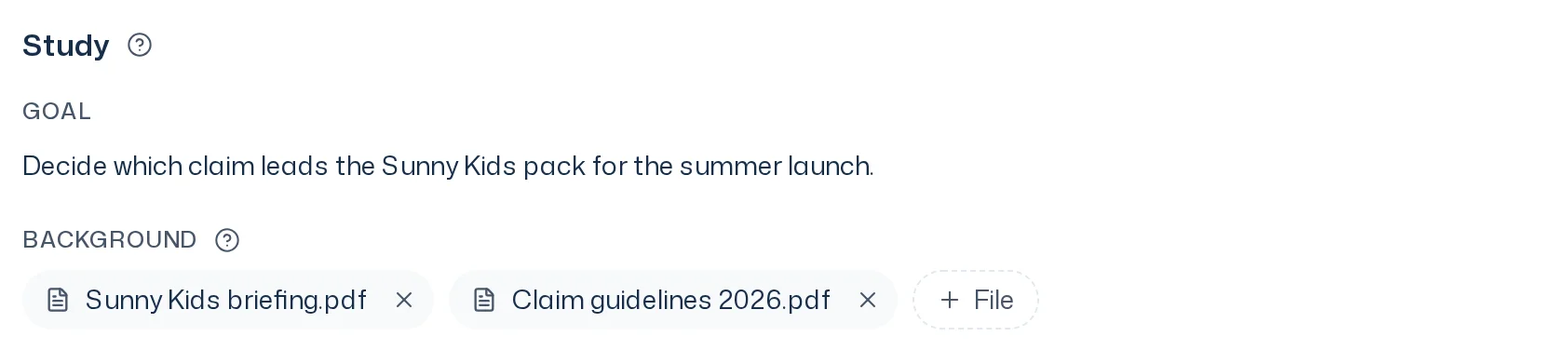
- Click File. A list shows the team's files under Team and your own under My files. Search files finds a file by its name.
- Choose a file. It shows up as a chip in the background right away.
- The × on the chip takes a file out again.
Every change is saved at once. If that fails, the app says Background could not be saved. or, if a file can no longer be read, Briefing.pdf can't be read. A note on a file, for example "Prices apply from January" or "Only chapter 3 concerns this study", you give through Iris (see below). It tells the analysis what the file stands for and has at most 300 characters.
Save a personal file for the team
If you choose a personal file of your own under My files, the app asks Save Briefing.pdf for the Team?. Only your click on Save saves the file for the team and adds it to the background. Cancel keeps it personal and out of the background. Saving for the team can't be undone. If the saved file then can't be read as background after all, for example because the team already has the same file in an unreadable version, the app says Briefing.pdf is saved for the Team but can't be read as background. The background then stays as it was. You never see other members' personal files here.
Suggestion from the last study
When you create a new study with a design that another study has already run a survey with, it takes over the background of the most recent of those studies. A study that was only prepared and never started doesn't count. You can change the background afterwards. Ad-hoc questions and studies requested by an integration get no suggestion.
Manage the background with Iris
You can ask Iris to set or change the background, for example “Use Briefing.pdf and Prices.pdf as background for this study” or “Note on the briefing that only chapter 3 counts”. Iris finds the files by their names and changes the list. She sets team files without asking.
If one of your personal files is among them, Iris asks in the thread, for example Save Briefing.pdf for the Team?. Only your click on Save saves the file for the team and sets the background. Cancel leaves everything as it was.
Iris can also search a study's background, for example “What does this study's briefing say about the audience?”. She then answers with sources.
At launch
The Start the study? confirmation and the start in the Dock don't show the background, because there you decide on scope and cost. When Iris proposes a launch, she names the goal and the background in one sentence.
With your click on Start, the survey run keeps the background as it is at that moment, with each file as it stands then. If you change the list or upload a new version of a file afterwards, that only applies to the next survey run. Survey runs already started and their analysis stay as they are.
If a file is still being prepared, the first analysis waits for it for at most 15 minutes after the survey ends. If it still can't be read by then, the analysis runs without it.
Which survey run has which background
In the Runs section, every row shows an icon with a number:
| Icon | Meaning |
|---|---|
| Link | The survey run hasn't started yet and follows the study. If you change the background, it changes for this run too. The number counts the study's files. |
| Lock | The survey run has started and froze its background. Later changes to the study don't reach it. The number counts the files it kept or read. |
Unfolded, the survey run names the files:
- Follows the study: a survey run before its launch, with the study's files.
- Pinned: a launched survey run without a report, with the files its launch kept.
- Read: a survey run with a report, with the files the analysis of that report actually read. The number at the lock counts only these. A kept file the analysis could not read is listed with (could not be read).
This holds even if the study has other files by now. An archived file carries an archive icon and the hint Archived; a file deleted for good shows greyed out as File deleted. If a survey run was analysed again with a different background, it shows the background of the report you are looking at.
Point at a file in the Study section or move the focus to it, and the survey runs that have it in their background stand out: read, pinned, or following the study. The others step back.
In the report
Below the last chapter, a footer in the report names the background the analysis knew, with each file's date:
Background: Briefing.pdf (as of Oct 12, 2026), Prices.pdf (as of Oct 14, 2026, could not be read)
could not be read means the analysis ran without that file. Reports of survey runs without a background have no footer. A file that has since been deleted is missing from the footer.

Analyse again with a different background
Ask Iris to analyse a survey run again, for example “Analyse survey run 1 again, this time with Prices-2027.pdf as background”. The survey itself doesn't run again, only the analysis of its answers.
- If you don't name a background, the new analysis uses the same one as the previous analysis.
- If you name files, it uses them as they stand now. The study's background for future survey runs doesn't change.
- Save a personal file for the team first; Iris offers to do that. Iris turns down files that can't be read and files that aren't PDFs.
A new analysis doesn't wait for files that are still being prepared.
In the Library
If a file is the background of at least one study, it carries the Read chip in the Materials tab and in its details. That way you see where it has an effect. The Shown chip, in contrast, means a design shows the file to respondents as a stimulus. A file can be both. More in Files & materials.