

Members & roles
Invite people, assign roles and transfer ownership.
Members sits under Settings > Members, or open it straight from Members in the account menu at the top right. The area lists everyone in the team with Name, Email, Role and Joined at, followed by Pending Invites.
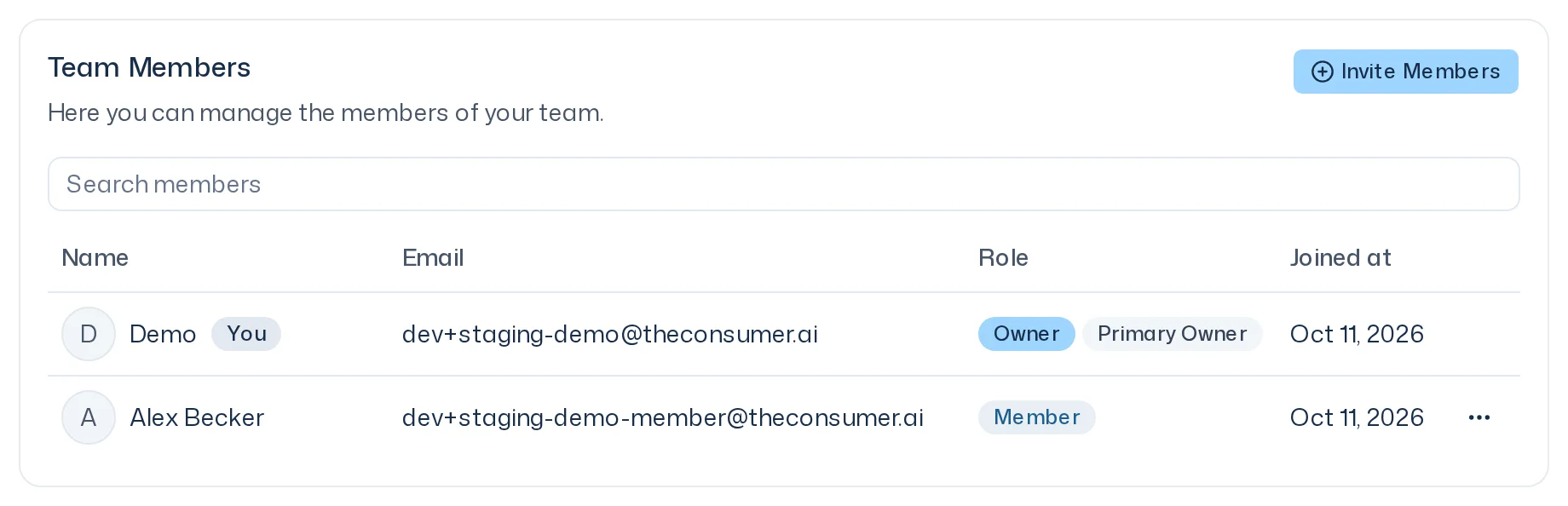
Roles
| Role | What it can do |
|---|---|
| Member | Research with Iris, edit designs, start studies and ad-hoc questions, read reports, invite more people as members, remove invitations, create, edit and remove KPI templates, connect Claude or ChatGPT as a connected app. |
| Owner | Everything a member can do, plus: manage members, billing and buying credits, credit limits, team context, integrations and team API keys, generate panels. |
| Primary Owner | An owner with three extra rights: change the team name and logo, transfer ownership, delete the team. |
A team can have several owners. Plan for at least two, so billing, panels and integrations don't depend on one person being available.
Your own role is behind the info icon next to the Settings title. How the lock and notice lines in the settings show what your role does not allow, and which task belongs to which role, is in Manage your team.
Invite people
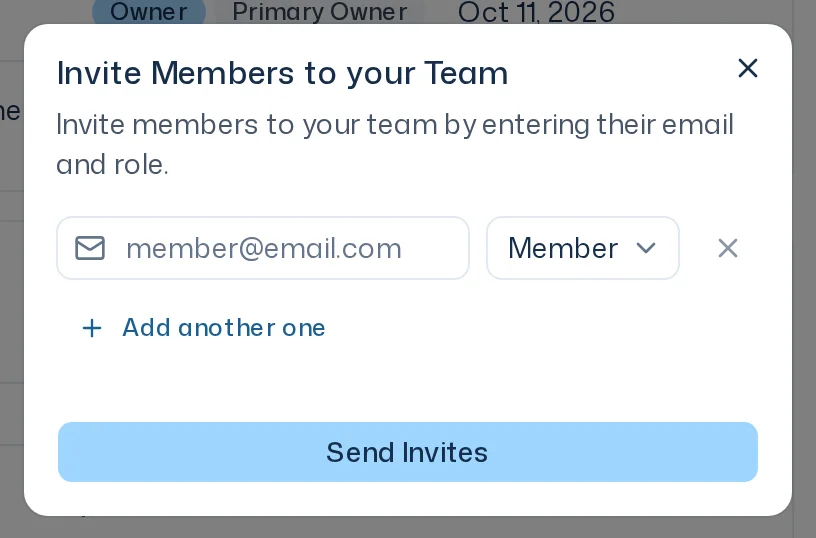
- Open Members and click Invite Members.
- In the Invite Members to your Team dialog, enter the email address and pick the role.
- To add more people, click Add another one.
- Click Send Invites.
The invited person receives an email naming who invited them and to which team. Through the link, Continue to invitation and Continue as … they join the team. Anyone without an account is signed in on the way and then chooses how to sign in from now on. There is no public sign-up. Members can only invite as Member; owners can also invite as Owner.
Pending invites
Open invitations are listed under Pending Invites with Invited at, Expires at and the Status Active or Expired. An invitation is valid for 7 days. Use the row menu to:
- Update Invitation: change the role before the person joins.
- Renew Invitation: make an expired invitation valid again.
- Remove Invitation: withdraw the invitation.
Anyone in the team can remove an invitation. Owners update and renew invitations with the role Member, the primary owner all of them.
If someone reports Invite not found or expired, renew the invitation or ask an owner to.
Change roles, remove people, transfer ownership
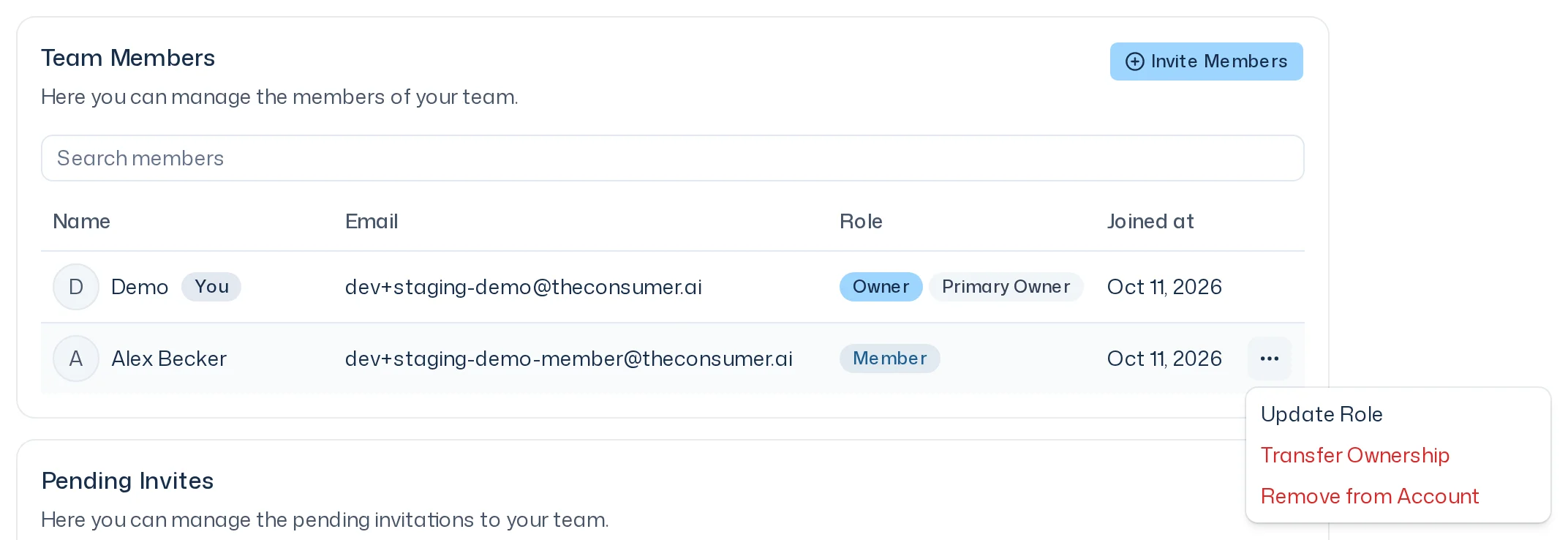
Use the menu at the end of a row in the member list:
- Update Role: turns a member into an owner or back. Owners can change the role of members; the primary owner can change anyone's role.
- Remove from Account: the person loses access straight away.
- Transfer Ownership: primary owner only. Confirm with the verification code you receive by email. The chosen person becomes primary owner and owner. You stay an owner but are no longer the primary owner. From then on the new primary owner can change the team name and logo, and you only see them. Your settings adjust right away, the new primary owner's without a reload as soon as they return to their window.
When someone leaves
Whether a person is removed or leaves with Leave Team:
- Designs, team panels, started studies, reports and team materials stay with the team.
- Their threads can no longer be opened, not even by owners.
- Their personal materials in this team are deleted.
- Their credit limit is removed. Their usage stays visible on the Usage page as Left the team.
Leave or delete the team
In Settings > General, under Danger Zone:
- Leave Team: for everyone except the primary owner. Type
LEAVEto confirm. You can only come back with a new invitation. - Delete Team: primary owner only. Confirm with the verification code you receive by email. All of the team's data is deleted; this can't be undone.
If the primary owner wants to leave, they transfer ownership first.