

Security
Password, multi-factor authentication, Google sign-in and deleting your account.
All security settings are in your profile: account menu at the top right, Settings > Profile, then further down the page.
Signing in
You sign in with your email address and password, or with Sign in with Google. Sign-in links by email, one-time sign-in codes and passkeys are not available. Linked Accounts shows which sign-in methods are connected to your account.
Change your password
- Under Update your Password, enter the new password in New Password and Repeat New Password.
- Click Update Password.
If you see Reauthentication Required, sign out and back in, then change the password. Pick a long password you don't use anywhere else.
Forgot your password? Click Forgot Password? on the sign-in page. You'll get a 6-digit code by email and use it to set a new password.
Set up multi-factor authentication
With multi-factor authentication (MFA), signing in also needs a code from an authenticator app such as Google Authenticator, Microsoft Authenticator or 1Password. A stolen password alone is then no longer enough.
- Under Multi-Factor Authentication, click Setup a new Factor.
- Enter a name that helps you recognise the device, such as
iPhone, and click Set factor name. - Scan the QR code with your authenticator app.
- Enter the 6-digit code from the app as the Verification Code and click Enable Factor.
The message Factor successfully enrolled confirms it, and the factor then appears in the card's list.
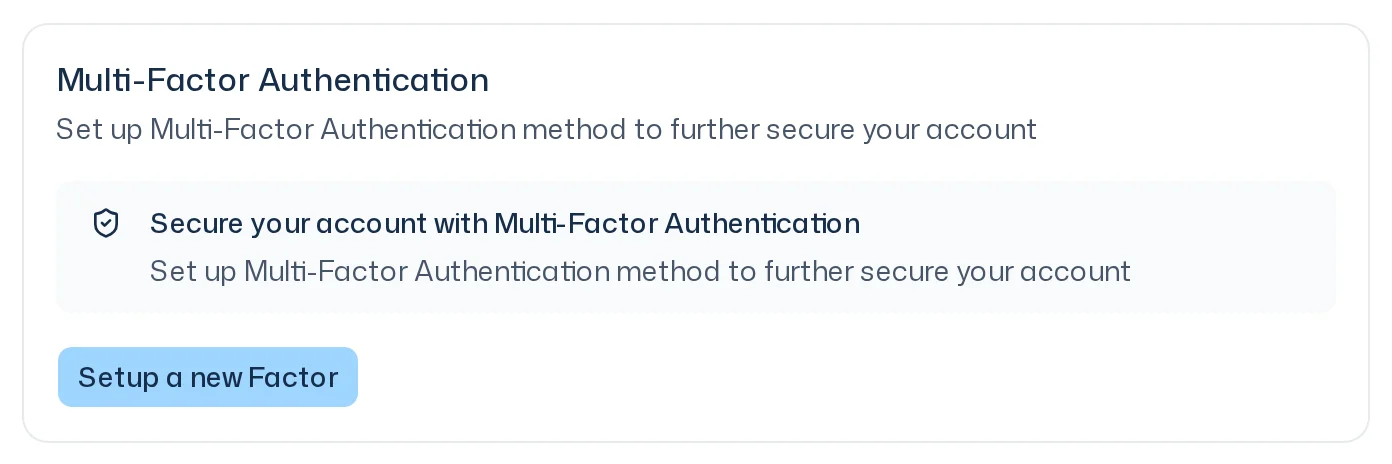
From now on the app asks for a fresh code at every sign-in. Without that code you can't see any of your teams' data. Keep your authenticator app's recovery option safe: without the device and without a backup you can't get back into your account.
To remove a factor, use Unenroll this factor in the list of factors and confirm with Yes, unenroll factor.
Delete your account
At the bottom, under Danger Zone, you delete your account with Delete your Account. For safety you confirm with a code sent to you by email.
Deleting your account also deletes the teams you are primary owner of, including their studies and reports. Transfer ownership first if the team should continue. See Members & roles.
Deletion can't be undone. If you only want to leave a team, use Leave Team in the team's settings instead.