

The panel card
What a panel card shows and how to flip it.
In the Panels tab on the home page, every panel has a card. The front shows who is in the panel. Flipped over, the card shows how the members are distributed and the individual profiles.
The front
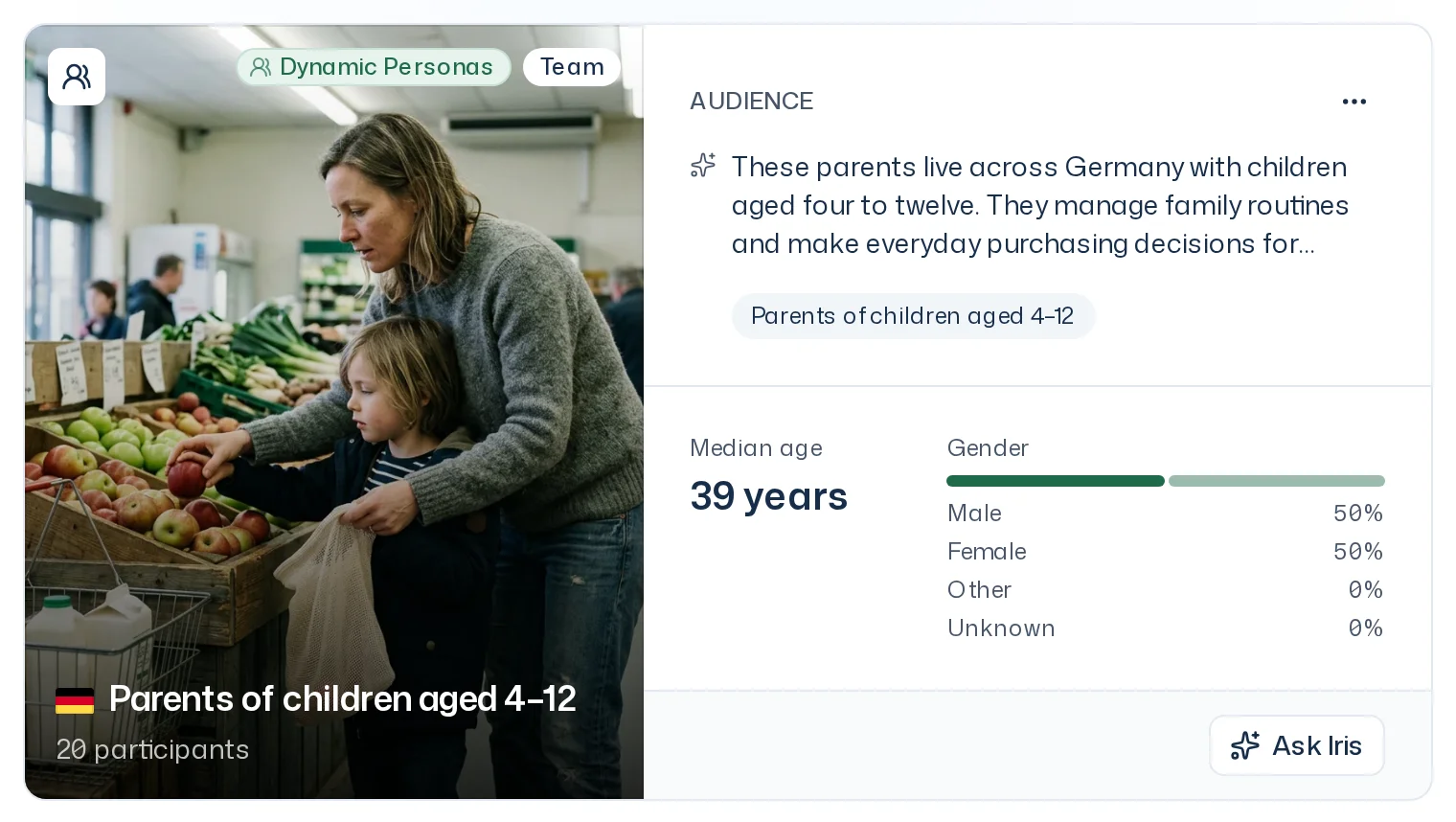
| Area | What you see |
|---|---|
| Image | An image of the audience, with the kind (Dynamic Personas or Premium Twins), the Team badge on your own panels, the name and the number of participants, for example 50 participants |
| Audience | A short description of who is in the panel and up to four keywords |
| Median age | The members' median age, for example 41 years |
| Gender | A bar with the shares Male, Female, Other and Unknown |
| Footer | Ask Iris: makes the panel the audience of your next message |
The image and the short description are generated by AI. The sparkle in front of the description marks it as AI-generated. While an image is missing, the card shows a colour area with the panel's initials. The description appears in your app language and may still be loading shortly after a panel is created.
Missing and unknown values
- Unknown in the gender bar counts members whose gender is missing or can't be assigned.
- A dash (–) instead of a value means there is no value for the whole panel, for example for median age.
Partial delivery: "19 of 20"
If the image says 19 of 20 participants, not all ordered profiles could be generated consistently. The panel then has 19 members. A survey run with this panel surveys 19 people and costs correspondingly less. More in Choose or create a panel.
Flip the card
- Click the button with the people icon at the top left of the image (View profiles of “…”).
- The card flips over. On the left you see the distribution across the whole panel, on the right the list of profiles.
- Flip the “…” card back returns to the front.
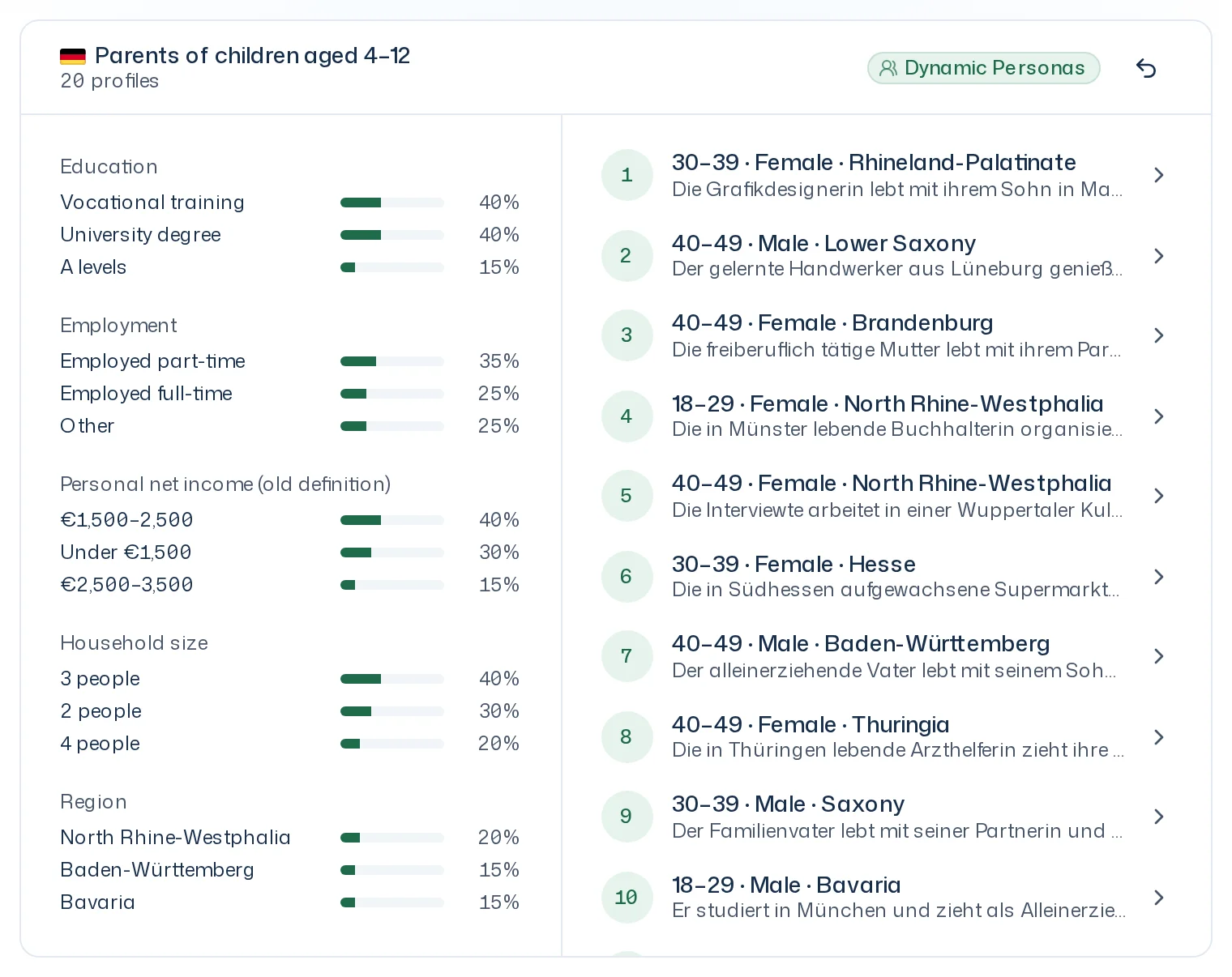
Distribution: for Education, Employment, Personal net income, Household size and Region, the card shows the three most common values with their share. Age and gender are on the front. If values are missing, it says No data available.
Profiles: each profile is listed with its number, age group, gender, region and the start of its short bio. The list loads more profiles as you scroll.
View a profile
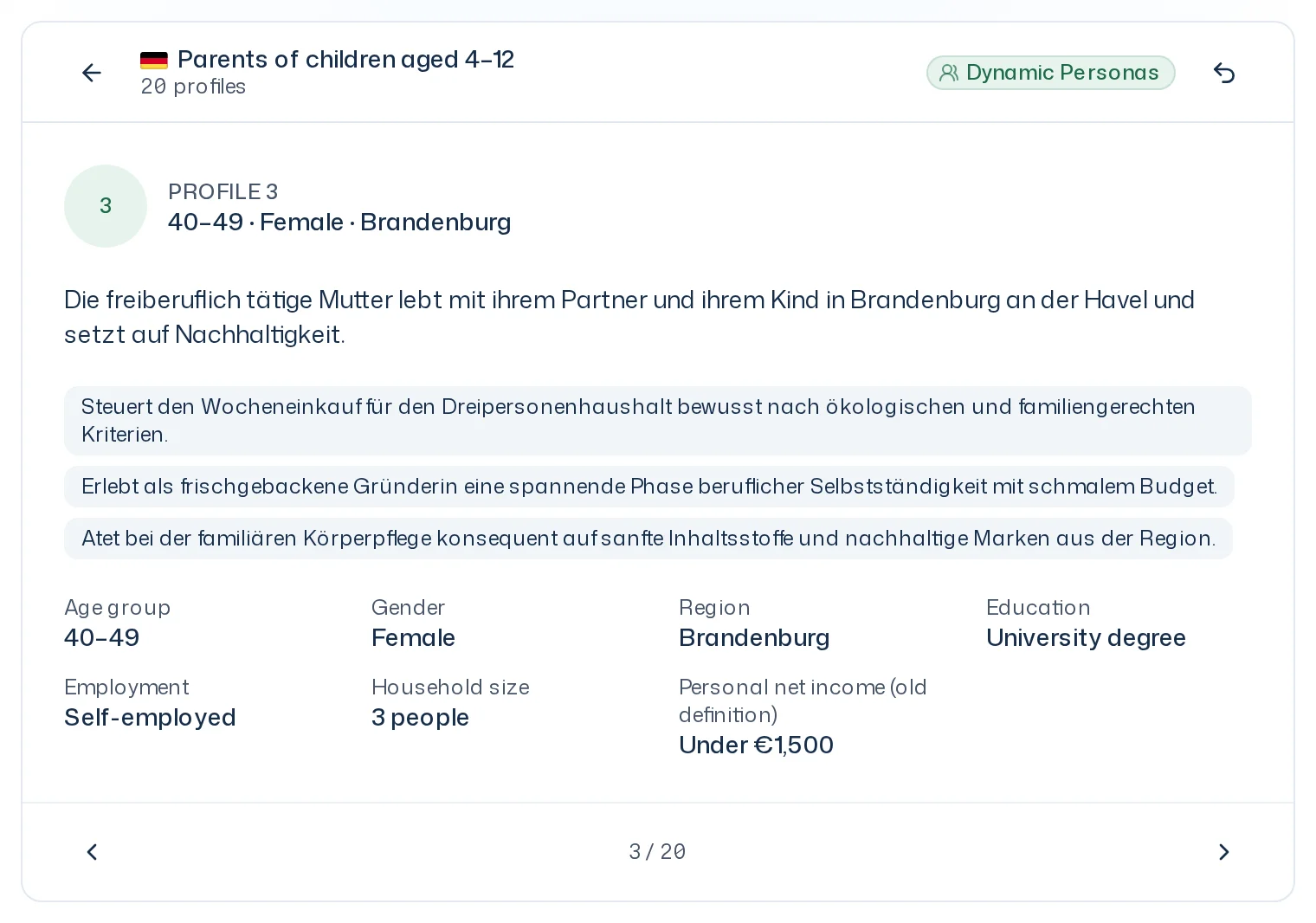
Click a profile. You then see:
- Profile 3 with age group, gender and region
- the person's short bio
- Personal traits as keywords, such as habits or attitudes
- all attributes: Age group, Gender, Region, Education, Employment, Household size, Personal net income
Previous profile and Next profile page through the profiles; the counter 3 / 50 shows the position. Back to overview returns to the distribution and list.
Profiles are numbered and carry no names. For Premium Twins they stand for real people who are never identifiable by name.