

Files & materials
Upload files, read and search PDFs with Iris, save files for the team and manage materials.
You can hand Iris files, such as a brief, a concept or a pack image. Every uploaded file becomes a material. Iris reads PDFs, searches your materials on her own and answers with sources.
Uploading files
- In the input field, click + and choose Upload file. On the home page you can also drag files into the input field.
- Pick one or more files. While a file uploads, it shows Uploading….
- Write your message and send it.
Allowed are images (JPG, PNG, WebP), PDFs, Word, PowerPoint and Excel files (DOCX, PPTX, XLSX) and JSON, each up to 50 MB. If a file is too large or of another type, the input field shows Files must be 50 MB or smaller or Unsupported file type. If an upload fails, remove the file before you send.
A PDF with more than 150 pages shows a red warning icon right in the input field. What it means is explained below under Warning icons on files.
Iris sees images up to 10 MB in the message they are attached to. PDFs Iris reads, also in later messages. For Office files, JSON and larger images, Iris only knows the name, type and size. If their content matters, put it into your message.
Reading PDFs with Iris
Attach a PDF and ask your question. Iris reads the PDF and answers from its content.
- Follow-up questions: The PDF stays in the thread. When you ask more later, Iris reads it again. You don't need to attach it again.
- Long PDFs: Iris reads the pages she needs for your question. She reads PDFs of up to 150 pages.
- Right after the upload: The app prepares a new PDF for a short while. If you ask during that time, the thread shows Reading Report.pdf until Iris answers. You don't need to do anything. If it takes longer, Iris says so in her answer. Ask again a little later.
Searching materials
To ask about what files say, you don't need to attach or pick a file. Just ask, for example “What do we know about the target group from earlier studies?” or “Search the brief I uploaded last week”. Iris searches the materials herself, reads the relevant passages and answers with sources.
- Where Iris searches: in the team's materials and in your own personal files, each in its current version. She leaves out archived materials unless you name the file.
- What Iris finds: exact terms and passages that say the same in other words, also across German and English. Accents don't matter: “Cafe” also finds “Café”.
- Only one file: Tell Iris which file to search. She finds the file by its name. If she can't search a file yet, she reads it directly.
- Which files: Iris searches PDFs. She finds a new PDF as soon as the app has prepared it, usually shortly after the upload. Pages Iris couldn't read (warning icon) aren't found. Images, Office files and JSON aren't searched.
The search shows no card of its own in the thread. You see it in the sources of the answer. Before Iris cites a passage, she reads the whole page.
Iris searches your personal files for you only. Others on the team never see them, not even in Iris' answers or sources. If Iris relies on a personal file, she says so in her answer, and its source says only for you. Only once you save the file for the team does Iris find it for your team as well.
Sources
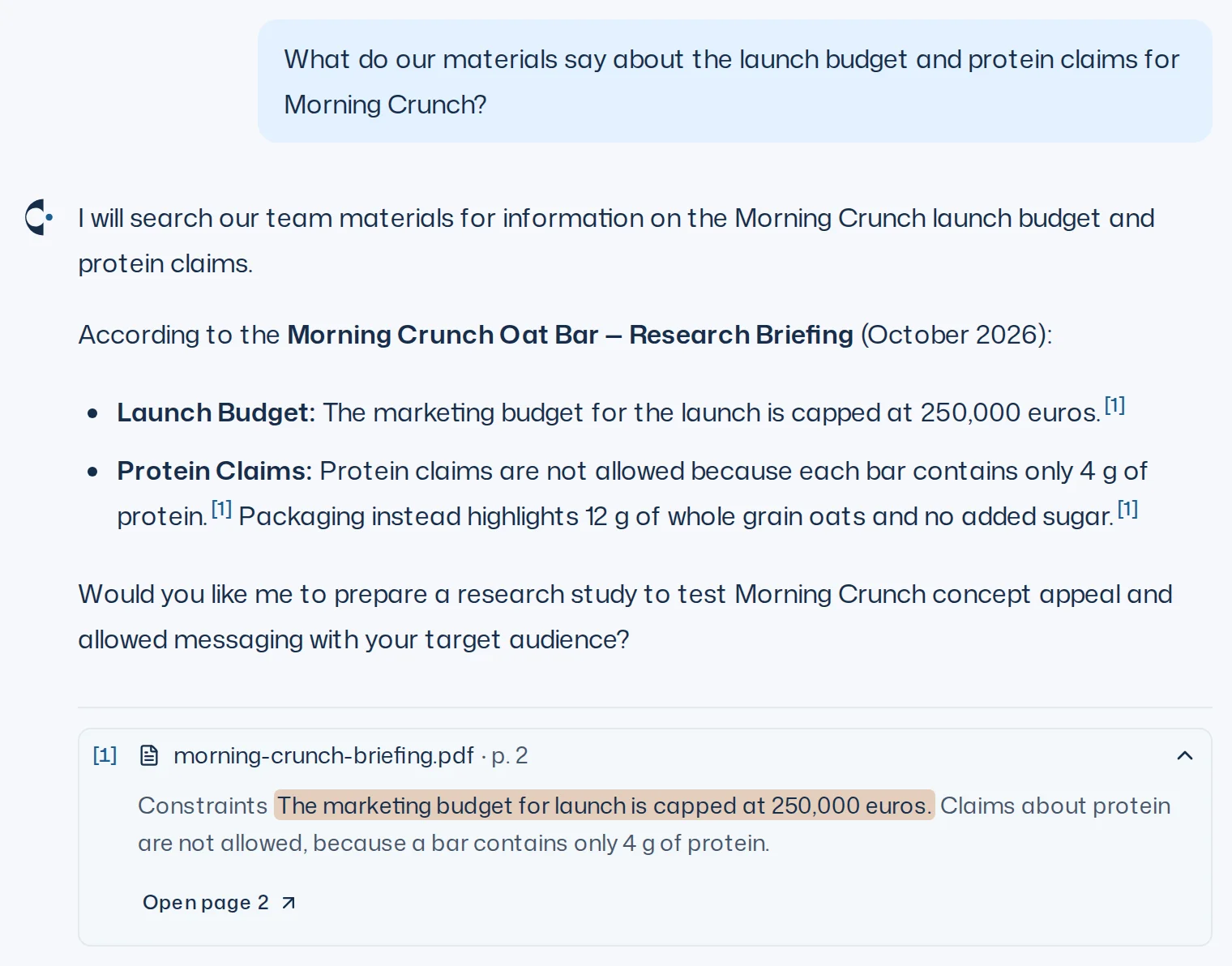
When Iris answers from a PDF, attached or found, she backs up her statements with sources. A number such as [1] follows the statement. Below the answer, the sources are listed with number, file and page, for example [1] Report.pdf · p. 3.
- Click a source to expand it. You see the passage Iris relies on, highlighted, with some text before and after it. If the app can't find the exact passage, it shows the start of the page.
- Open page 3 opens the PDF at that page.
- If a source comes from a personal file, it says only for you.
Iris only cites pages she has read for this answer. For a follow-up question she reads the passage again first. The app removes a citation without a read page before you see the answer.
![Iris' answer with footnote [1] and an expanded source: file name, page, highlighted passage and Open page 2](/images/docs/en/iris/message-sources.webp)
Warning icons on files
If Iris can't read all of a PDF, a warning icon sits next to the file name. Its tooltip says in one sentence what is missing and what you can do. No icon means all is well.

| Icon | Meaning | What to do |
|---|---|---|
| Yellow | Iris couldn't read some pages but knows the rest. The tooltip lists the pages. Her answers may have gaps there. | Send Iris the content of those pages as text if it matters. |
| Red, more than 150 pages | Iris reads files of up to 150 pages. | Split the PDF into files of up to 150 pages and upload those. |
| Red, damaged or protected | The PDF is damaged or has a password. | Open it, save it again via “Print” > “Save as PDF” without a password and upload the new PDF. |
| Red, other error | Iris couldn't read the PDF. | Save it again via “Print” > “Save as PDF” and upload the new PDF, or send Iris the content as text. |
A PDF with a red icon stays unreadable. Uploading the same file again changes nothing. Only a newly saved PDF or a new version tries again. The same icons show in the Materials tab.
Attaching from the Library
+ > From the Library attaches things that already exist. The dialog has the tabs Studies, Designs, Panels and Materials.
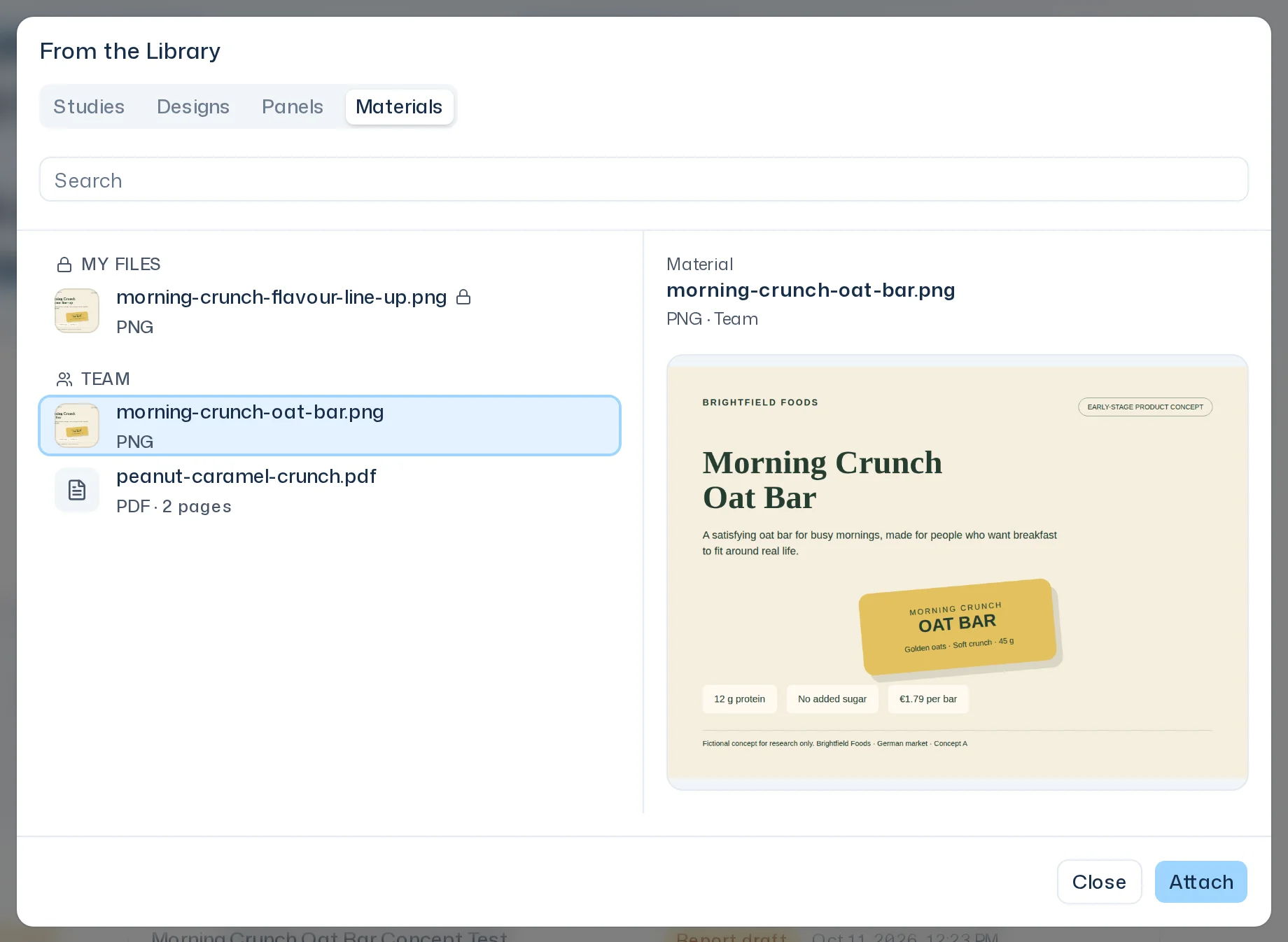
- Use Search to find something by name. The arrow keys move between results, and a preview shows next to the list.
- Under Materials, your own files are listed under My files, the team's under Team.
- You can attach a whole study (Select Study) or just one of its survey runs.
- Attach or Enter adds your selection.
Up to ten objects fit into one message.
Save for the Team
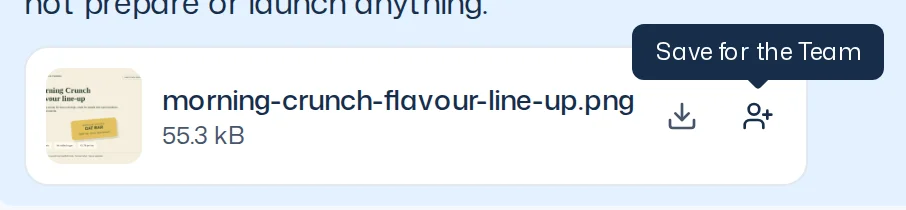
Anything you upload in the chat starts out personal: only you can see it. For your team to see the file, save it for the team:
- On the file in the thread, click the Save for the Team icon. Files you send from the home page are in the new thread.
- The file now belongs to the team. It shows In the Team.
This can't be undone.
If the team already has exactly this file, the app says The Team already has this file. The existing team file then applies.
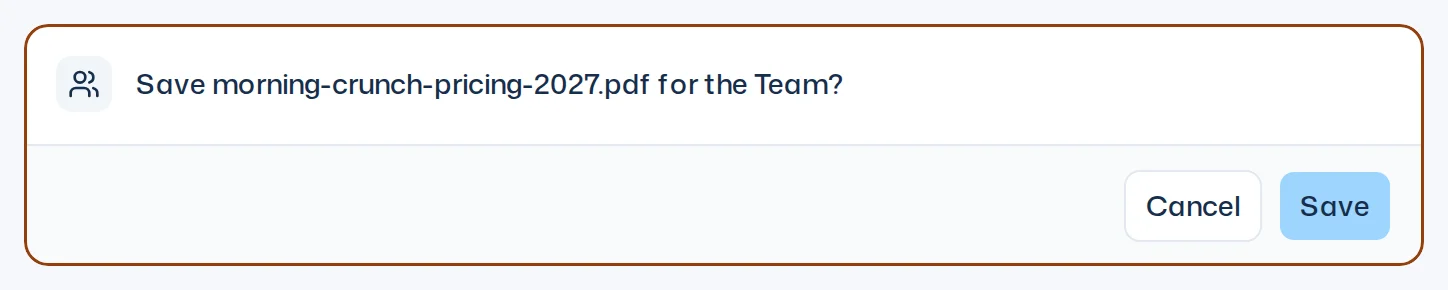
You can also ask Iris to save a file for the team. She then asks in the thread, for example Save Report.pdf for the Team? Only your click on Save shares the file. Cancel keeps it personal. Iris only asks about a file attached to that very message, and never on her own. So even an instruction inside a file can't share anything with the team.
Only team materials can be stimuli in a design or the background of a study, because the whole team sees the study. More in Stimuli & materials.
The Materials tab
The Materials tab lists the team's files. Your personal files show up there only once you save them for the team. Until then you find them in their thread and under + > From the Library in My files.
- Search materials finds a file by its name. To ask about its content, ask Iris.
- Under Filter you narrow down by Type (Image, PDF, Office, Other).
- Show archived materials includes archived files.
- A PDF that Iris can't fully read carries the same yellow or red warning icon as in the thread.
Click a material to open its details with a preview, type and size. There you can:
- Rename it: 1 to 120 characters.
- Archive and Restore it.
- see under Shown in which designs show the file as a stimulus. These files carry the Shown chip.
- tell by the Read chip that the file is the background of at least one study.
- upload an updated file under Versions with New version. The latest version is marked Current.
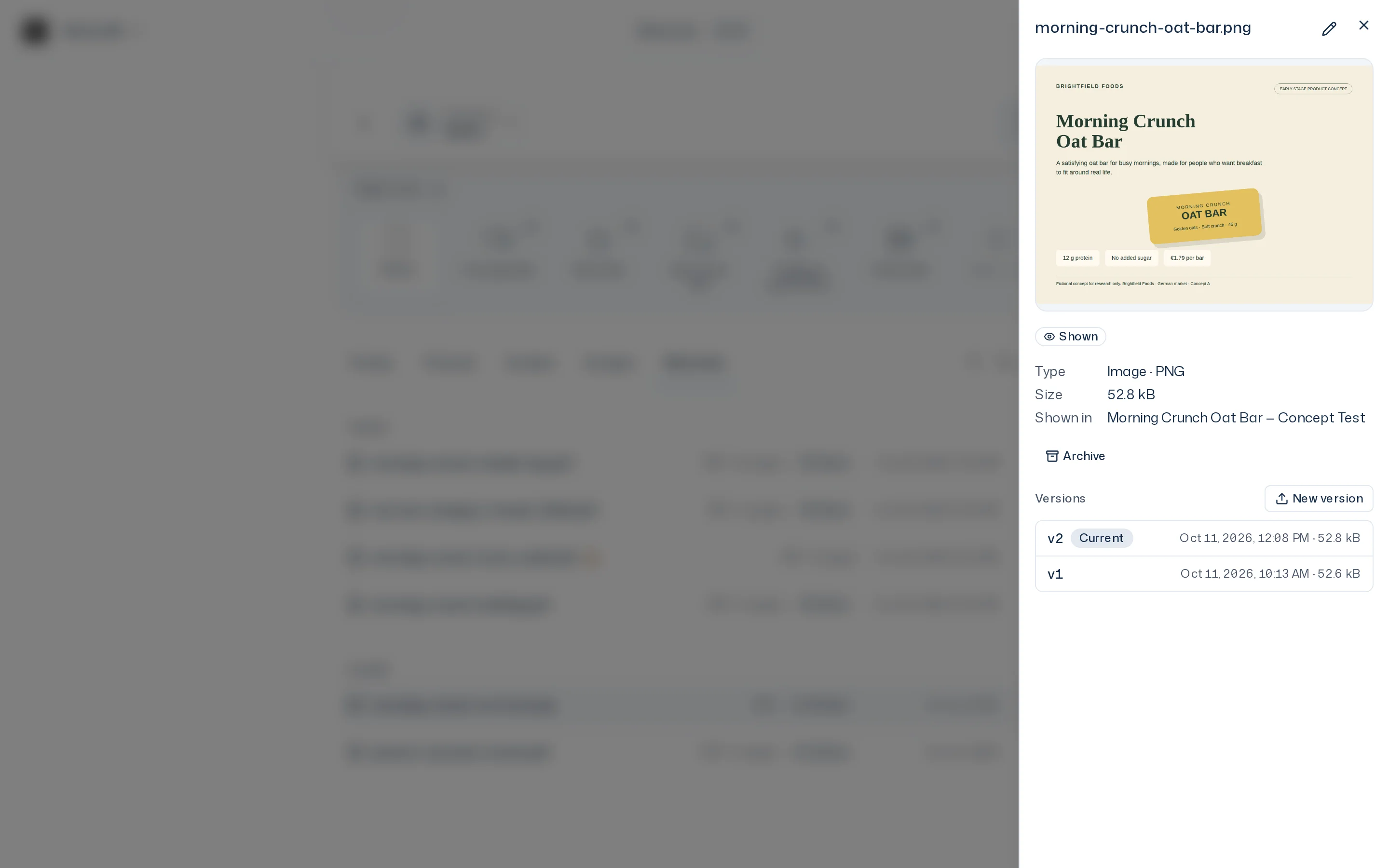
If a design shows the file as a stimulus, a new version must also stay within the limits for stimuli. They are listed in Stimuli & materials.