

Your first study
From a template to a finished report, in one pass.
This walkthrough follows one example all the way: you test the concept of the new Morning Crunch oat bar with Health-conscious snackers 18–45, a panel of Dynamic Personas. You need a team with enough credits and, if you want to show a picture of the concept, an image as JPG, PNG or WebP. Two images come from other studies of the demo team; their captions say so.
1. Pick a template and write to Iris
- Open the home page through the logo.
- Under Templates, click Concept test. The input field now reads I want to set up a concept test for [concept]., with the placeholder selected.
- Type over it, for example: "our new Morning Crunch oat bar, audience health-conscious snackers aged 18 to 45".
- To show the concept image, attach it through + > Upload file. If it's already in the library, use + > From the Library.
- Click Send message. A new thread opens and Iris gets to work.
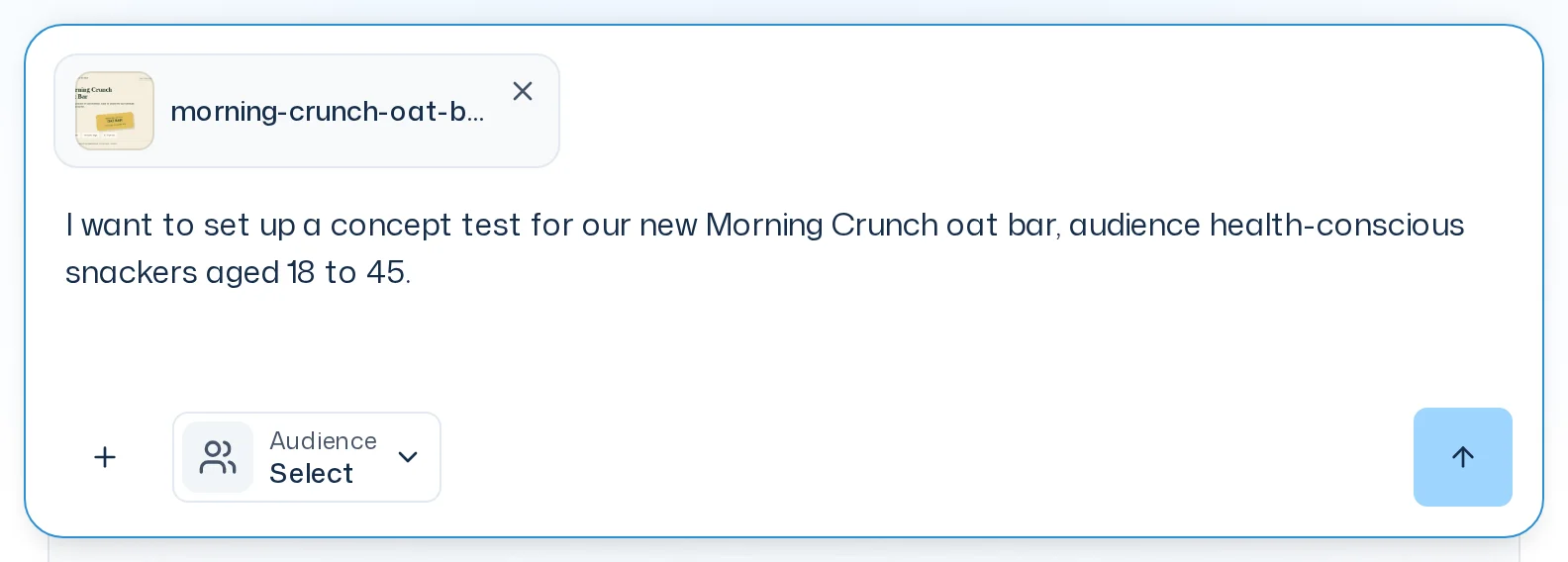
If you leave a placeholder in square brackets, the study can't be launched later. Always replace it.
2. Answer follow-up questions
If Iris needs more detail, the Answer follow-up questions card appears. It shows one question at a time. Pick an answer, use Write your own answer, or move on with Skip. At the end you check everything under Review and submit: skipped questions read Iris decides there. Submit answers sends it all. More about the cards in Tools & approvals.
3. Choose the panel
Next, Iris asks Which panel should answer? and shows suitable panels. One is marked Suggestion, with Iris's reasoning: below it. Browse the panels and click Use this panel on yours.
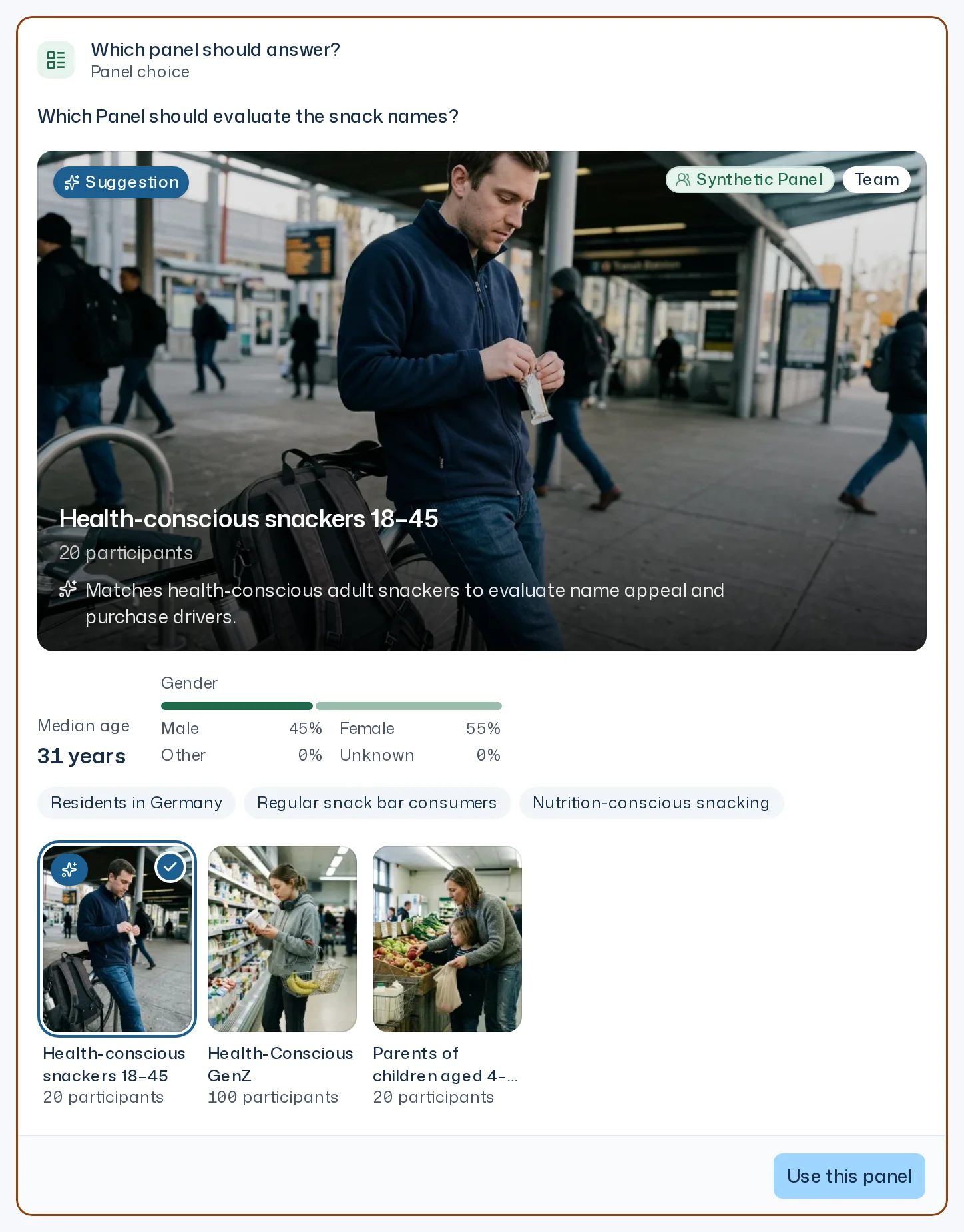
If none fits, describe the audience you need to Iris. Iris can then create a new panel. How that works and who may do it is covered in Choose or create a panel.
4. Review the design
Iris now drafts the survey design and creates the study. Use Open Dock to show the new study's Overview on the right: under Preparation, Design and Panel are set.
- Switch the Dock to the Design view. It lists the research question and all questions. As long as the run hasn't started, you can change them directly or ask Iris in the chat, for example "Also ask at what time of day they would eat the bar". Once the run starts, its design is frozen.
- You'll also find the same design in the library's Designs tab. There it stays editable, even after the launch.
- The template comes with KPIs such as liking and purchase intent. They appear in the report as values of their own.
- For respondents to see the concept image, it has to be a stimulus of the design. An image uploaded in the chat starts out personal. Iris only shares it if you explicitly ask her to.
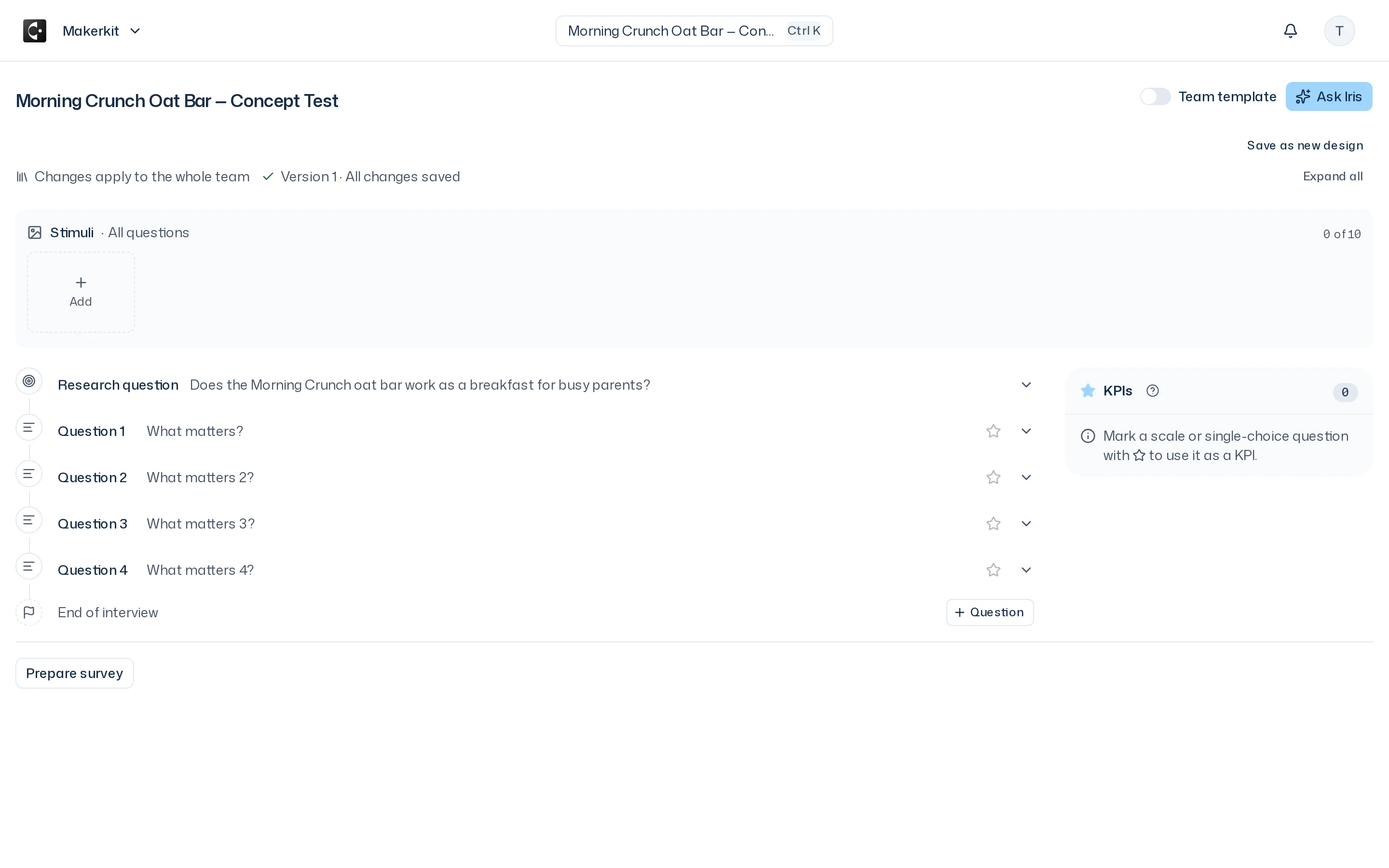
Details in Survey design and Stimuli & materials.
5. Confirm the launch
Tell Iris you're ready. Iris shows the Start the study? card with Panel, Participants, Questions, Estimated duration, Price, the Stimuli and your Available credits.
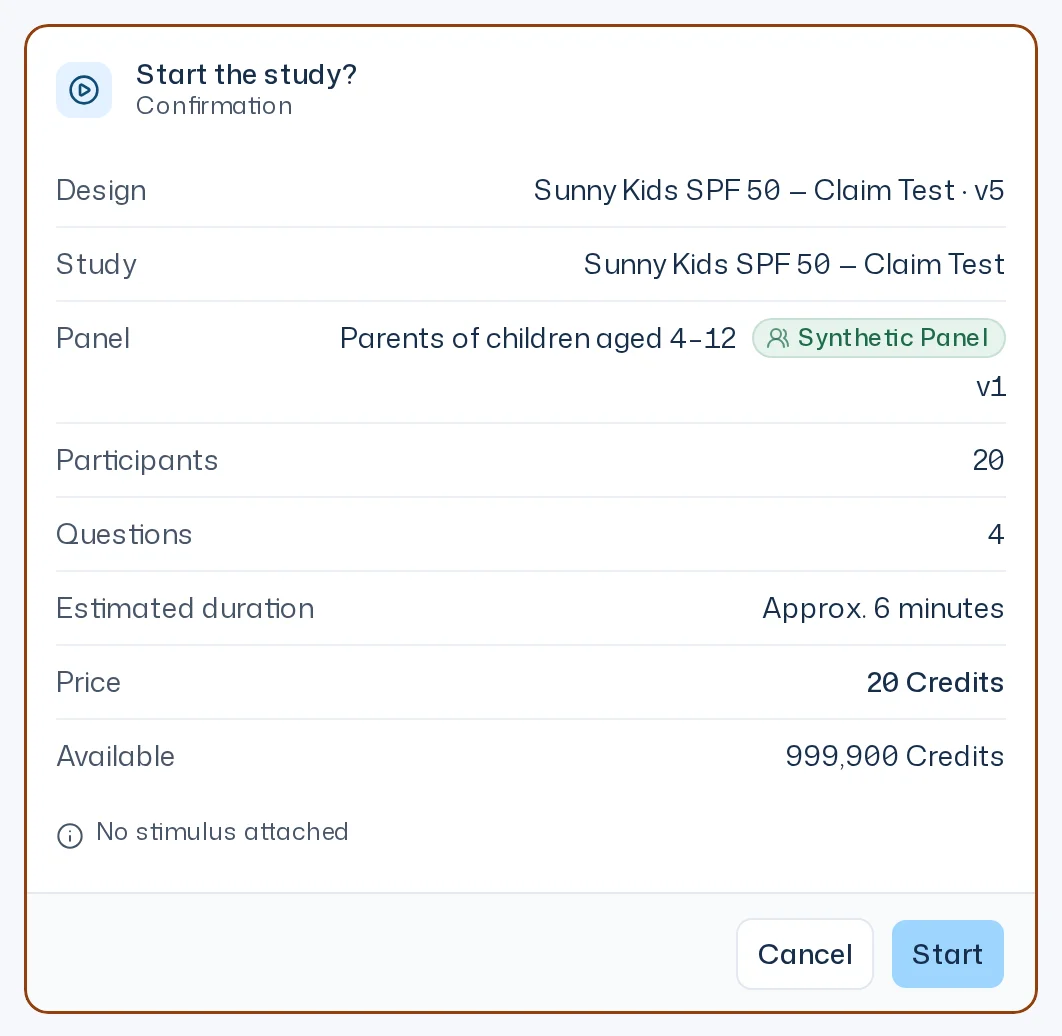
Check the details, especially the Price, and click Start. Cancel drops the launch without using any credits. The price depends on participants and questions: participants × questions ÷ 15 credits, ten times that with Premium Twins. More in Launch & costs.
6. Follow the progress
After the launch, the card turns into a progress display. While the Survey running status shows, you see how many answer cells are done and the Estimated remaining time. Then comes Analysis running. You don't have to wait: close the thread or work on something else. The Overview in the Dock and the study's page in the Studies tab show the same state. More in Progress.
7. Read the report
When the report is done, the status changes to Report ready, the bell shows Report ready, and Iris posts a result message in the thread. It shows the study name with Run 1, the report basis, the Summary and the KPIs.
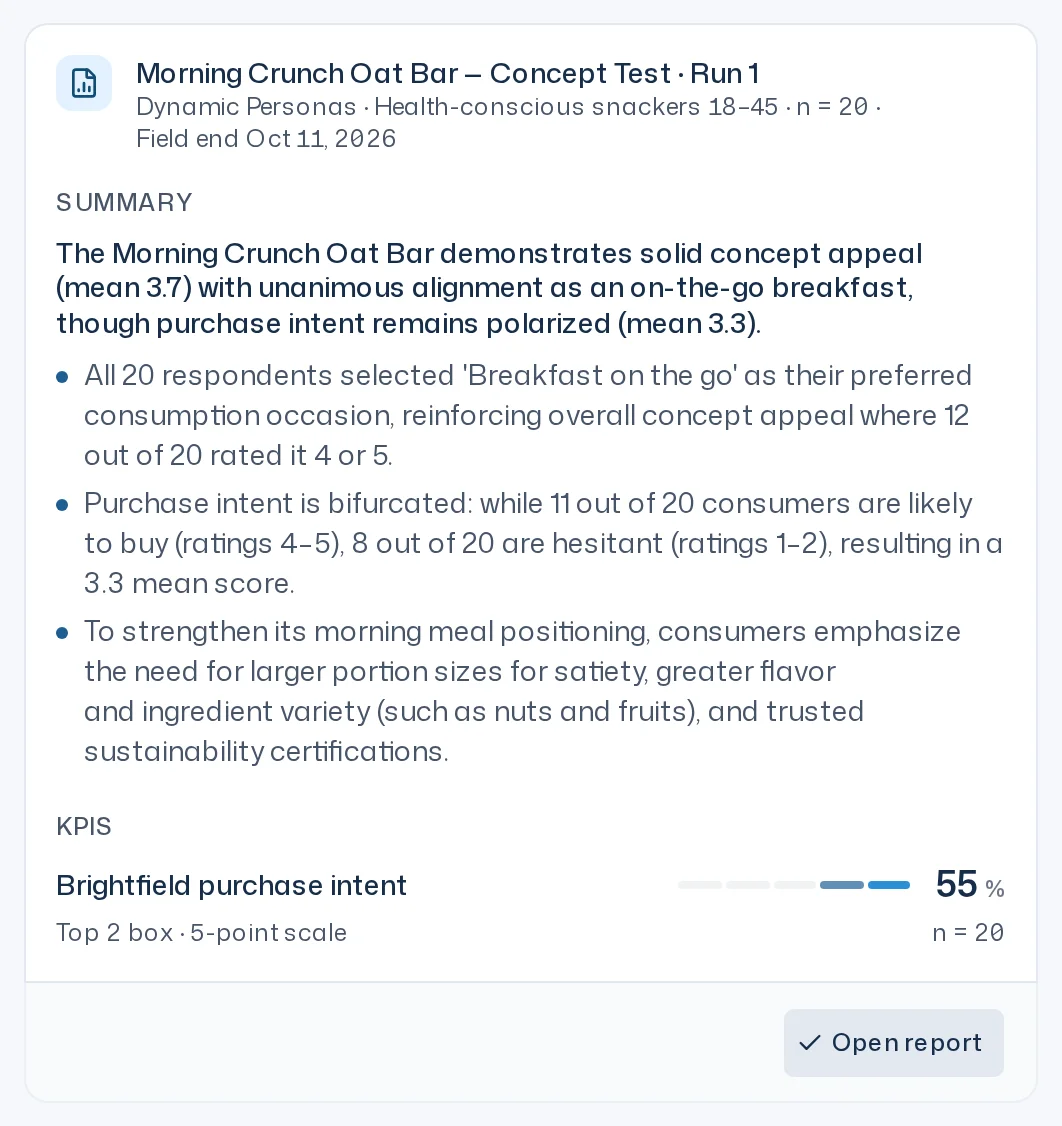
Click Open report to read the full report in the Dock. Ask Iris anything about the result in the same thread. How to read the report is covered in Read a report.