

Profile
Name, profile picture, email address and app language.
Open your profile from the account menu at the top right via Settings > Profile. The details apply in all your teams.
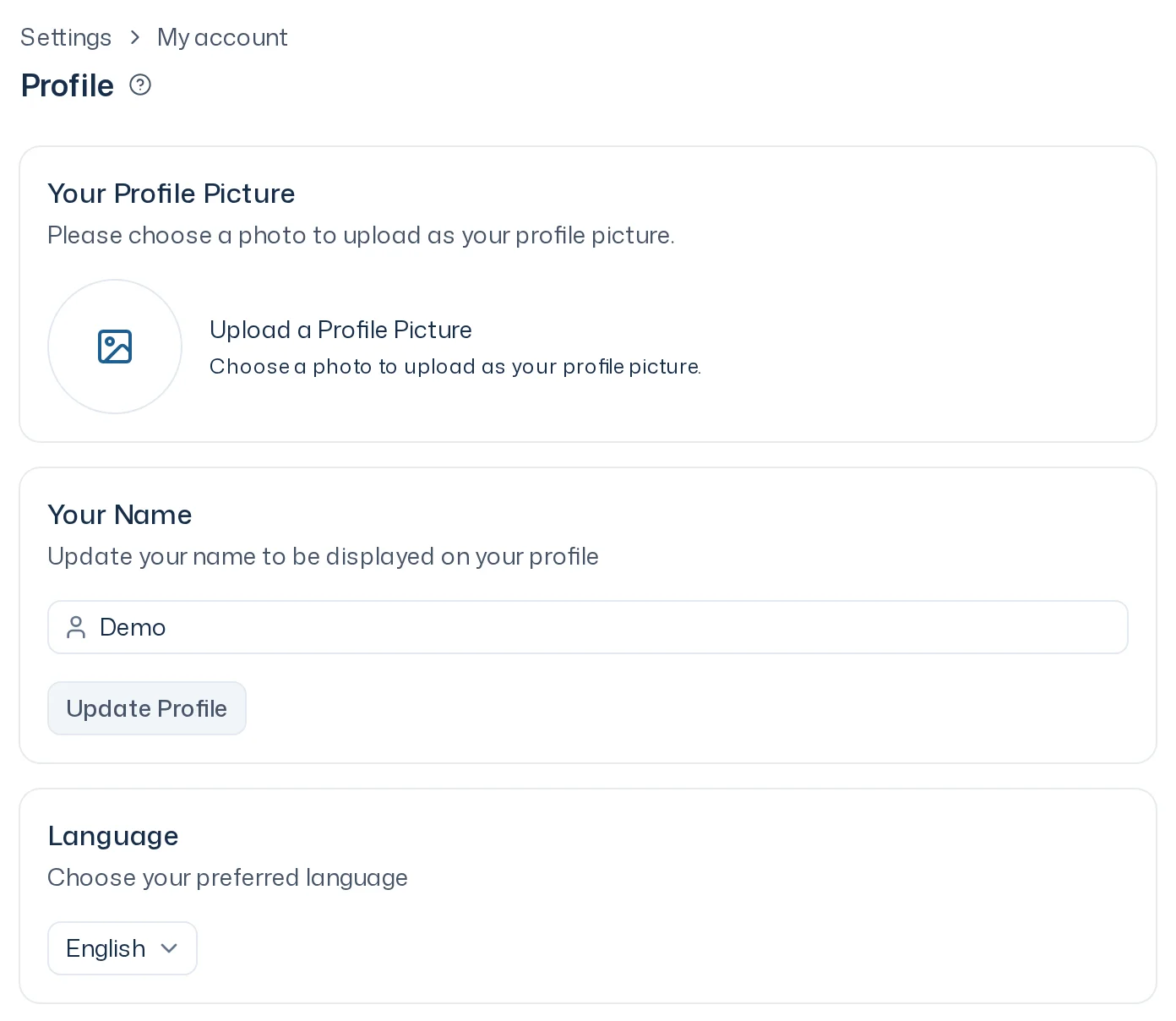
Name and profile picture
Your colleagues see your name and picture, for example in the member list.
- Your Name: enter your name and click Update Profile. It needs at least 2 characters.
- Your Profile Picture: click the image field under Upload a Profile Picture and choose a photo. It's applied straight away.
App language
Under Language you choose between German and English. The setting only applies to you. It controls menus, buttons and messages, and the language new designs are created in. Surveys always run in German. How the languages fit together is explained in Languages.
Change your email address
You sign in with your email address.
- Under Update your Email, enter the new address in Your New Email and Repeat Email.
- Click Update Email Address.
- Open the confirmation email sent to the new address and click the link.
The new address only takes effect once you've confirmed it.
Appearance
Light or dark mode isn't set in the profile but directly in the account menu: Theme, then Light, Dark or System. System follows your device setting.
Further down you find your password, multi-factor authentication, Linked Accounts and the Danger Zone with Delete your Account. Those parts are covered in Security.