

Run a study
Work on a study in the Dock: goal, background and survey runs in one frame, plus the study page to read.
You work on a study in the Dock to the right of a thread's chat. There you change the goal and background, launch survey runs and add new ones. The study page shows the same study at full width, but only to read. This page explains both. How to launch, follow progress and handle failures is covered on the pages listed below.
Open and close the Dock
The Dock belongs to a thread. You open and close it with the icon at the top right of the thread (Open Dock / Close Dock).
- Drag the edge between chat and Dock to change its width. The Dock remembers the width.
- On narrow screens the Dock covers the chat.
- If Iris wants to show you something in the Dock while you are looking at something else, a note such as Iris wanted to show “Snack bar concept test” · Report appears. Show switches to it.
- On chat cards, Show in Dock takes you straight to the matching step of the survey run.
Choose a study
The top left of the Dock shows what is in front. Click it to open the picker:
- In this thread: every study created in this thread.
- New study: clears the Dock for a new study.
- Linked and Link: studies and reports from other threads that you want to read next to the chat here. You edit a linked team study in the Dock like a study of this thread; other team members' preparations don't show there.
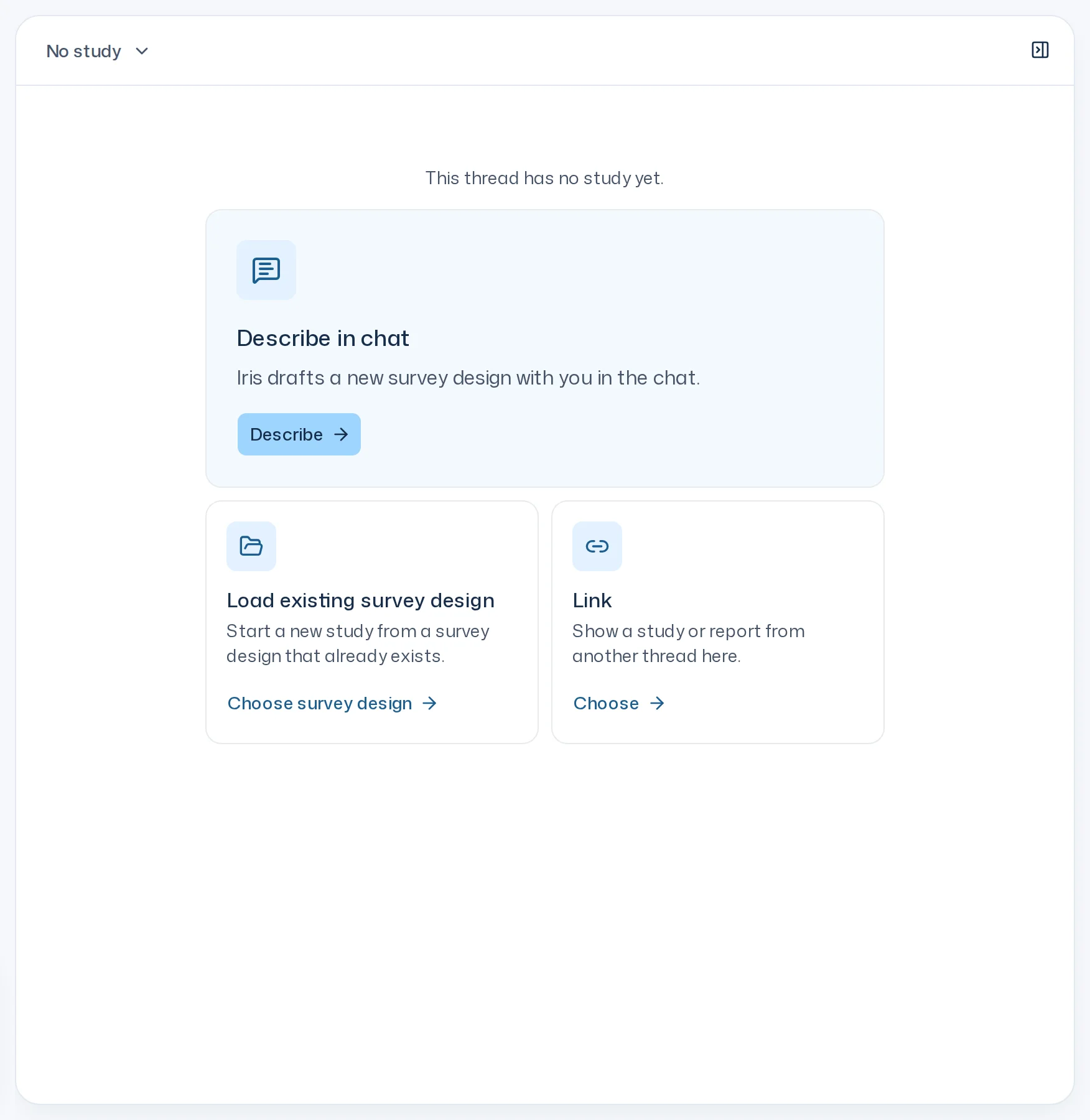
An empty Dock offers three cards:
| Card | What happens |
|---|---|
| Describe in chat | Iris drafts a new survey design with you in the chat. |
| Load existing survey design | You pick a design from your team and start a new study with it. |
| Link | You bring a study or report from another thread into the Dock. |
A study's frame
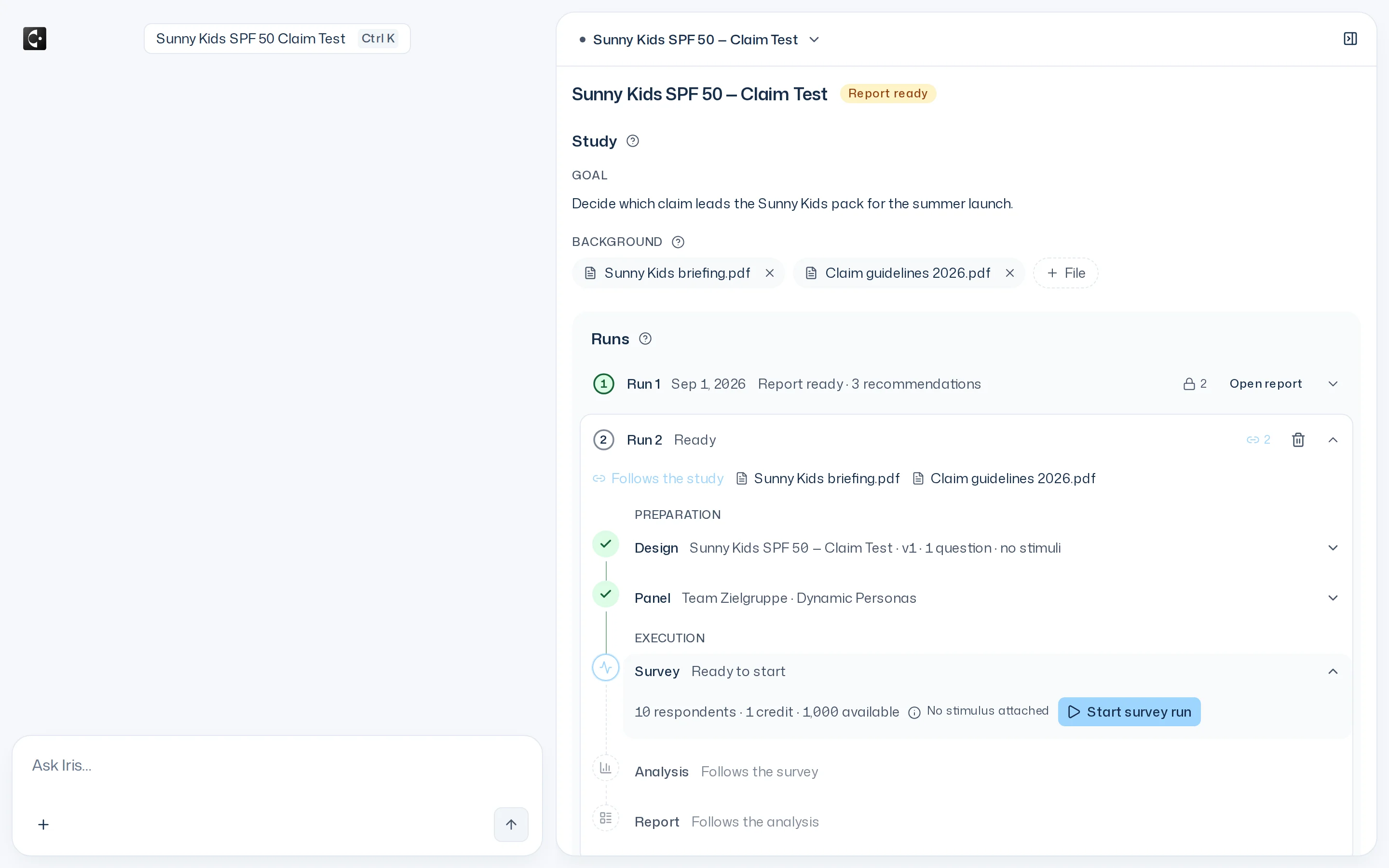
The top of the Dock shows the study's name and its status, for example Survey running or Report ready. You can rename the study right there (200 characters at most). Progress explains every status.
Below are two sections:
- Study: the goal and the background. Both apply to the whole study. Every survey run keeps them as they are at its launch. A later change only applies from the next survey run on.
- Runs: one row per survey run, the oldest at the top.
The question mark next to a heading opens the matching page of this guide in a new tab.
Survey runs
Each row shows the status ring with the number, Run 1, Run 2 and so on, and on the right a lock or a link with a number. The lock means the survey run froze its background at launch. The link means it hasn't started yet and follows the study's background. The number counts the files. More in Background. If the Dock is wide enough, the launch date and the status sit in between.
A folded row names the next step: Open report on a finished survey run, Start survey run on one that is ready. Click a row to unfold it. When you open the study, the survey run that needs you or is running is unfolded, otherwise the newest finished one.
What an unfolded survey run shows depends on where it stands:
- With a finished report: at the top the files the analysis read (Read), below them the report's Summary and KPIs. Open report shows the whole report, Repeat adds a new survey run with the same design and panel.
- All others: at the top Follows the study or, after the launch, Pinned with the background's files, below them the survey run's process in five steps, see below. If a new analysis is running, its progress shows below the existing report.
If a study has more than eight survey runs, the Dock folds the oldest finished ones into a row such as 3 earlier runs. Click to unfold them.
New run and Repeat
A study can have any number of survey runs. Each has its own design, its own panel and its own report.
- New run below the list adds an empty survey run, for example to test a second pack design. In the Design step choose Describe in chat or Load existing survey design. For the Panel, the Dock suggests the previous run's panel first; Use takes it over.
- Repeat on a finished survey run adds a new one with the same design and panel. It opens at the Survey step, ready to launch.
Both take the study's goal and background as they are now, not those of the survey run they start from.
A survey run you have never launched can be removed with Discard run. If it is the study's last run, the study goes too (The study goes with its last run.). Launched survey runs are always kept.
A survey run's process
A survey run without a finished report shows its process in two groups:
- Preparation: Design and Panel. If something is missing, the status line says Design missing or Panel missing. Have a missing design drafted with Describe in chat or load one with Load existing survey design. Choose the panel with Change panel and Use.
- Execution: Survey, Analysis and Report. This is where you launch the survey run and see how far it has got.
Each step expands. After the launch, design and panel are fixed: Fixed since the run started. A change needs a new run.
The views
Details on a step and Open report show a survey run in a view of its own. Above the view you switch between:
| View | Contents |
|---|---|
| Overview | The study's goal, background and all its survey runs. |
| Design | This run's survey design. You edit it here before the launch; afterwards it is frozen. |
| Panel | The panel that answers, shown as its panel card. |
| Report | This run's report, once it is ready. |
The study page
Every study has its own full-width page. You reach it from the Studies tab on the home page, from a notification, or from the report in the Dock via Open on Study page.
The page shows the same frame as the Dock, but only to read: goal and background, every survey run with its status, summary and KPIs, plus each run's design, panel and report. Changing, launching, repeating and adding survey runs only happen in the Dock. A button at the top right takes you there:
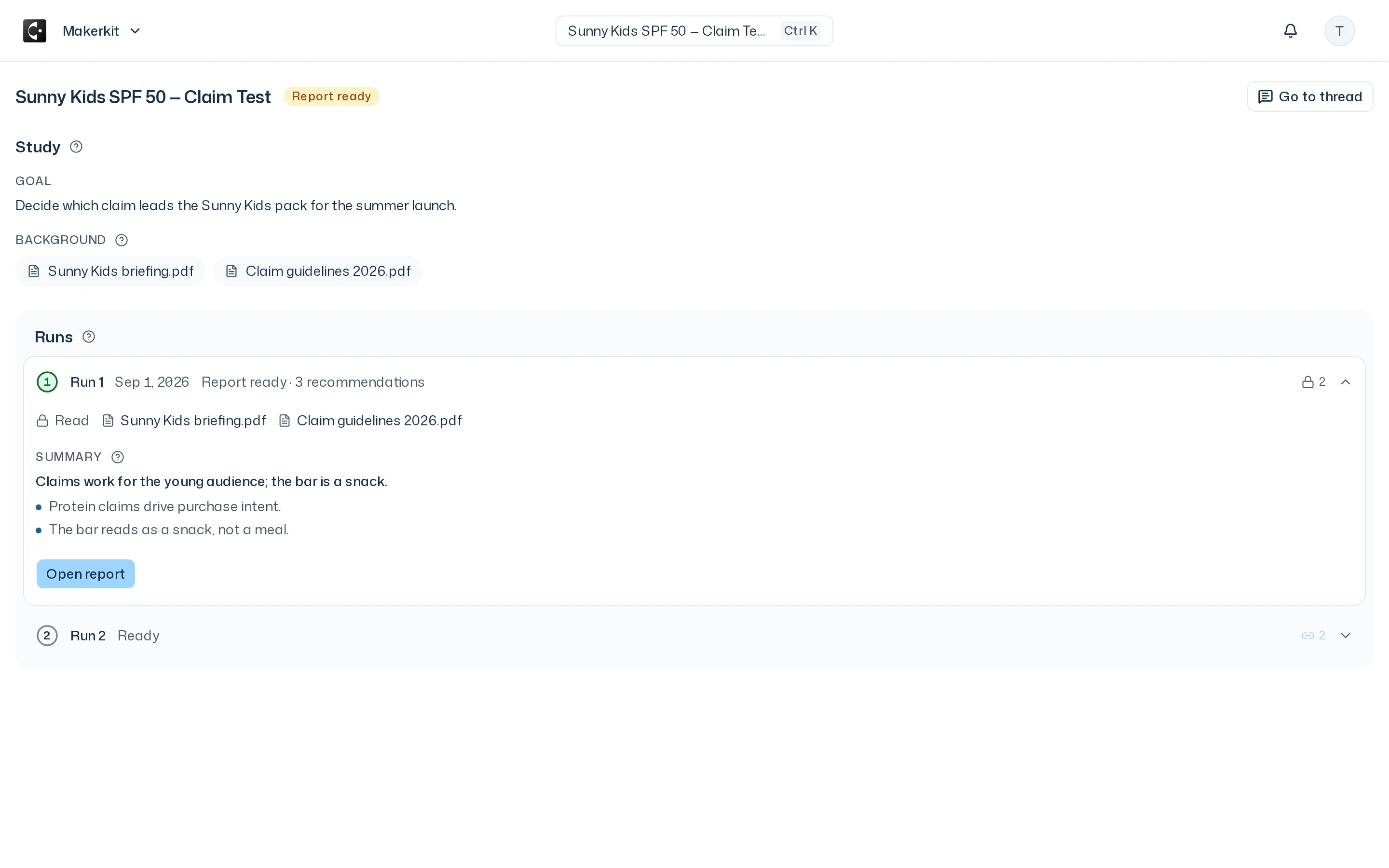
- Go to thread: If you created the study in one of your threads, it opens that thread with the study in the Dock.
- Ask Iris: In every other case, for example a study of another team member, a study from an integration, or when the thread is archived, it opens the home page. The composer has the study attached, or the survey run when you come from the report view. In the new thread Iris brings it into the Dock, or you bring it there yourself with Link. Then you work on it in the Dock.
A study that has never been launched is visible only to you. From the first launch on, your whole team sees it, including on the study page.
In this section
- Launch & costs: launch a survey run and understand what it costs.
- Progress: follow status, survey and analysis.
- Problems & refunds: failed and cancelled survey runs, and when credits come back.