Survey design
Edit the research question, questions and question types in the design editor.
The survey design defines what respondents are asked. Iris drafts it in the chat, and you can edit it yourself at any time. Every change is saved automatically.
Where you edit a design
- In the Dock: in a thread, open a study's Design view. There you edit the design of the selected survey run next to the chat.
- In the Designs tab: on the home page, the Designs tab lists all designs of your team. A click opens the design page with the same editor.
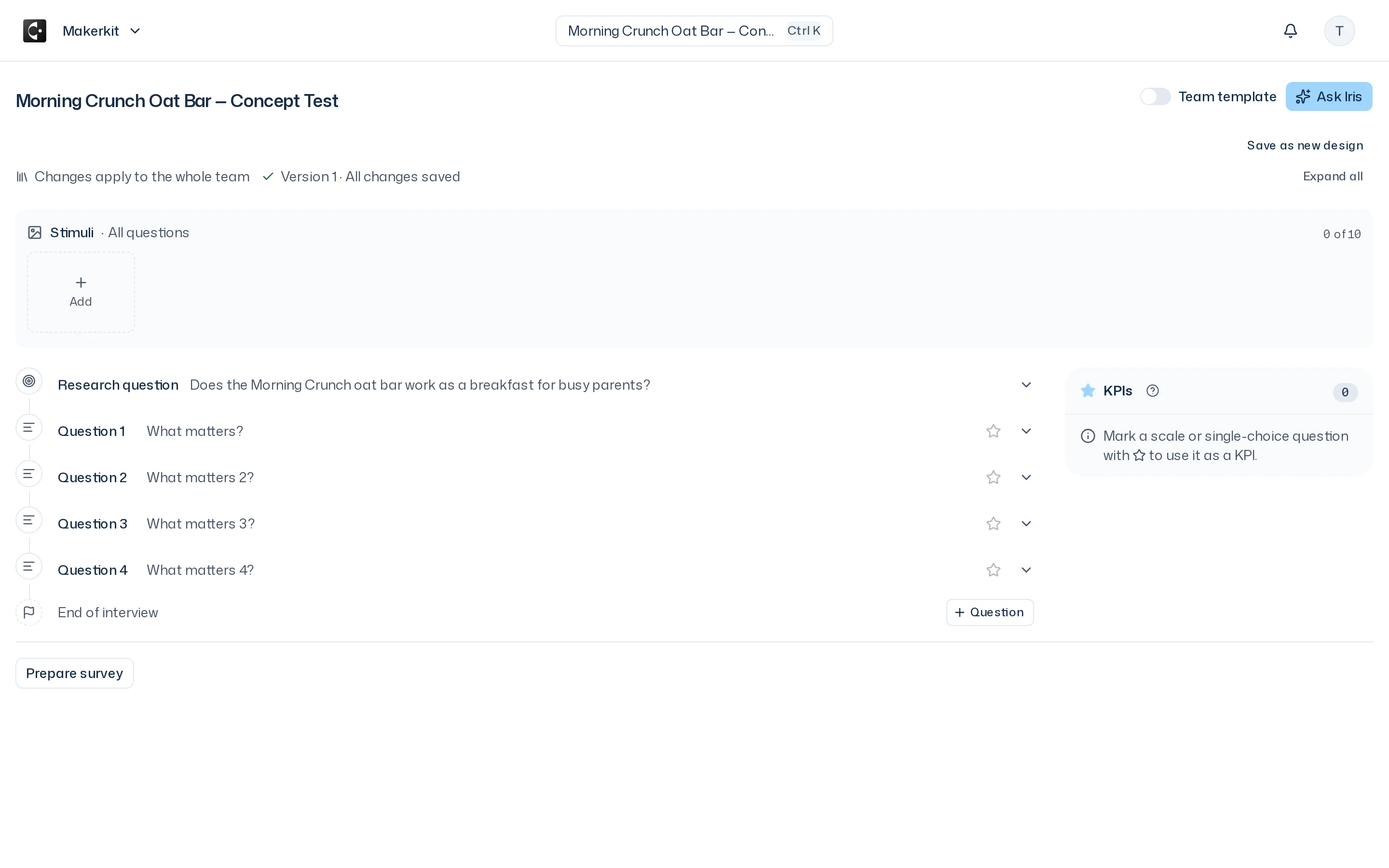
Wherever you edit a design, in the Dock or on the design page in the Designs tab, the editor says Changes apply to the whole team at the top. A design belongs to the team, not just to you. What you change is visible to everyone and applies to every future survey run with this design. If you want to keep the original, save a copy first (see below).
Layout: from the research question to the end of the interview
At the very top are the Stimuli for all questions: images or PDFs shown with every question (see Stimuli & materials). Below that, the editor shows the interview as a flow from top to bottom:
- Research question: Design name and Research question, the central question the report answers in its summary.
- Question 1, Question 2 …: the questions in the order they are asked.
- End of interview: here you add another question with Question and choose its type.
Each step can be expanded and collapsed. Collapsed, it shows a short summary. Expand all and Collapse all act on the whole flow. A step with an error shows Contains errors.
Question types
| Type | Use it for | Fields |
|---|---|---|
| Open question | Free answers that the report groups into themes | Question text, Probing instructions |
| Closed scale | A rating on a scale, for example 1 to 7 | Question text, Scale minimum, Scale maximum, Minimum label, Maximum label |
| Choice question | A choice from given options | Question text, Options, Selection mode |
You change a question's type in the Question type field.
Open question: the Probing instructions tell the interviewer when and how to dig deeper, for example "Ask which feature exactly they like and why when the answer stays general." A new open question starts with general instructions you can adapt.
Closed scale: a scale has at most 11 points, and both ends need different labels. A new scale runs from 1 to 5, from "Strongly disagree" to "Strongly agree".
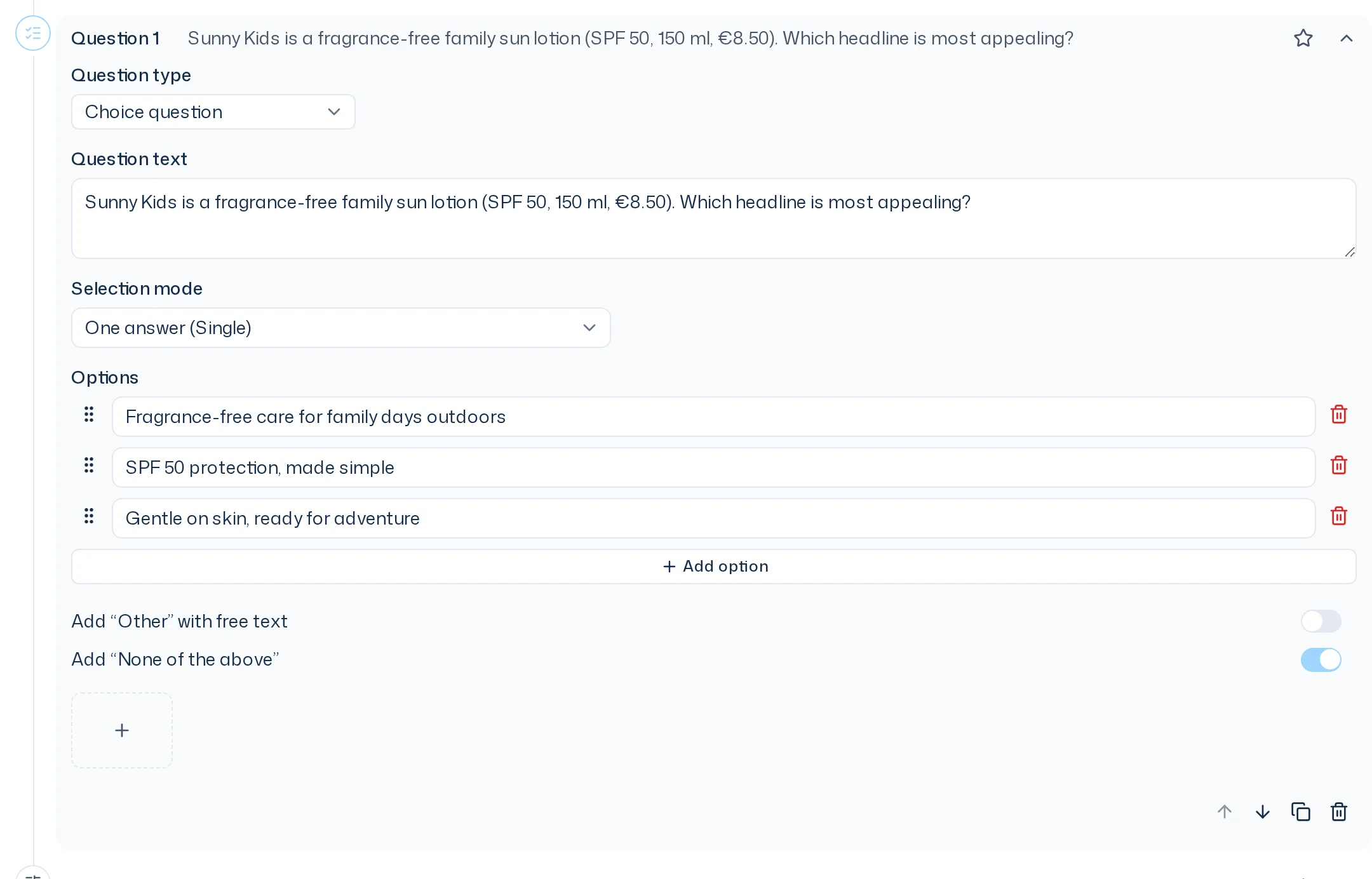
Choice question: create 2 to 12 Options. Add option adds one; reorder by dragging or with the arrow keys. In Selection mode you choose:
- One answer (Single): respondents pick exactly one option.
- Multiple answers (Multi): with Exactly, Up to, Between or Any number, for example "Up to 3 answers".
You can also turn on Add “Other” with free text and Add “None of the above”.
Edit questions
Below each expanded question you find:
- Improve in chat (Dock only): writes "Improve question 2: “…”" into the message field. Add what should get better and send. Iris then changes the design.
- Move up and Move down: moves the question.
- Duplicate: adds a copy right below, handy for similar questions about several products.
- Delete: removes the question permanently after a confirmation.
The star on a question makes it a KPI, see KPIs.
Saving and version
At the top of the editor you see the design's version and save status: Saving changes…, then All changes saved. If saving fails, click Try again. While Iris is changing the design, it says Iris is updating this Study Design. and the fields are briefly locked.
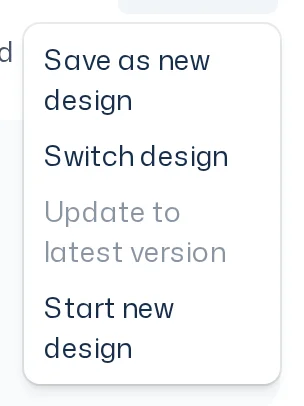
The Design menu
In the Dock, Design opens a menu:
- Save as new design: creates a copy as a design of its own. The survey run continues with the copy; the original stays unchanged.
- Switch design: uses another existing design for this survey run.
- Update to latest version: loads the newest version of the design if someone has changed it in the meantime.
- Start new design: starts a blank design for this survey run.
On the design page, only Save as new design is available.
When someone else edits at the same time
If you and a colleague changed the same design at the same time, the editor says: "Someone changed this design in the meantime. Load the current design or keep your change." You have three options:
- Load current design: discards your last change and shows the new state.
- Keep my change: after a confirmation, overwrites the current state with your change.
- View differences: shows the differences between Current and My change before you decide.
After the start
Once a survey run has started, its design is fixed. The Design view then shows Frozen with this survey run and the fields are locked. Changes to the design in the Designs tab only affect the next survey run. How to set up another survey run with a changed design is covered in Run a study.