
The interface
Header, search with ⌘K, the home page with its tabs, and the thread view with the Dock.
Signing in
Sign in with your email address and password, or with Sign in with Google. There is no public sign-up: you join through an invitation to a team. Open the link in the invitation email, click Continue to invitation and then Continue as … with your email address. If it's your first account, you then choose under Link account to sign in how you'll sign in from now on. More in Members & roles. After signing in you land on the home page of the team you worked in last. If you don't belong to a team yet, you create one first.
The home page
The home page is where everything starts. At the top, Iris greets you with Hi, I'm Iris. and asks What would you like to know from your audience?.
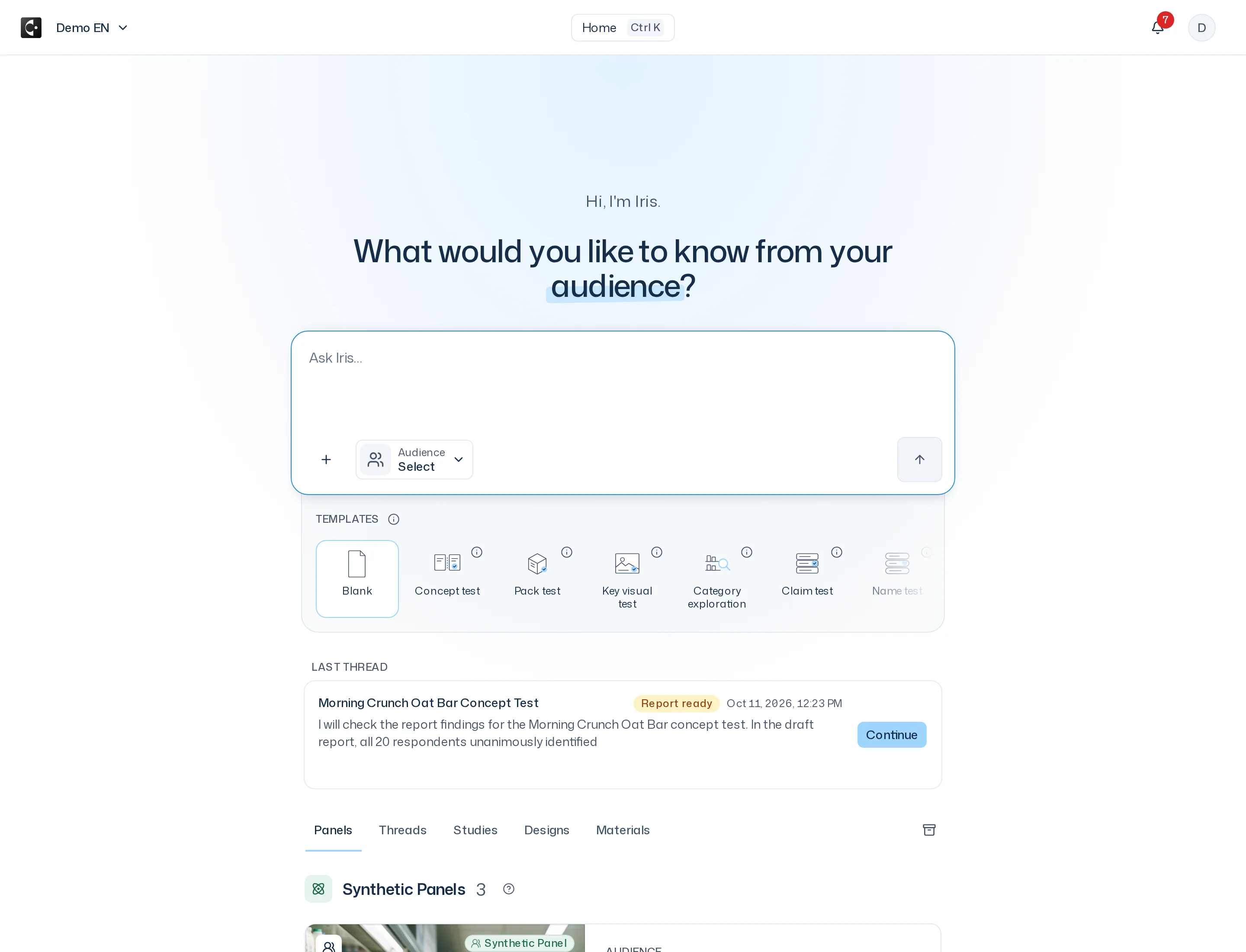
- Input field (Ask Iris…): this is where you write to Iris. Send message starts a new thread. Use + to attach files or objects, see Files & materials. The audience picker (it shows Select or the panel's name) lets you decide up front which panel should answer.
- Templates: ready-made study setups such as Pack test or Concept test. One click writes a sentence with a placeholder in square brackets into the input field. Nothing is sent yet. More in Templates.
- Last thread: your most recently active thread with a preview, its study status and the time of the last activity. If Iris is working there, it says Iris is working…. If a card is waiting for you, it says Waiting for your confirmation. Continue takes you into the thread. The card appears on the Panels tab.
The library tabs
Your library sits below the input field. The Panels tab is the home page itself.
| Tab | What you find there |
|---|---|
| Panels | Your team's panels and the standard panels, split into Dynamic Personas and Premium Twins |
| Threads | Your conversations with Iris. Only you can see them. |
| Studies | Your team's studies with their status, plus, through the Ad-hoc questions filter, your ad-hoc questions and the team's from integrations |
| Designs | The team's survey designs, including team templates |
| Materials | The team's files |
Whatever you typed in the input field stays there while you switch tabs. If you leave the library with a draft, the app asks Discard draft?. An empty tab shows, for example, No Studies yet and an Ask Iris button. Studies, designs and panels come out of conversations with Iris, not out of forms.
The header
- Left: the logo takes you to the home page. Next to it is your current team. Click it to see your teams, or create a new one with Create a Team.
- Centre: search. It shows where you are, for example the name of the thread, plus the shortcut
⌘K(Mac) orCtrl K. - Right: the bell for notifications and your profile picture for the account menu.
Search with ⌘K
Click the search or press ⌘K or Ctrl K. Type a few letters into Search your threads and navigation and open a result with Enter.
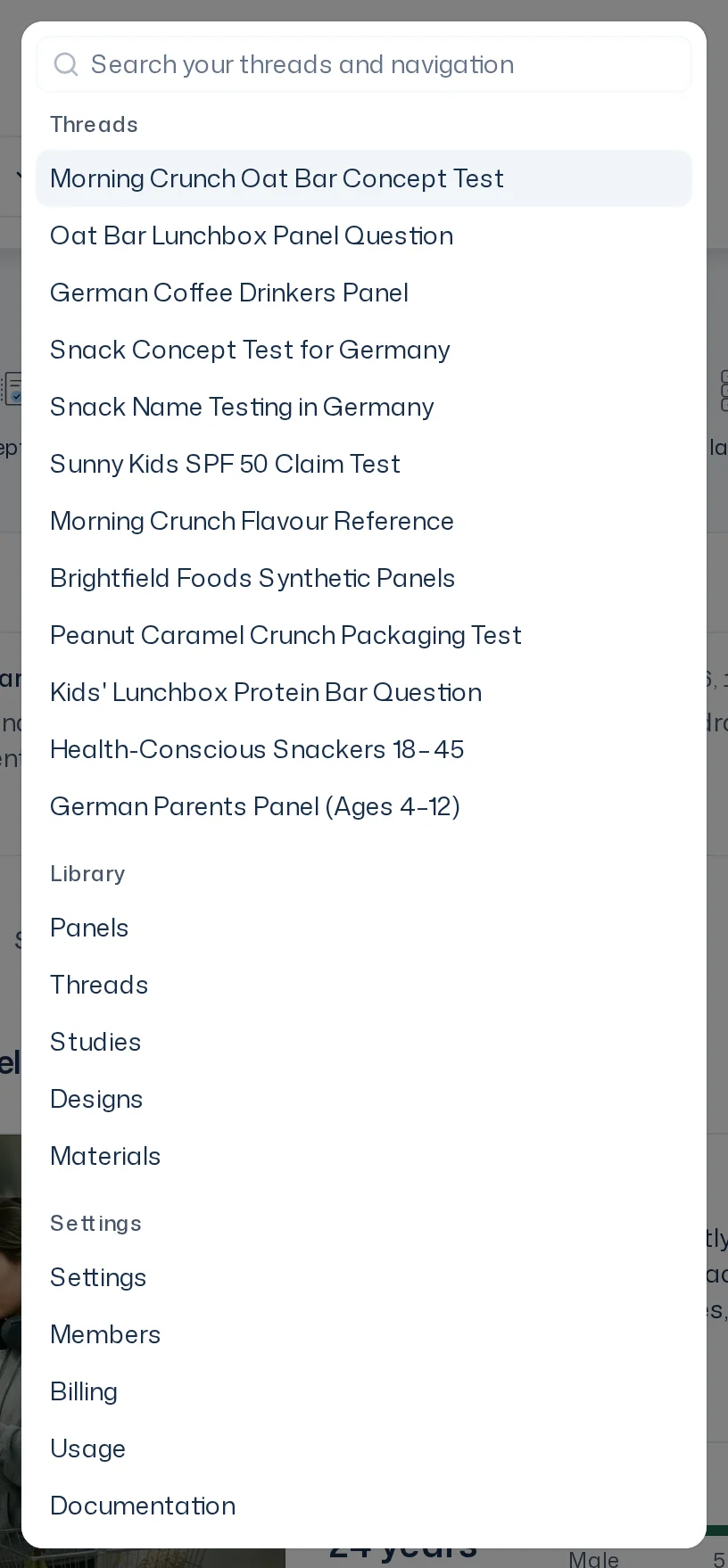
Search has three groups: Threads (your threads that aren't archived, by name), Library (the five tabs) and Settings (Settings, Members, Billing, Usage, Documentation). To find studies, designs or materials, search inside their tab.
Account menu
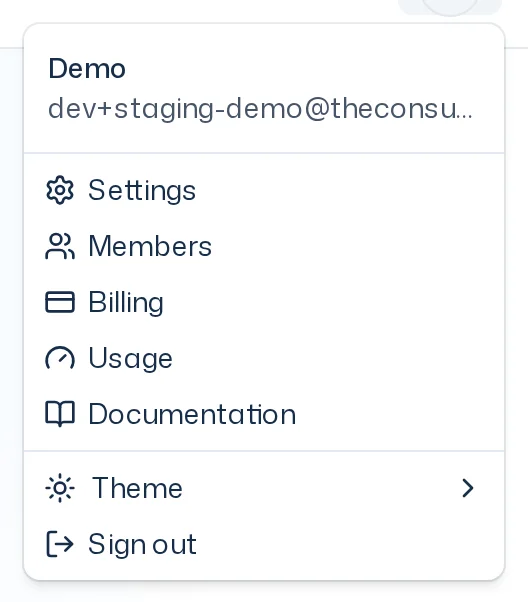
Click your profile picture to see your name and email address, followed by Settings, Members, Billing, Usage and Documentation. Members, Billing and Usage open that area of the settings, see Manage your team. Under Theme you choose Light, Dark or System. Sign out signs you out. In a team without a subscription or contract, the menu also shows how many credits are left, rounded down to whole credits, for example On Demand: 12 credits remaining. At 5 or fewer, the bell carries a dot: Credits running low.
In some places, such as KPIs or credit limits, a ? opens the matching page of this guide in a new tab.
Notifications
The bell shows how many unread notifications you have, such as Report ready. Click it to open the list, and use Mark all as read to clear it. If a new notification arrives while you work, it also pops up briefly with Open. More in Notifications.
The thread view
As soon as you send a message, the thread opens. The conversation with Iris is on the left. Open Dock shows the Dock with your study on the right.
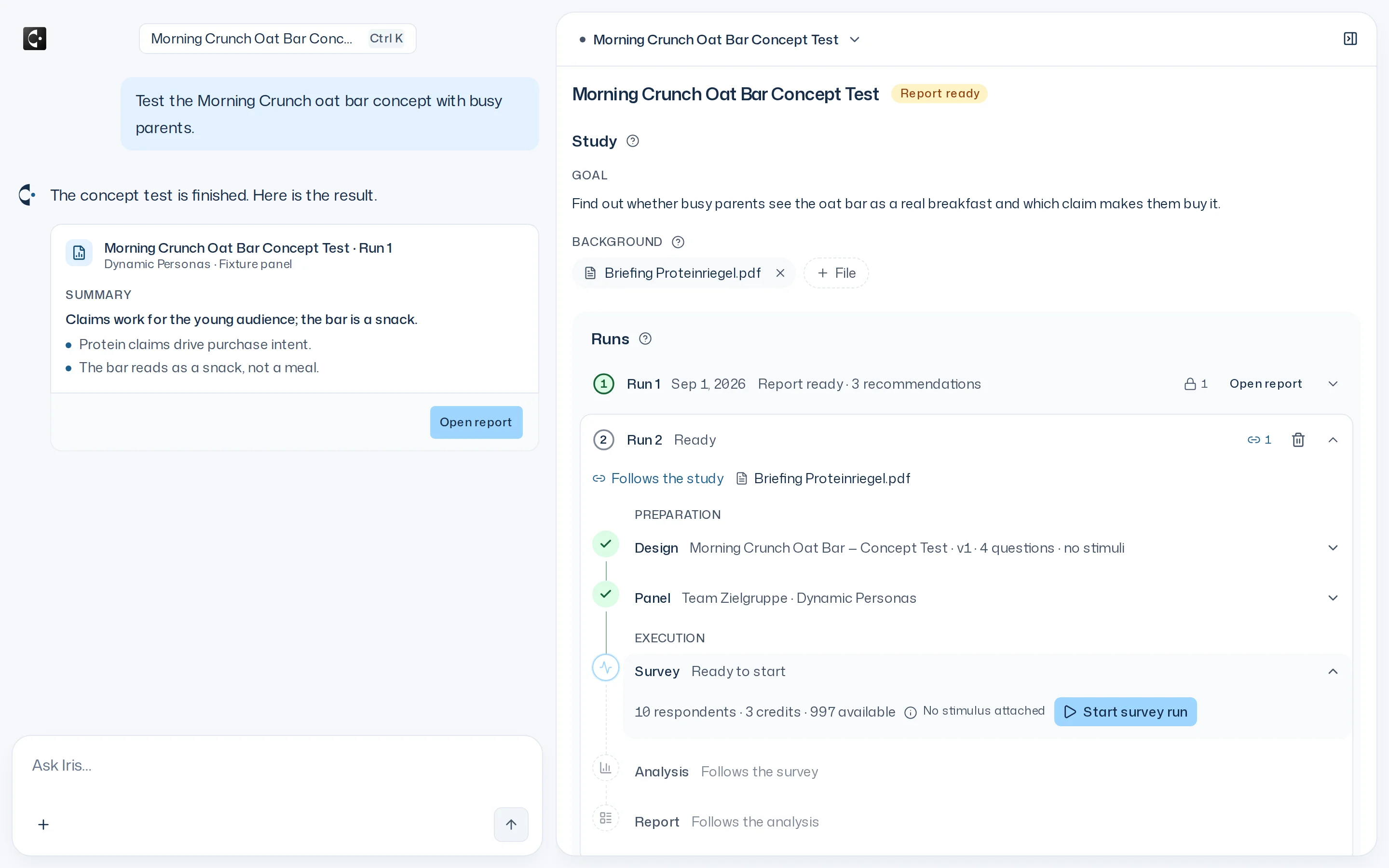
- In a thread, the header only shows the logo and search. You get the bell and the account menu back when you return to the home page through the logo.
- The Dock shows a study with its goal, background and survey runs. From there you open the views Design, Panel and Report. At the top of the Dock you pick the study if the thread has more than one (In this thread, New study, Linked).
- Open Dock and Close Dock show and hide it. On narrow screens it takes the full width.
How to talk to Iris is covered in Working with Iris. The overview in the Dock is explained in Run a study.