

Files
Upload files, read and search PDFs and CSV files with Iris and manage them in the project.
You can hand Iris files, such as a brief, a concept or a pack image. Iris reads PDFs and CSV files, searches your files on her own, answers with sources and computes with numbers from PDFs, Excel and CSV files.
Uploading files
- In the input field, click + and choose Upload file. On the home page you can also drag files into the input field.
- Pick one or more files. While a file uploads, it shows Uploading….
- Write your message and send it.
Files appear in a compact strip above your message, both on the home page and in a chat. To reach more files, drag the strip sideways with the left mouse button held down, scroll horizontally on a trackpad or swipe on a touchscreen. Tab reaches each file's actions and brings the focused file into view.
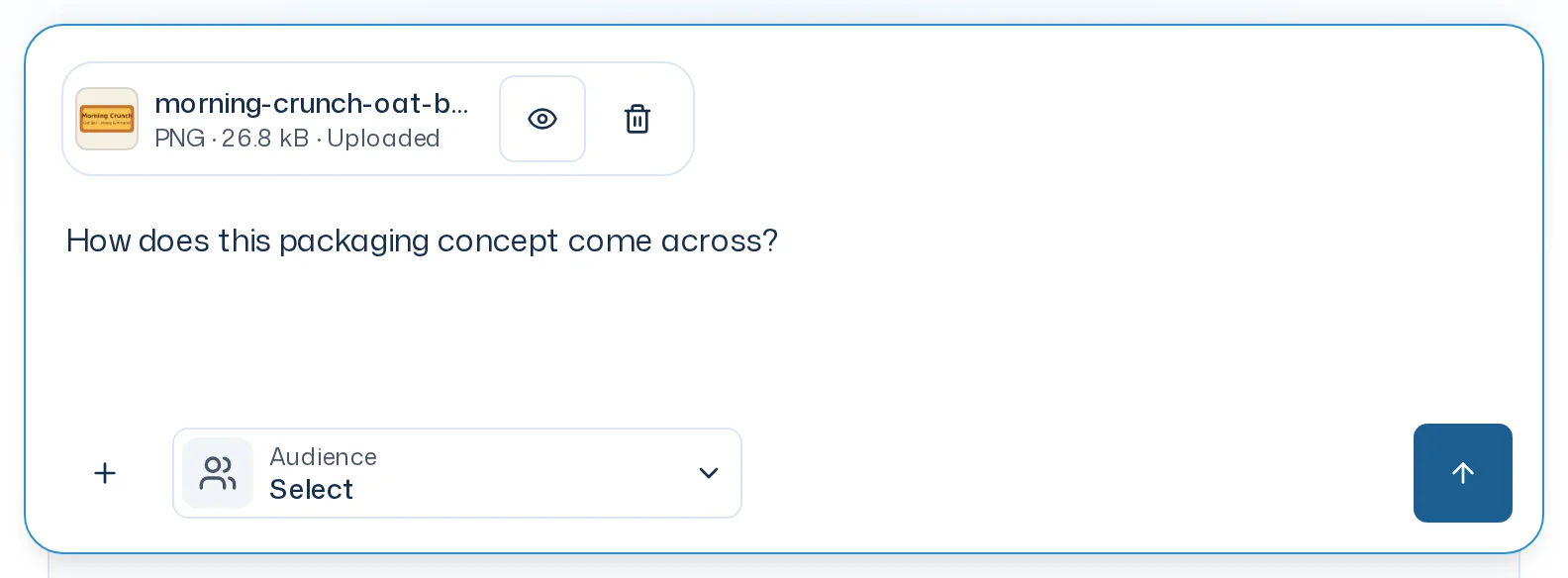
Use Inspect on a file to open its preview. Images appear at a larger size and PDFs open in the PDF viewer. For Office, CSV and JSON files, the app shows file information. The preview displays the complete file name. Remove takes the file out of the draft; the uploaded file stays saved.

Allowed are images (JPG, PNG, WebP), PDFs, Word, PowerPoint and Excel files (DOCX, PPTX, XLSX), CSV files (UTF-8 or Windows-1252, as Excel saves them) and JSON, each up to 50 MB. If a file is too large or of another type, the input field shows Files must be 50 MB or smaller or Unsupported file type. If an upload fails, remove the file and select it again. Send stays unavailable during an upload or while a failed file is in the input field; your message text stays in place.
A PDF with more than 150 pages shows a red warning icon right in the input field. What it means is explained below under Warning icons on files.
Iris sees images and PDFs as the original, charts and figures included, also in later messages. Iris reads a CSV file as text. With Excel and CSV files she computes over every row (see below). For Word and PowerPoint files and JSON, Iris only knows the name, type and size. If their content matters, put it into your message.
Opening files in Research
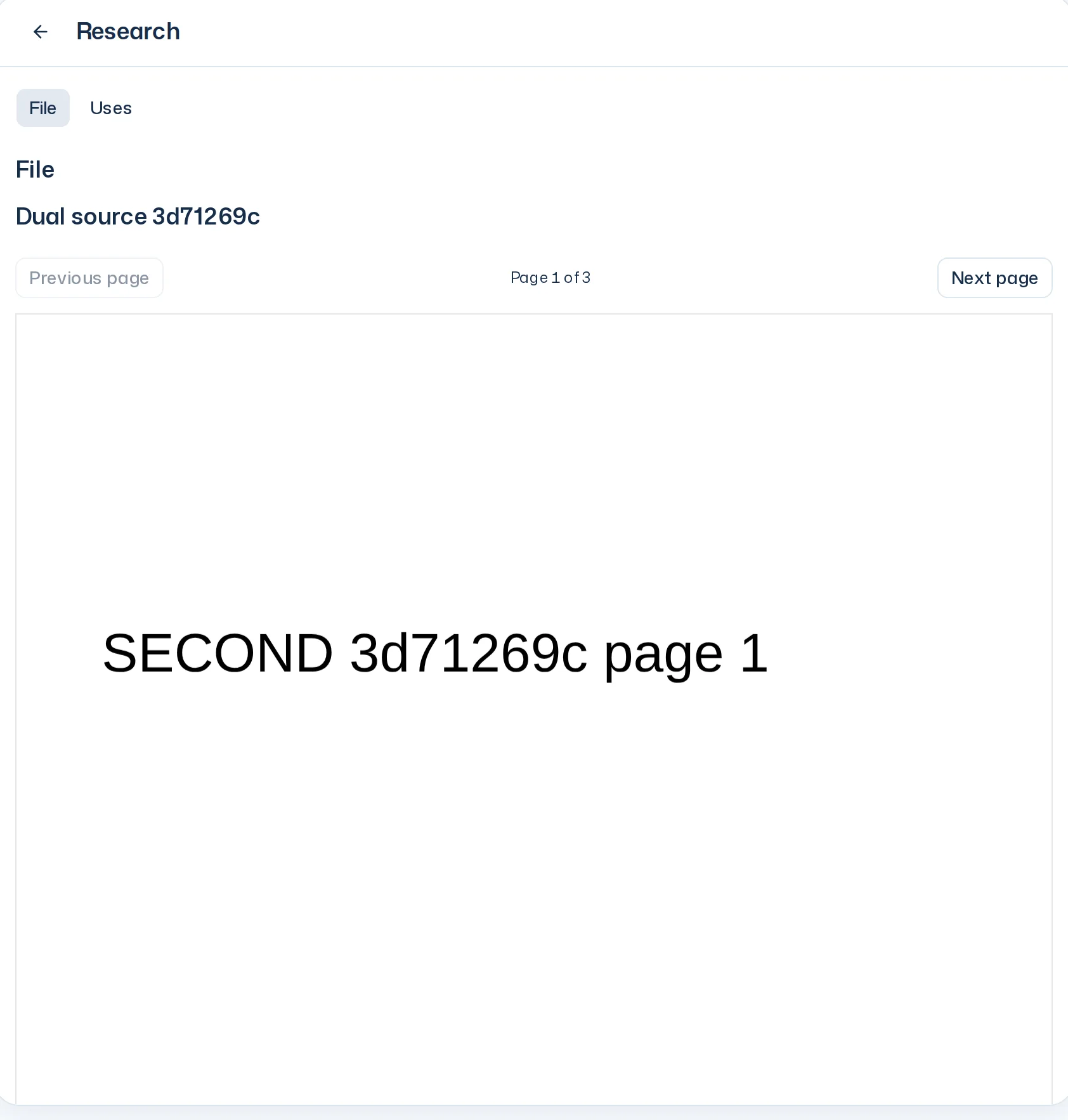
All of the project's files sit under Research → Files, including those other members uploaded. Every file has one card. Open it to read the content. When you return to the overview, loaded card previews stay ready.
A study's stimuli are in its survey run's Design. A file opened from a saved source shows the exact content recorded there. Background content used by an analysis is covered in Project context.
PDFs have Previous page and Next page controls; images and JSON show their content. Download Office files to open them. Back returns to the Research overview. More in Research details.
Reading PDFs with Iris
Upload a PDF and ask your question. Iris sees the PDF as the original, charts and figures included, and answers from its content.
- Follow-up questions: The PDF stays in the chat, and Iris sees it in later messages too. You don't need to send it again.
- Long PDFs: Iris reads PDFs of up to 150 pages.
- Long individual pages: When Iris needs extracted page text, she can read even a very long page in parts through to its end. A part she has read supports its own wording, not the entire page.
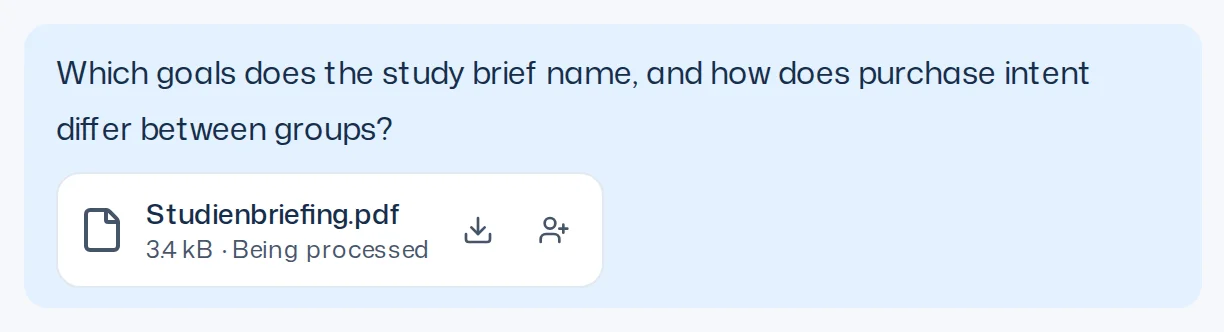
- Right after the upload: The app reads a new PDF in page by page. Meanwhile the file in the chat shows Being processed. Once it is done, the note goes away by itself. Iris still answers your question right away from the original. If she cannot open the original, she answers from the pages that are already done and names the pages still to come.
Searching files
To ask about what files say, you don't need to upload or pick a file. Just ask, for example “What do we know about the target group from earlier studies?” or “Search the brief I uploaded last week”. Iris searches the files herself, reads whole pages when she needs to and answers with sources.
- Where Iris searches: in the files of the projects you can see. She leaves out archived files unless you name the file.
- What Iris finds: exact terms and passages that say the same in other words, also across German and English. Accents don't matter: “Cafe” also finds “Café”.
- Only one file: Tell Iris which file to search. She finds the file by its name. If she can't search a file yet, she reads it directly.
- Which files: Iris searches PDFs and CSV files. She finds a new file as soon as the app has prepared it, usually shortly after the upload. Pages Iris couldn't read (warning icon) aren't found. Images, Word, PowerPoint and Excel files and JSON aren't searched.
The search shows no card of its own in the chat. You see it in the sources of the answer. Iris quotes a passage she found word for word; if she needs more, she reads the whole page.
Sources
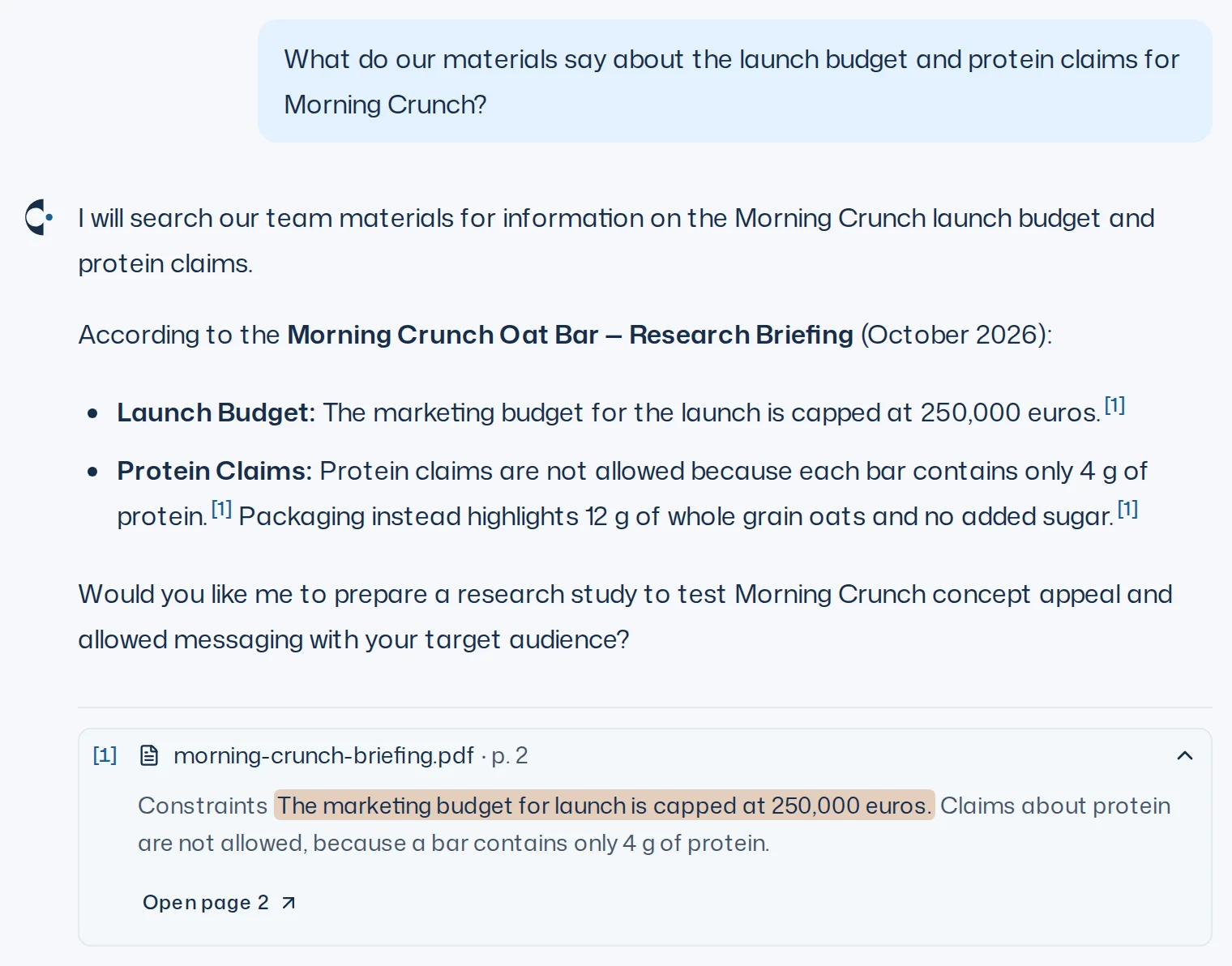
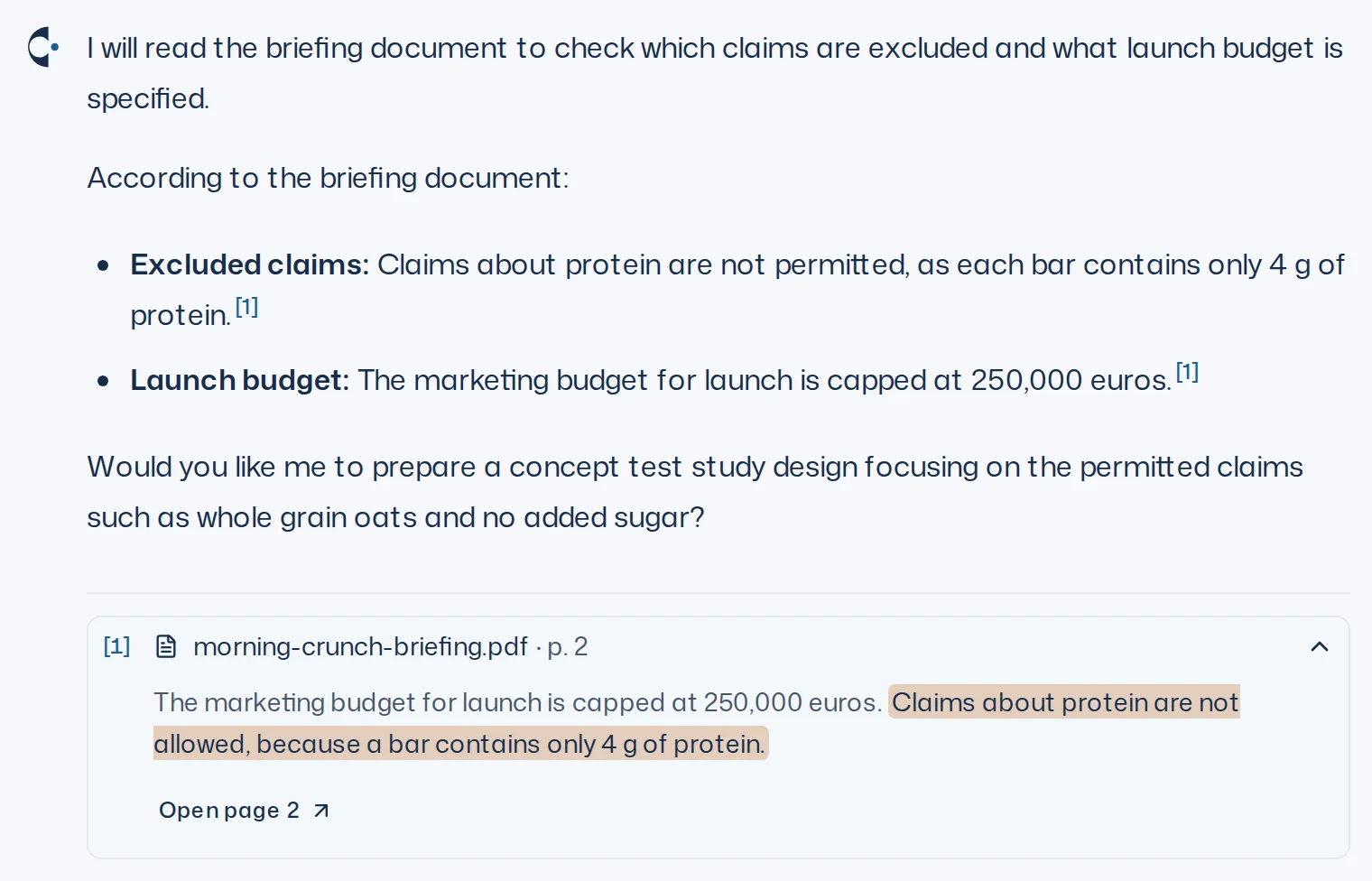
When Iris answers from a PDF, sent or found, she backs up her statements with sources. A number such as [1] follows the statement. Below the answer, the sources are listed with number, file and page, for example [1] Report.pdf · p. 3.
- Click a source to expand it. You see the passage Iris relies on, highlighted, with some text before and after it. If the quoted passage is no longer present, it says This passage is no longer available. Sources without an exact quote show the start of the page.
- Open page 3 opens the PDF at that page.
- If the file lies in another project than the chat, the source shows only file and page. It can't be expanded or opened.
Iris only cites pages she has read, or quotes word for word from a passage she found. She still knows pages and passages from an earlier answer in the chat and doesn't need to read them again. If the file has been deleted since or you no longer have access, Iris says it is no longer available; the same goes for a passage whose page reads differently today. The app removes a citation it can't back this way before you see the answer.
Computing with numbers from files
Iris can put numbers from a PDF, an Excel or a CSV file next to your survey results, such as the market shares from a market study or sales figures from a spreadsheet. Tell her which file to use. For PDFs she computes only with those the app has finished preparing.
Iris computes Excel and CSV files over every row of the original file. She picks the sheets and columns herself and names them. If an assignment is unclear, she asks. Missing formula values or content she can't read she names instead of estimating them. More in Analysis in the chat.
Warning icons on files
If Iris can't read all of a PDF or CSV file, a warning icon sits next to the file name. Iris doesn't read or search a very large CSV file (from about 2 MB) as text, but she can still compute with it. Its tooltip says in one sentence what is missing and what you can do. No icon means all is well.
| Icon | Meaning | What to do |
|---|---|---|
| Yellow | Iris couldn't read some pages but knows the rest. The tooltip lists the pages. Her answers may have gaps there. | Send Iris the content of those pages as text if it matters. |
| Red, more than 150 pages | Iris reads files of up to 150 pages. | Split the PDF into files of up to 150 pages and upload those. |
| Red, damaged or protected | The PDF is damaged or has a password. | Open it, save it again via “Print” > “Save as PDF” without a password and upload the new PDF. |
| Red, other error | Iris couldn't read the PDF. | Save it again via “Print” > “Save as PDF” and upload the new PDF, or send Iris the content as text. |
A PDF with a red icon stays unreadable. Uploading the same file again changes nothing. Only a newly saved PDF tries again. The same icons show on the file in Research.
Adding from the Library
+ > From the Library adds things that already exist. The dialog has the tabs Studies, Designs, Panels and Files.
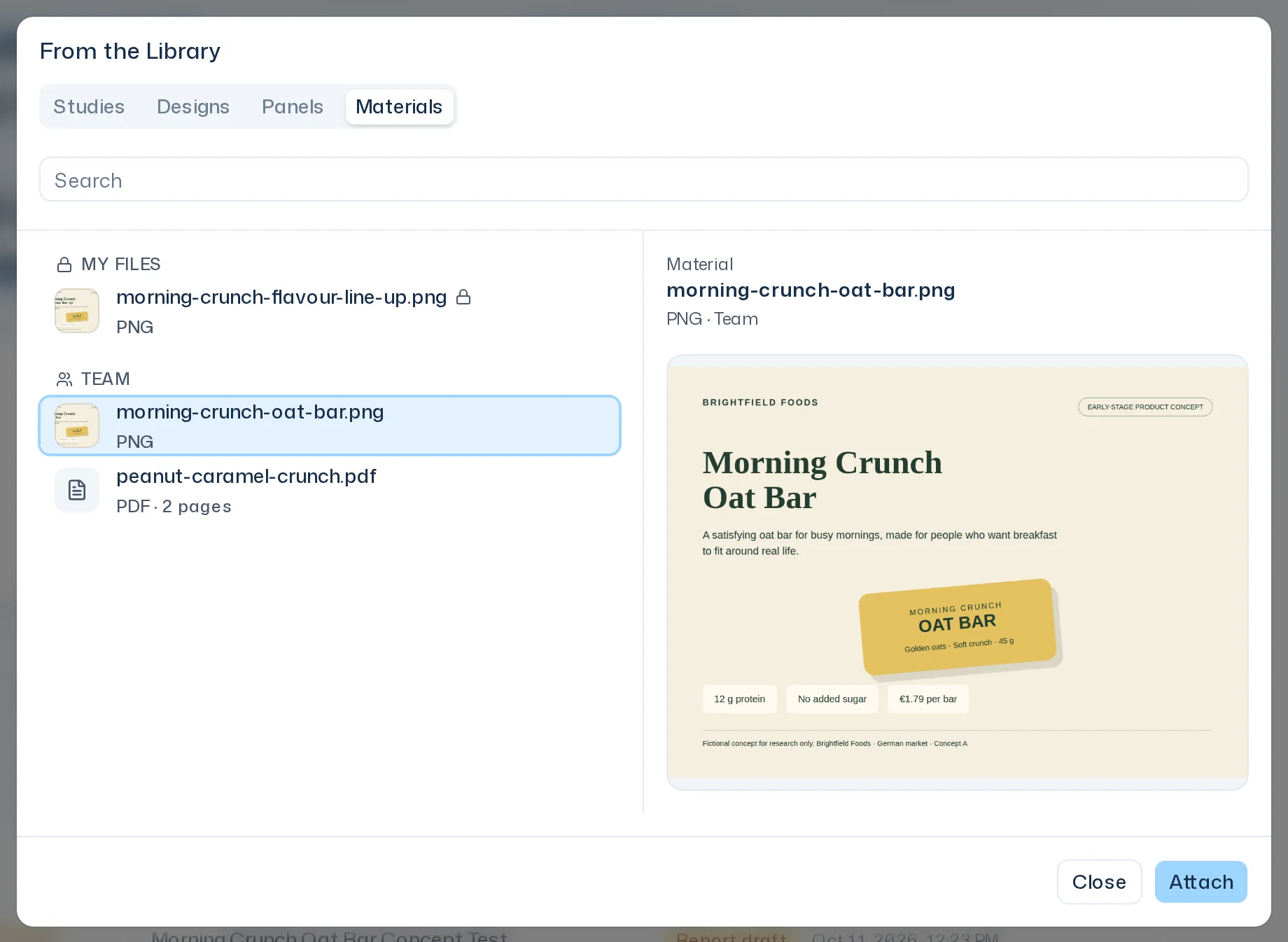
- Use Search to find something by name. The arrow keys move between results, and a preview shows next to the list.
- Studies, Designs and Files list the current project's entries first, then those of all other projects, each with its project name.
- You can add a whole study (Select Study) or just one of its survey runs.
- Add or Enter adds your selection.
Up to ten objects fit into one message.
Files in a project
Every file belongs to the project you upload it into: in a chat the chat's project, on the home page the new chat's project, on a project page that project and in a design the design's project. Anyone who sees the project sees its files. You don't share a single file; sharing always covers the whole project.
If you upload exactly the same file to the same project again, the app finds the existing one; the project page then says This file is already in the project. In another project it becomes a new file of that project.
Any file from a project you can see can be a stimulus. If it lies in another project, inserting it makes it part of the design. More in Stimuli.
Files on the project page
On the project page, Files lists all of the project's files with the name of the person who uploaded them. Upload file puts a file straight into the project, without a chat. … > Delete removes a file; the person who uploaded it and the project's owner may do that. If it is still in use, it stays: the app reports That is still in use and stays. If an analysis that reads the file is running, deleting the file stops it; Resume interpretation runs it on without the file. A summary already saved stays as it is.
To find a file, ask Iris in a chat or use + > From the Library, tab Files, in the input field. A file stays as it is. If a file has changed, upload it again and you get a new file.