

Presentation
Build, change and find results of several survey runs as slides in your Brand Kit's look.
A presentation shows slides in your Brand Kit's look with numbers, charts and quotes. Unlike a report, it belongs to no single survey run. In a presentation you compare survey runs, for example two waves of a study, and add results from single questions and files. Everyone who sees its project sees a presentation; you show it to people without an account through a link.
Build a presentation
Ask Iris for a presentation in the chat, for example "Build me a presentation from both waves". There are two shortcuts:
- Mark for presentation in a result's action bar or on the result message in the chat marks the survey run; Create presentation then starts a new chat in the project with every marked survey run. More in Research details.
State the slide count, order and presentation you want, such as a compact matrix of hypotheses, tests and responsible roles. You can request free frames with specific positions and dimensions. These choices take precedence over Iris's default recommendations. A template slot does not replace an explicitly requested free frame. If the available Brand Kit or tools cannot support a request, Iris lists it as an open requirement. You can also explicitly request percentages with their respective bases.
If you don't name a title, Iris asks for one. A new presentation uses the Brand Kit your team has set as default. If you want a different one, name it to Iris when the presentation is first built. Later, Iris switches the presentation to another Brand Kit when you ask.
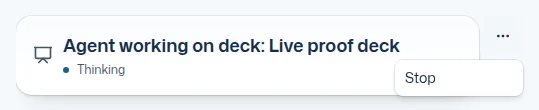
Iris hands the presentation to an agent as an order that works in the background. The chat shows the card Agent working on presentation: with the presentation's title. It shows what the agent is thinking about, or Thinking, and how long it has been working. Meanwhile you can keep asking Iris, about anything else too. Clicking the card opens the presentation in the Dock, where the outline of the slides stands until the new version is saved. Until then, the Dock shows a new presentation as a preview with its title; Back returns to the Research overview. If the preview is still in front when the presentation is saved, it then shows the saved presentation. If you have opened something else in the meantime, that stays in front, and the presentation appears under Research → Output.
When the order is done, Iris reports back in the chat. Below, the Presentation built card names the title, a summary and Open requirements; Open in Dock shows the presentation in the Dock. If you have left the chat in the meantime, you get the Presentation ready notification. The order also keeps working when you close the browser. If the work is interrupted on the server, the agent continues the same order: versions already saved stay, and neither a second presentation nor a duplicate version is created.
Several presentation orders
Iris can have several presentations worked on at the same time; each card belongs to its own order. Only one order works on a presentation at a time, also when you or someone in the project asks for a change in another chat. Further orders for the same presentation wait in turn, and their card shows Waiting for the presentation. Once the presentation is free, the next order starts with the version current then. The card does not show who is working on the presentation. If Iris wants to make a change herself while the presentation is taken, she says so and hands the change over as an order or answers without changing the presentation.

Stop a presentation order
Next to the card of a running order, … opens the menu with Stop. Only this order ends; versions already saved stay. A new presentation without a version is then not created; its preview in the Dock shows No presentation saved. If the order already saved a version, the preview shows it, also when the order is stopped or fails. You can also ask Iris in the chat to stop the order. The stop button in the input field ends only Iris's current answer, never a presentation order.
Iris handles a small change or a simple new presentation herself in the conversation instead of handing it to her Authoring Agent. The card then shows the outline until Iris saves, and the status line counts no slides. Both ways check and save the same way. If someone changed the presentation meanwhile, Iris applies your change to the newest version and never overwrites it with an older one. If your change touches a slide someone changed meanwhile, Iris says so instead of saving.
Saving checks number references to calculations and document form rules. While working, Iris can inspect rendered slide images, compare content and design with your request, and check again after changes. She can request an additional critique when useful.
For comparisons within the same build, Iris can reopen earlier slide images, for example before and after a change. She sees the original images of that rendering. If the saved copy or access to one of its sources is missing, she reports this instead of presenting a new rendering as the old one.
If part of your request remains open, Iris can still save a useful version. She explains what was saved, what is missing and which parts she could not verify.
Correct a running order
While the agent works, write your correction in the chat, for example "Make slide 3 a bar chart" or "Add the market data". Iris passes it to that order; if several orders could be meant, she asks which one. Questions about something else she answers herself without passing them on. Iris confirms that the order accepted the correction. The agent works it in at its next step and saves no version that misses it. Your correction then counts as a decision of the order, also for later changes to the presentation. The app checks a file you upload or mention for you as usual; the order computes with exactly the content the presentation's numbers are based on.
Below the order's card, each correction shows its state: Accepted, Applied in version … or, if the order ended without it, Open.
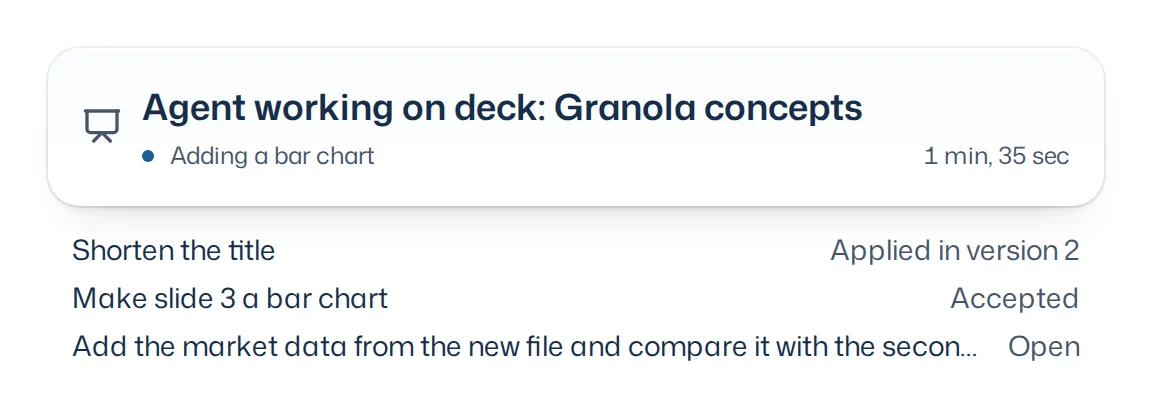
If a correction arrives only after the agent saved, or the order ends before, it stays open: the Presentation built card lists it under Open requirements, and your next change to the presentation takes it over. If the order has already ended, Iris starts a new order with your correction. A result that arrives after someone saved a newer version doesn't present itself as the current state of the presentation.
Questions from a presentation order
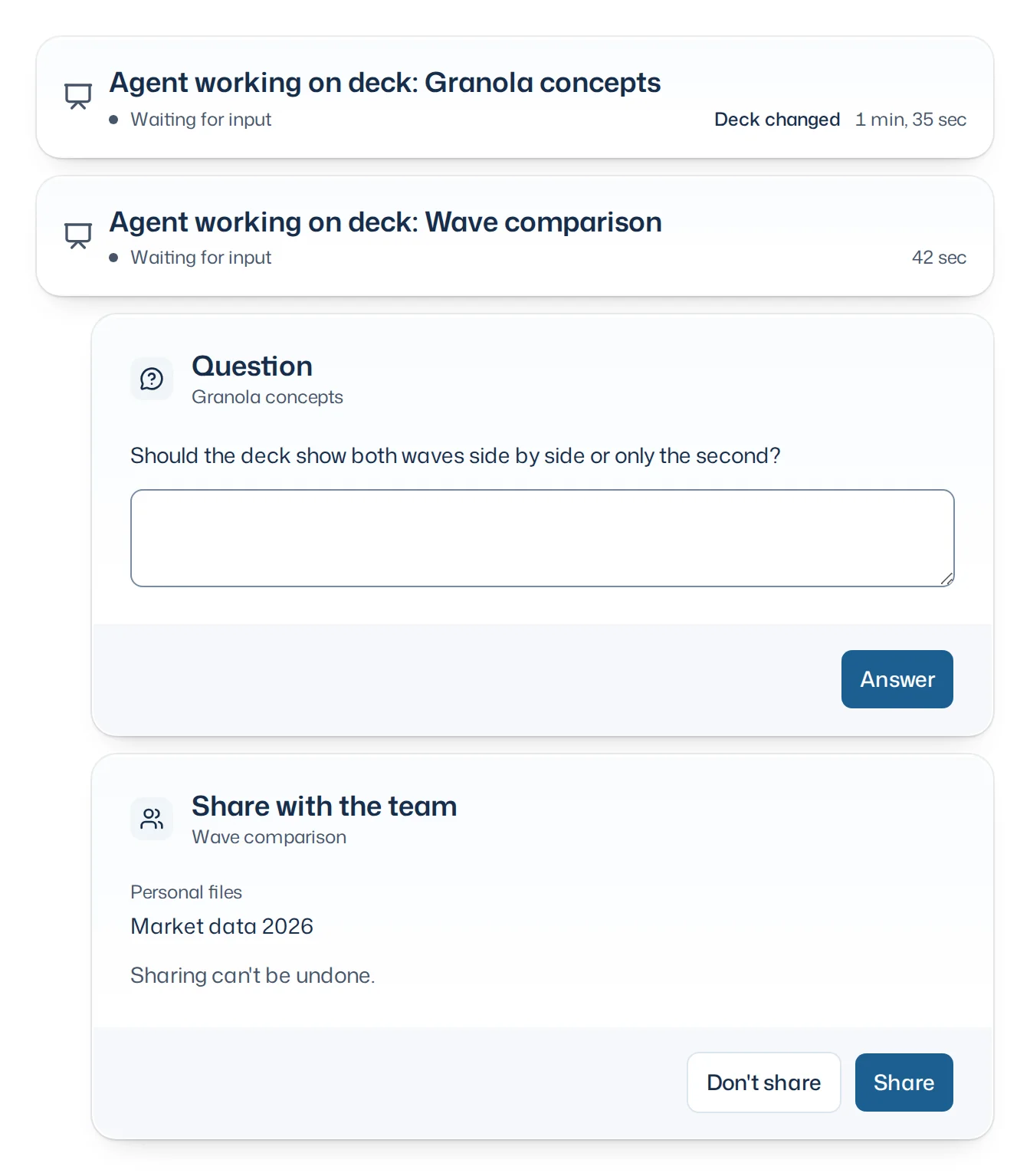
If the agent lacks a decision only you can make, it asks. The order's card then shows Waiting for input, and Question appears as the last card right above the input field, with the presentation's title and the question. You answer in that card with Answer; a normal chat message answers no question. If several orders wait, each has a card of its own, also beside an open question from Iris. The card stays after a reload and disappears when you stop the order.
While the order waits, the presentation is free: other orders, Iris and your team can change it. If someone changes the presentation in the meantime, the order's card shows Presentation changed. After your answer the order then builds anew on the new version, with your answer, your decisions and corrections; the others' change is kept.
Change a presentation
A presentation only changes when you ask Iris in the chat, for example "Shorten the method slide" or "Add the purchase intent of the second wave". Every change becomes a new version, and the card then reads Presentation changed. If the request changes nothing in the content, no new version is created: the Presentation card shows No changes, Iris's summary and any reported Open requirements. Parts of your request may still be open. Older cards without this information show Open requirements unknown. The presentation page itself changes nothing.
For a limited revision, Iris preserves content and structure outside your request, including unrelated objects on a changed slide. If she notices an older error elsewhere, she reports it as an open requirement and leaves it unchanged. Completing the requested change does not mean the whole existing presentation has been checked again.
What you decide, for example "Keep the first twelve slides as they are", Iris passes on to the order as binding. When you later ask for another change to the same presentation, your decisions and the open requirements of your last saved order still apply until you say otherwise. Throughout the order, Iris computes numbers from a file with exactly the content the presentation is based on.
Every member of the project the presentation lies in can ask Iris for changes.
Read the presentation
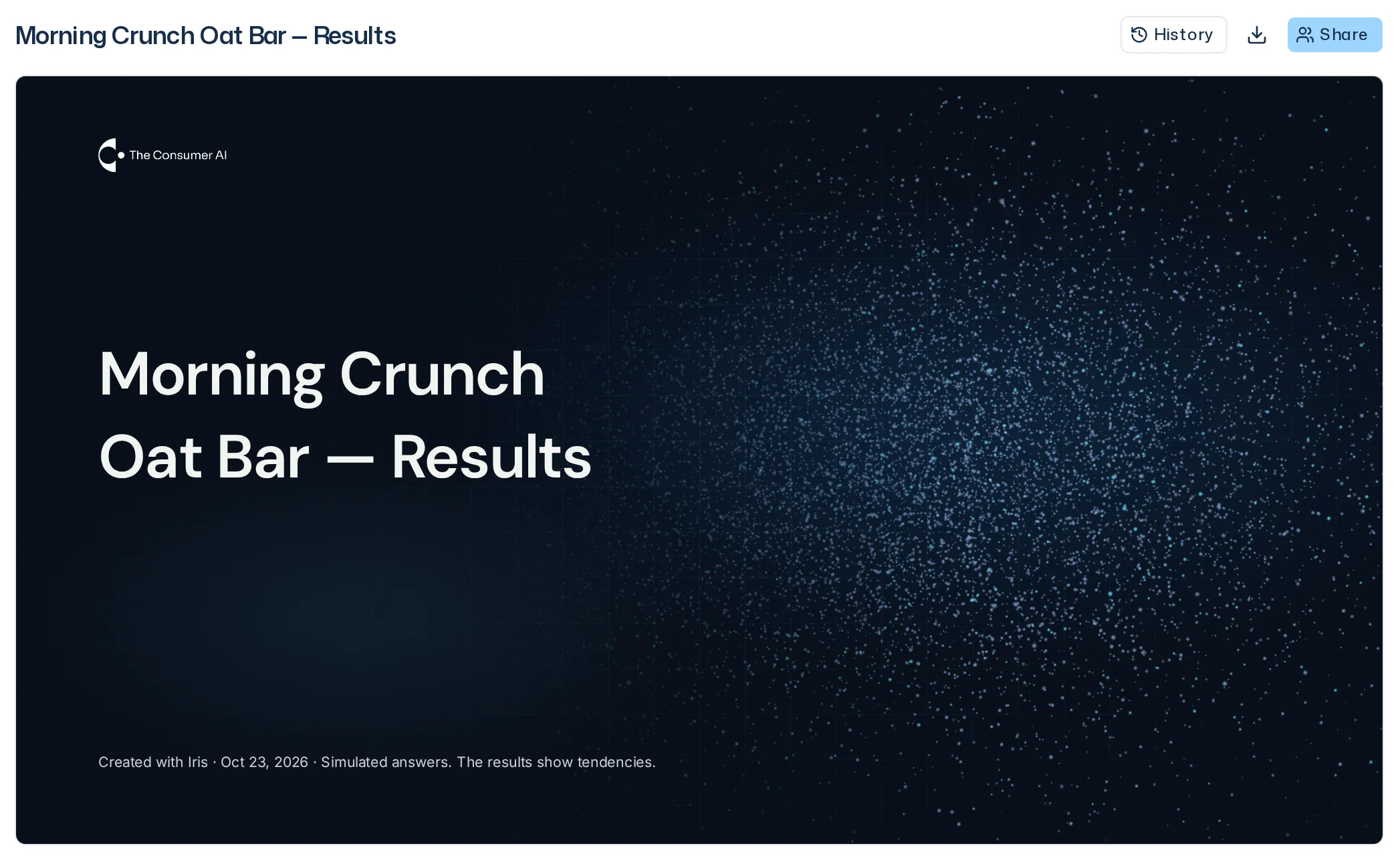
The presentation page shows all slides one below the other in 16:9, in the Brand Kit's colors, fonts, logo and layouts. On narrow screens the slides get smaller, their structure stays. When a slide is too small to read, for example on a phone or in the dock, Enlarge at the slide's top right shows it large; whatever does not fit the screen you move with your finger.
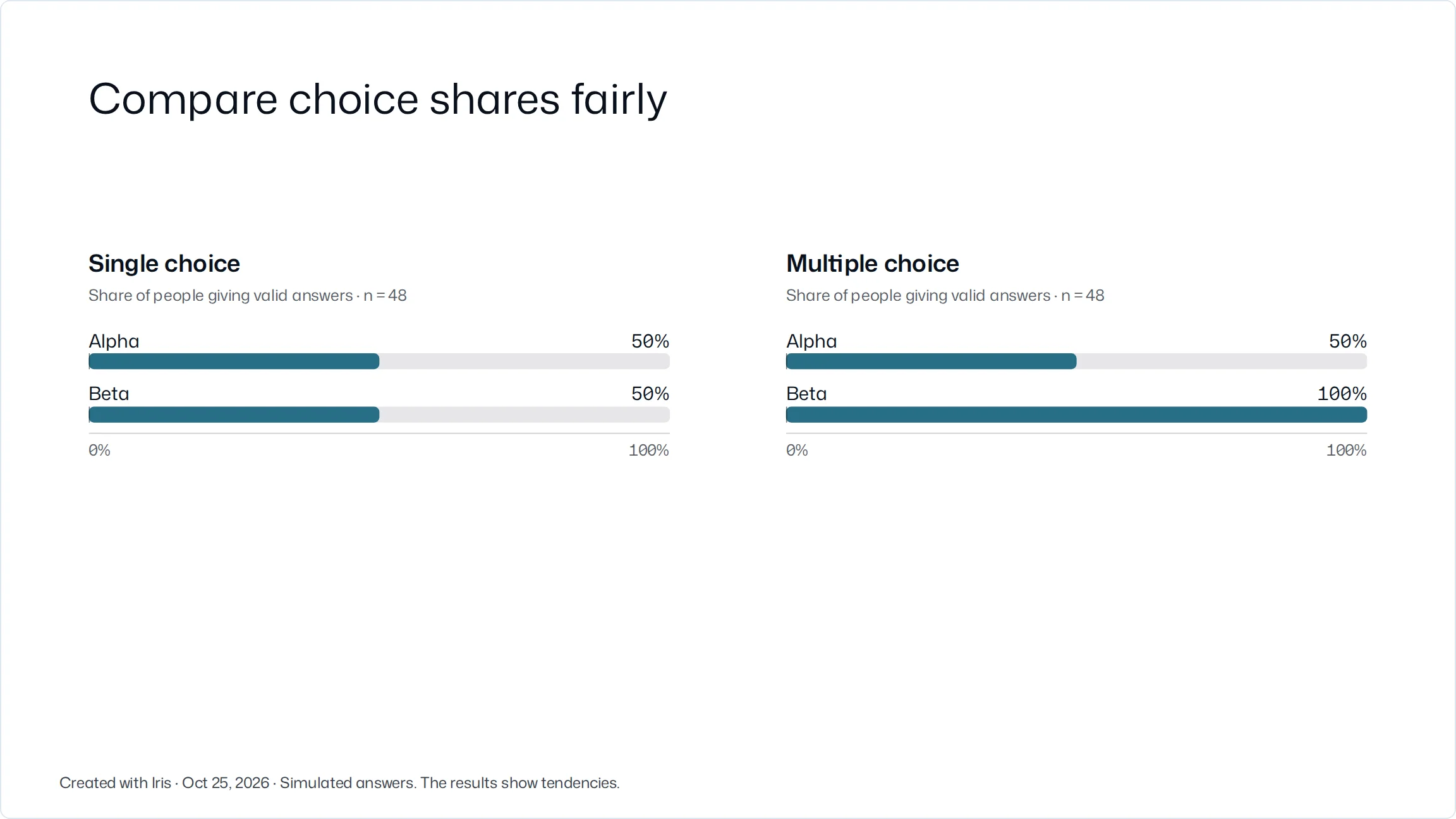
- The title slide carries Created with Iris with the date of the version at the bottom, and the note Simulated answers. The results show tendencies.
- Every slide with numbers names its slide source in the foot, for example Source: Snack bar concept test · Run 2. A click opens the study, the question or the file. You only see slide sources you can open yourself.
- When it is built, the presentation holds everything its slides show: numbers, quotes, images and charts. Everyone who opens the presentation sees every slide the same, even without access to its sources. If a source changes, the presentation changes only when Iris builds it again.
- Numbers with fewer than 30 people behind them carry n = ….
- Simple and grouped bar charts, distributions and funnels show their numeric range. When lengths invite comparison of the same measure, Iris uses matching ranges or clearly identifies deliberately different ranges. Compare lengths only where axis ranges match.
- Percentage charts default to a range of at least 0–100%. Other measures use their actual range, including negative and small values. A requested range expands when data falls outside it; values are not clipped.
- If a slide shows the themes of an open question, clicking a theme opens its answers.
- A stimulus of a survey run, for example a pack, shows as an image on the slide with its name below. The slide source names the survey run that showed it.
- An image from your files shows on the slide the same way, but there it is not a stimulus. Name it to Iris when she builds the presentation. The slide source names the file; whoever can't open the file sees the image without its name.
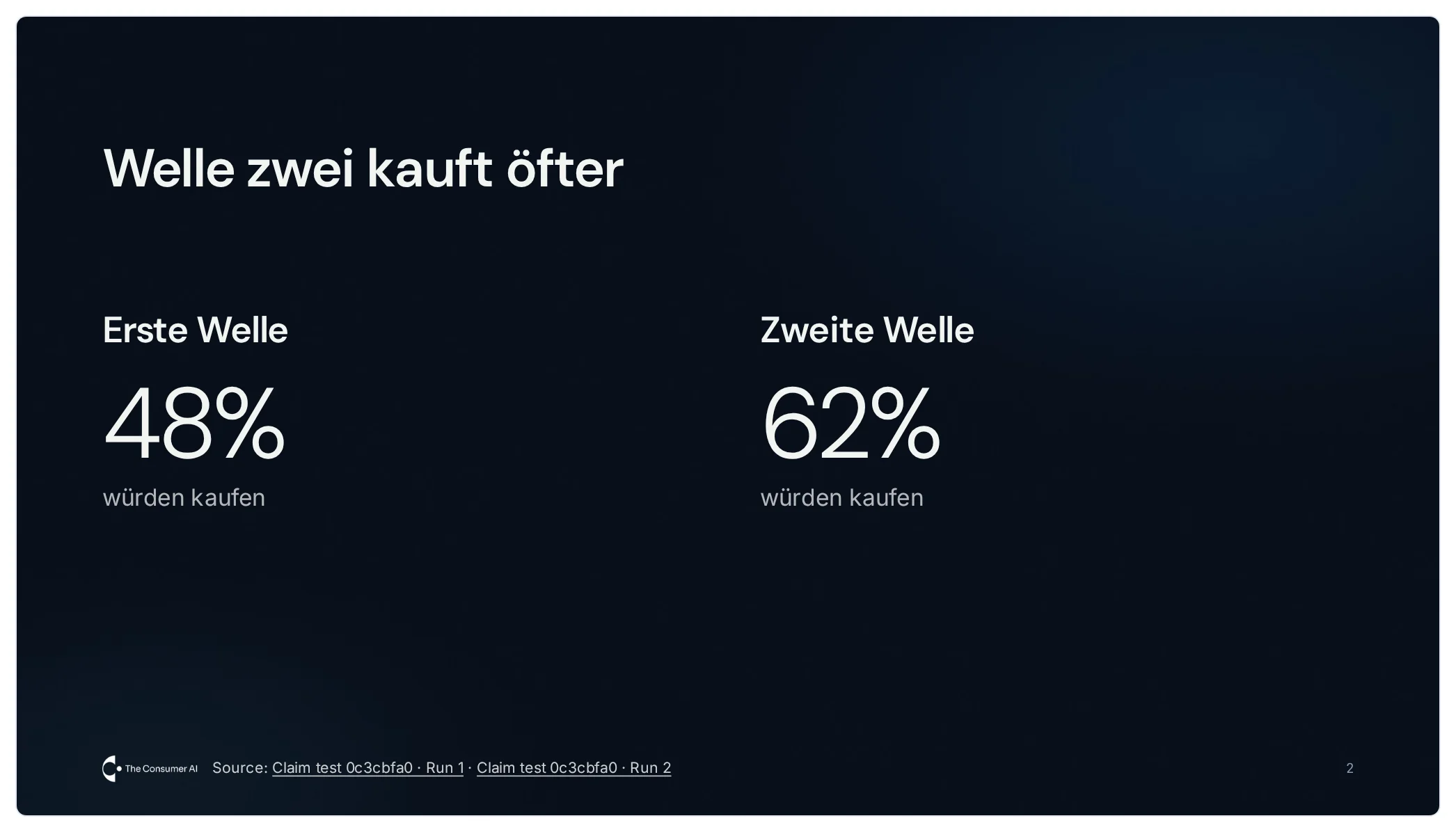
Above the slides stands the presentation's title, beside it History, the download icon (Download) and Link. Above it, a link names the presentation's project; Results leads back to the Results tab of the home page. How to download a presentation as PDF or PowerPoint is explained in Export.
Filters
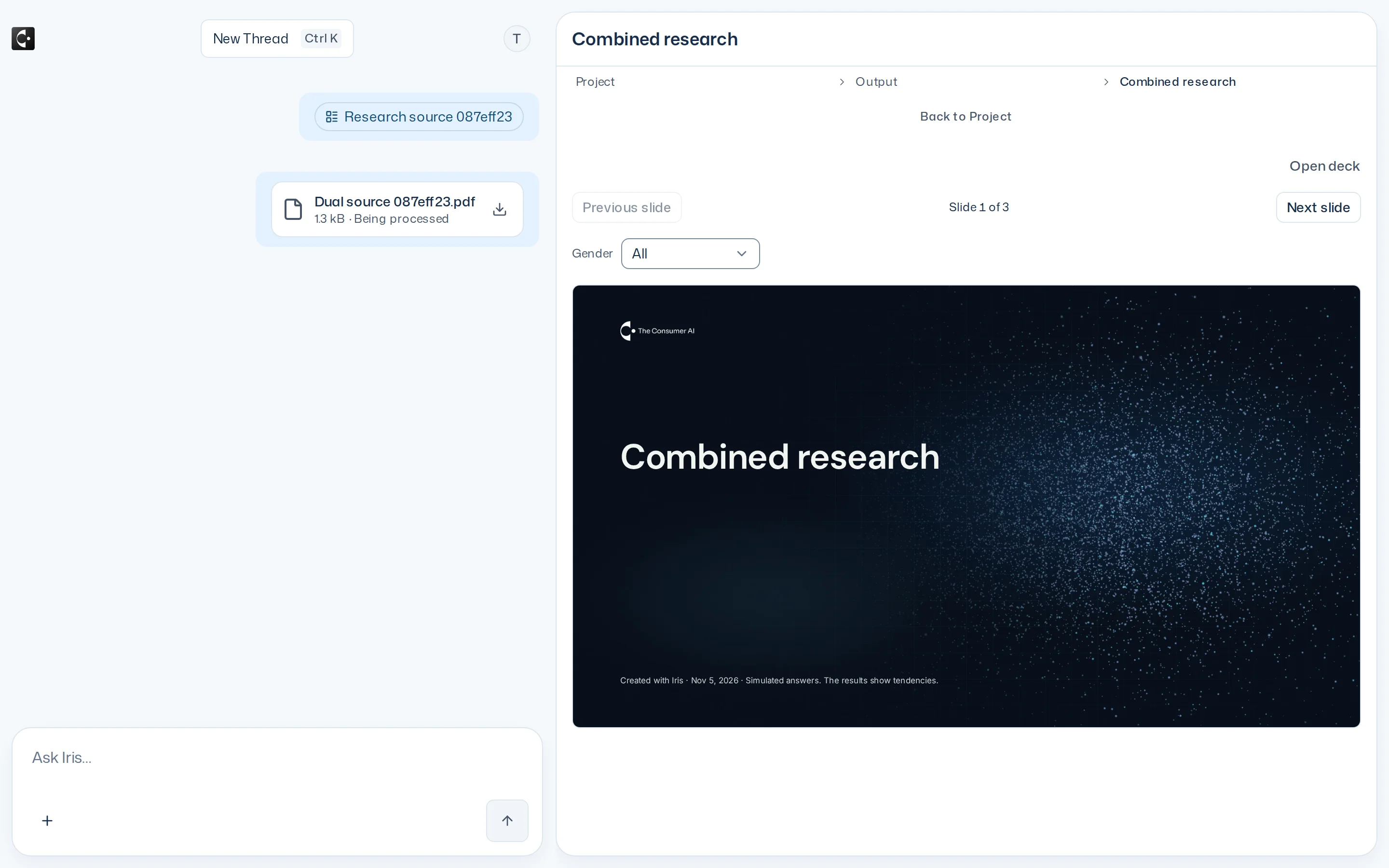
If Iris gave the presentation filters, they sit above the slides, for example Gender with All, Female and Male. When you pick a group, charts, tables and themes on every slide show only that group, in each survey run they come from; their label names the group and "n = …". Text and KPIs stay at all respondents. A presentation has at most two filters. Ask Iris in the chat if you want one, for example "Filter the presentation by gender". Numbers that can't be recomputed per group, such as those from files or from a carried-over report, show all respondents in every group; their label then says All respondents.
The first time you pick a group, the app computes its numbers; meanwhile the charts show placeholders. After that the group is there at once.
Where to find presentations
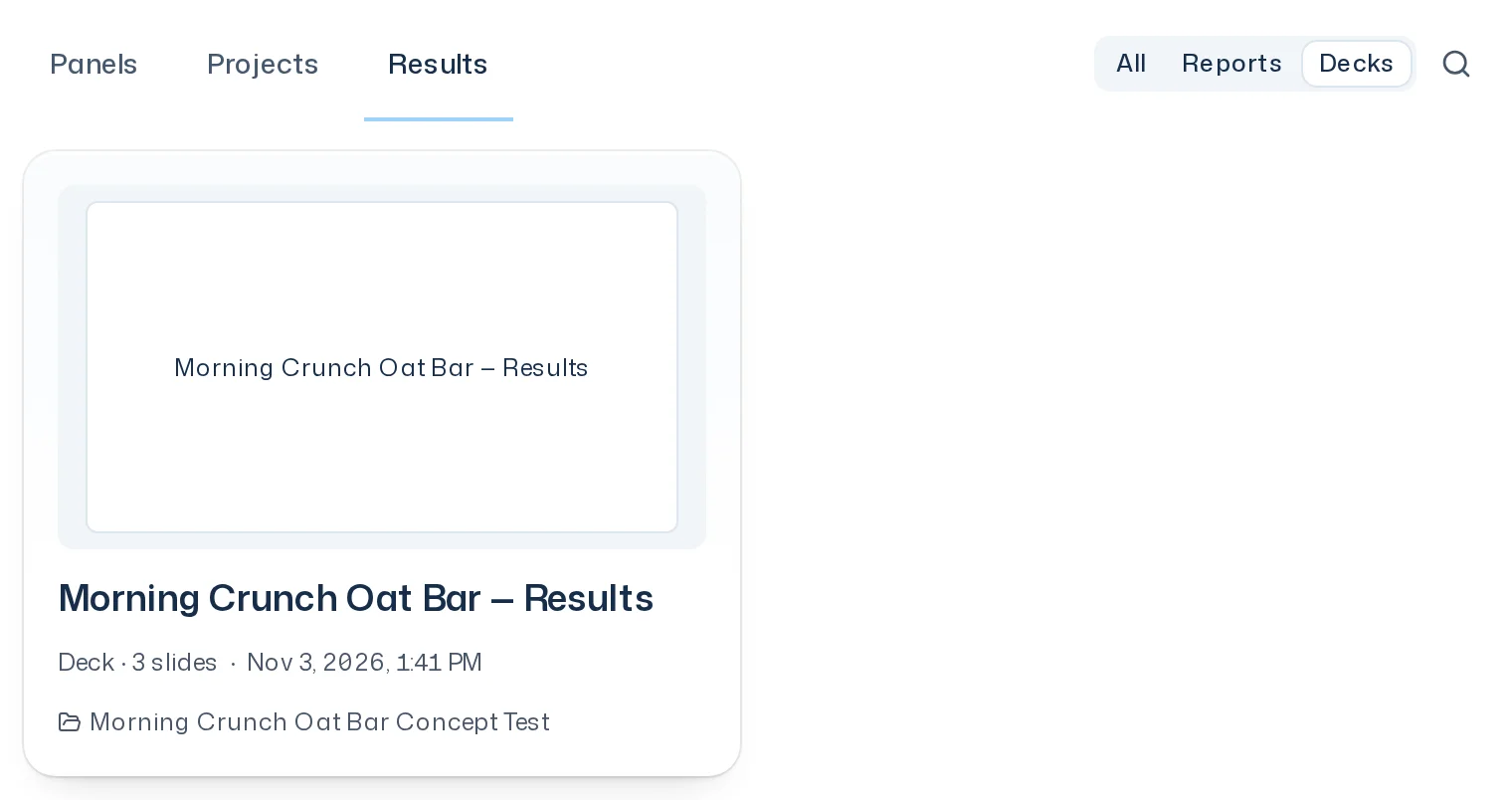
- In the Library: the Results tab lists the reports and presentations of every project you see. Each card shows a drawn preview, its kind, the title, a presentation's slide count and the project. Presentations shows only presentations. A presentation with an active link shows Link without sign-in active. A click takes you to the presentation page.
- On the project page: under Presentations.
- In the Dock: under Research → Output, a card opens the presentation beside the conversation. The Dock shows the project's presentations. If Iris builds a presentation or a presentation order saves while you watch, it appears there. If a refresh in the Dock fails, the last loaded presentation stays readable under Could not refresh. This is the last loaded state. and Try again. Open presentation takes you to the presentation page.
- In the notification Presentation ready.
History
History opens the presentation's versions, newest first. Each names who asked Iris for it, when, and what changed. The current one carries Current.
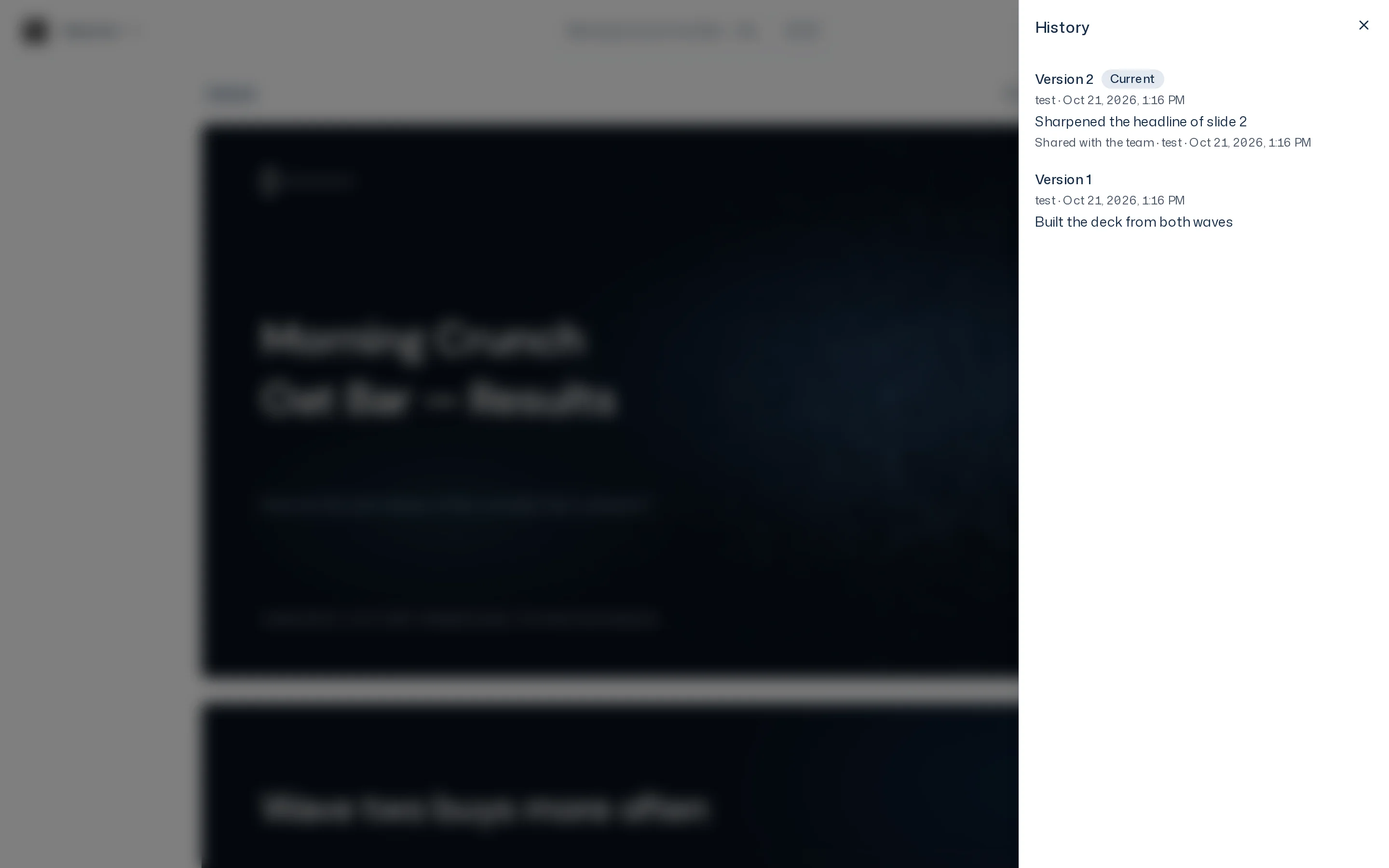
Click an older version to see it read-only with the bar Version 1 and its date:
- Back to current version takes you back.
- Restore opens a new chat in which you ask Iris to restore that version. Iris saves it as a new version; the old ones are kept.
Only the current version can be downloaded.