

Share a presentation
Show a presentation through a link without sign-in.
Everyone who sees its project sees a presentation. You share a whole project with people in your team, never a single presentation. You show a presentation to people without an account, for example clients or management, through a link without sign-in. You find it on the presentation page under Link.
Link without sign-in
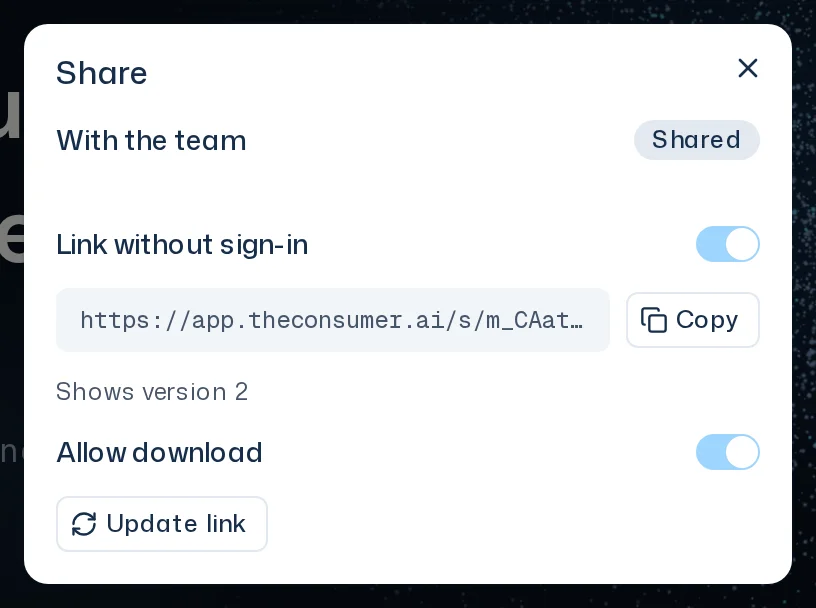
With a link you show the presentation to people without an account. Every member of the project the presentation lies in controls the link.
- Open the presentation and click Link.
- Turn on Link without sign-in. The app freezes the presentation's current version and shows the address.
- Click Copy and pass the address on.
Whoever opens the link sees the frozen version: all slides without their slide sources, and on the title slide the note Simulated answers. The results show tendencies. Answers, raw data, the history and the way into a study stay hidden. At the end, Test your own concept with Iris. with Sign in invites them to sign in. Search engines don't index the link. On a phone, Enlarge shows a slide large.
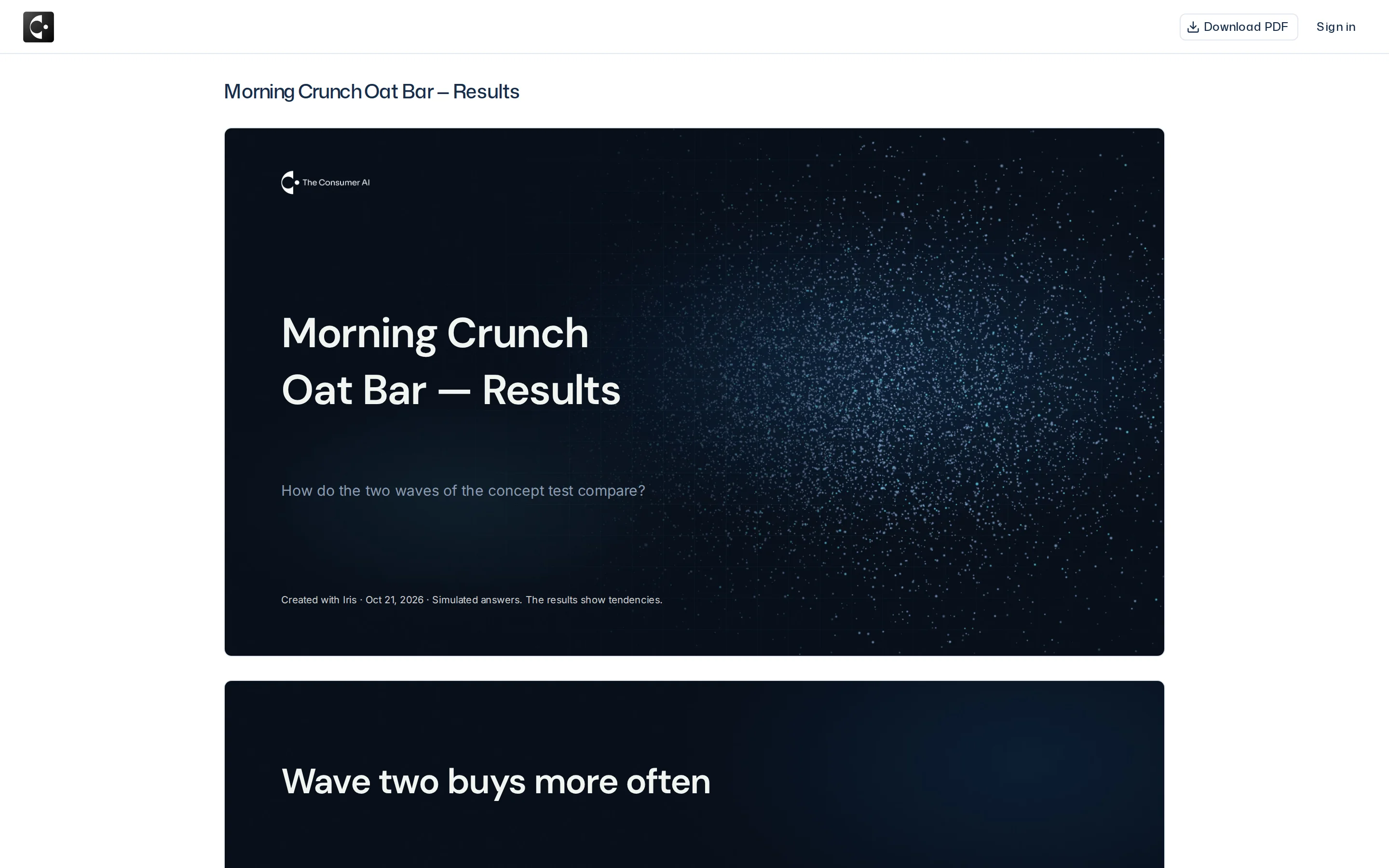
- Allow download is off at first. If you turn it on, visitors download the frozen version as a PDF through Download PDF, without signing in. The PowerPoint file is never available through the link.
- If the presentation has filters, turning the link on and Update link compute every group and freeze them along; visitors only pick. If a group can't be computed, the link stays as it was and the app says Not every filter selection could be computed. The link stays as it was.
- Below the address you see which version the link shows, for example Shows version 3 · current 4. Update link freezes the current version again and stands out while the link shows an older one. The address stays the same. If Iris changes the presentation, visitors only see the change after that.
- If you turn the link off, the address shows This link is no longer active. If you turn it on again, the same address works again, with the then current version.
- The link belongs to the presentation. If someone leaves the team, even the person who turned it on, the link stays. If the presentation is deleted, the link ends.
- The link opens in the browser's language if it is German or English, otherwise in the language you turned the link on in. Visitors switch the language at the top with Deutsch or English. In the other language they see the translation of the presentation and its quotes with Machine translated. Turning the link on and Update link translate the link's version. Translations that finish later appear on their own.
- If someone opens the link very many times in a row, the page says Too many requests. Try again in a moment.