
Research details
Open audiences, files, questions, studies and Presentations in Research.
For the overview and its controls, see Research in a chat.
The fixed header shows the open source's name. Back returns to the project's Research overview; hover over the button or focus it with the keyboard to read the project name. Long names are shortened; hover or keyboard focus reveals the full text.
Questions in Research
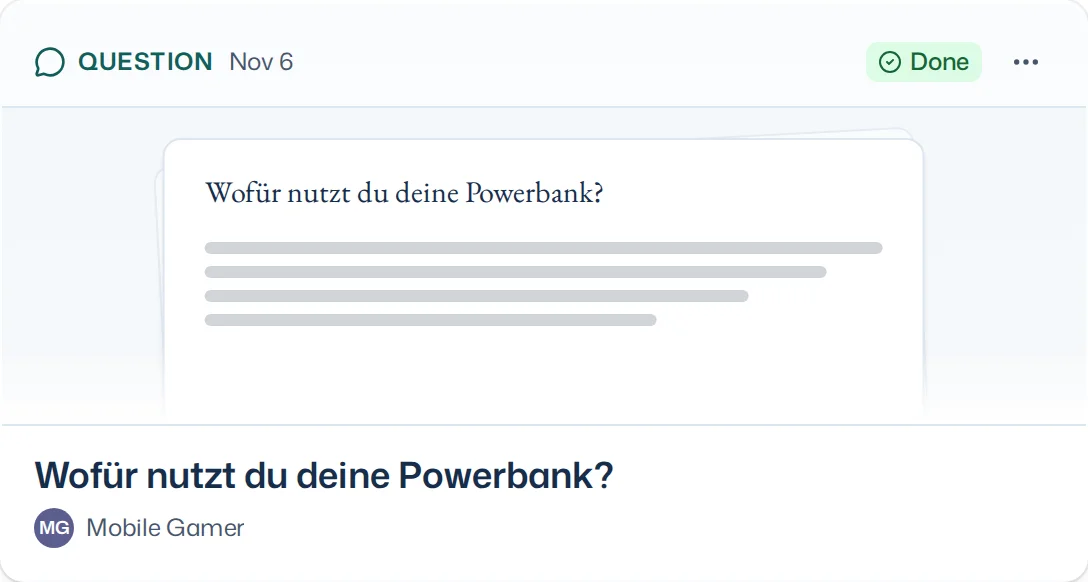
A confirmed question has its own card in the Research overview. Its title is the question, its audience stands below it and its state in the card's header. Open it, or click its card in the chat, to see the existing question result with themes and individual answers.
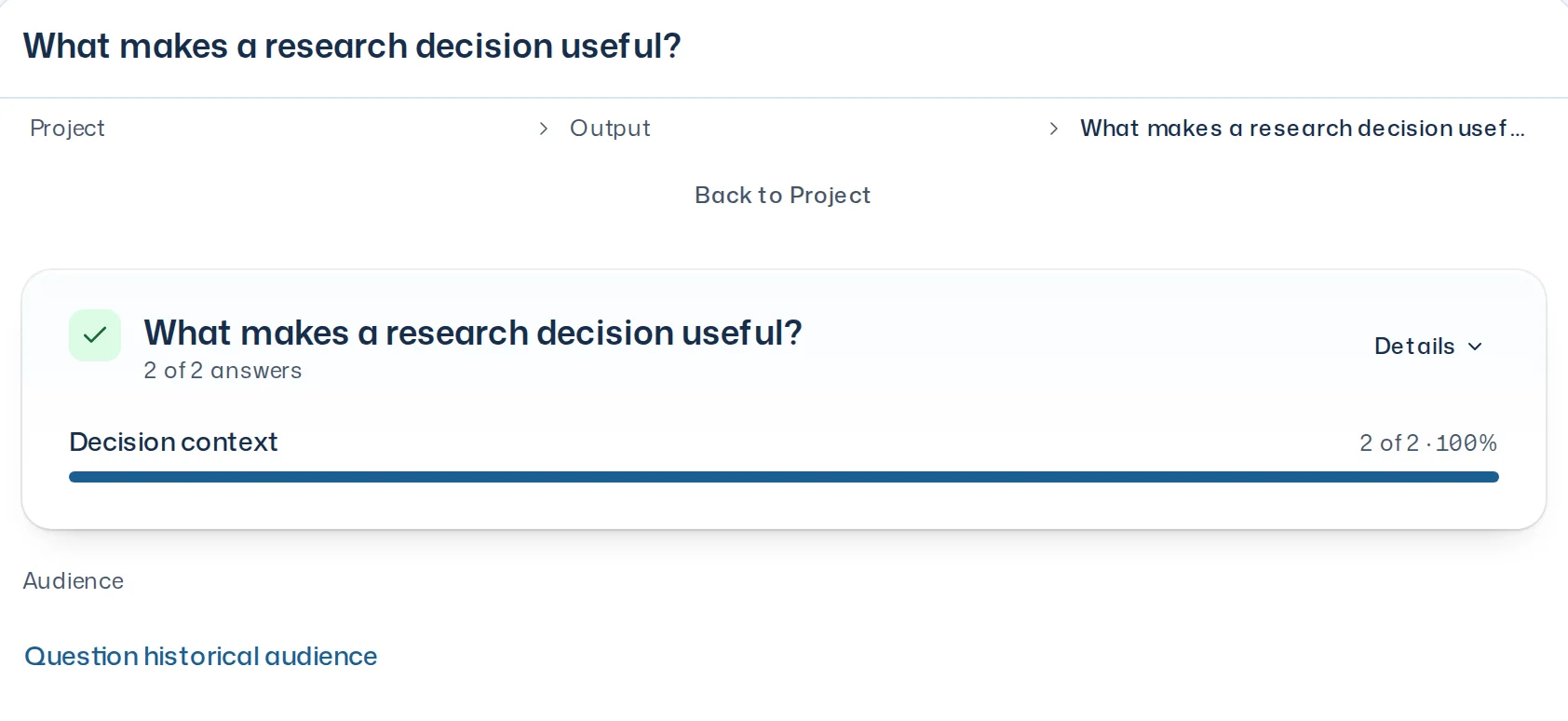
Everyone in the project sees the question and its result. Only the person who asked the question in their chat can recontact respondents. If you lose access to the project, the result becomes unavailable; a failed read offers Retry.
Studies
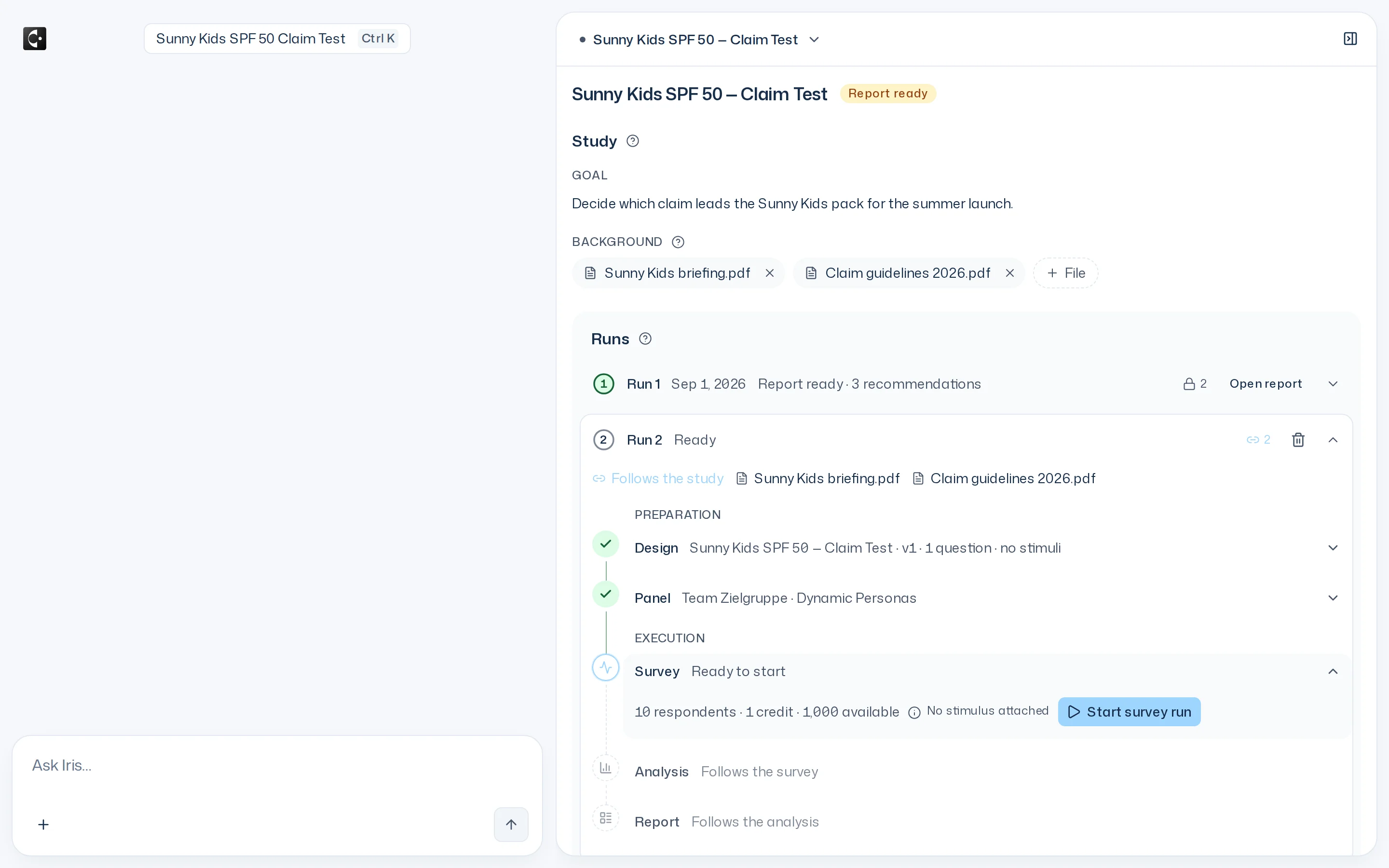
The Research overview lists the project's visible studies, including drafts and other members' studies. Open preparations are visible to members who can access the study.
Open a study to see its study overview. The survey runs sit side by side as chips with their audience and state. Result shows the selected run's report or progress, Setup its audience, stimuli and questions. A run that has not been launched shows only its Setup. After launch, the setup is Locked.
Hand off a result
A finished survey run, a comparison and a question share one bar at the bottom:
- Share > Copy team link copies the link for members of your team. A survey run opens its study page, a comparison exactly the chosen runs, a question its own page. Nothing is published. For a survey run, Share also holds the link without sign-in to the report's current version, see Share a report.
- Mark for presentation remembers the result for a presentation; it then reads Marked for presentation.
- Export downloads a survey run's result as a PDF, the crosstab or the raw data, and a question's raw data, see Export.
Ask Iris about a result in the input field.

Marked results stay saved, for you alone and per project, also after a reload. You can mark at most 8 runs; a comparison counts each of its runs, duplicates count once. At the limit the button waits and names it.
While something is marked, a bar shows n marked, Create presentation and Clear: in the Dock's overview, on the project page and on the pages of a study and a question. Create presentation starts a new chat in the project whose first message names each marked run as a source. Once Iris has accepted it, those marks are cleared; anything you marked in the meantime stays. If a marked run is no longer available, for example because it was deleted, the bar says so; it does not count and Remove takes it away.

Presentations in Research
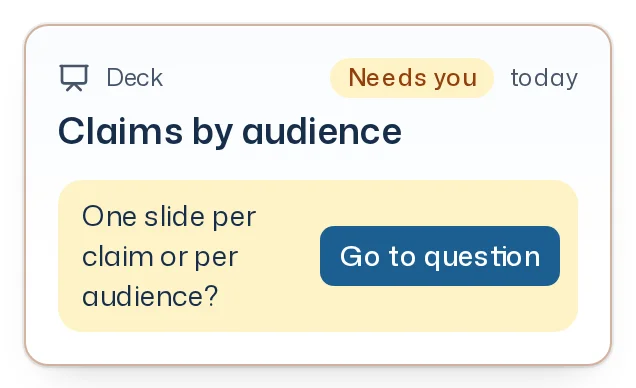
While Iris builds a Presentation, its card shows In progress with the running work. A new Presentation shows only for you as the one who ordered it as soon as Iris accepts the order; the rest of the project sees it from its first saved version. If Iris has a question, you as the one who ordered it see the card first with Needs you, the question and Go to question; from another chat, Go to question opens the chat where you ordered the Presentation. Other members keep seeing In progress. Once the Presentation is done, the card shows its slide count and sources, runs of the same study in one row. The notice Presentation created at the bottom of the Dock offers Share.
Slide sources of a Presentation
A Presentation adds the survey runs, questions and files its current confirmed revision names as slide sources. A survey run brings its own audience and stimuli. Only someone who can see a slide source can open it; if it lies in a project you can't see, only its name shows.
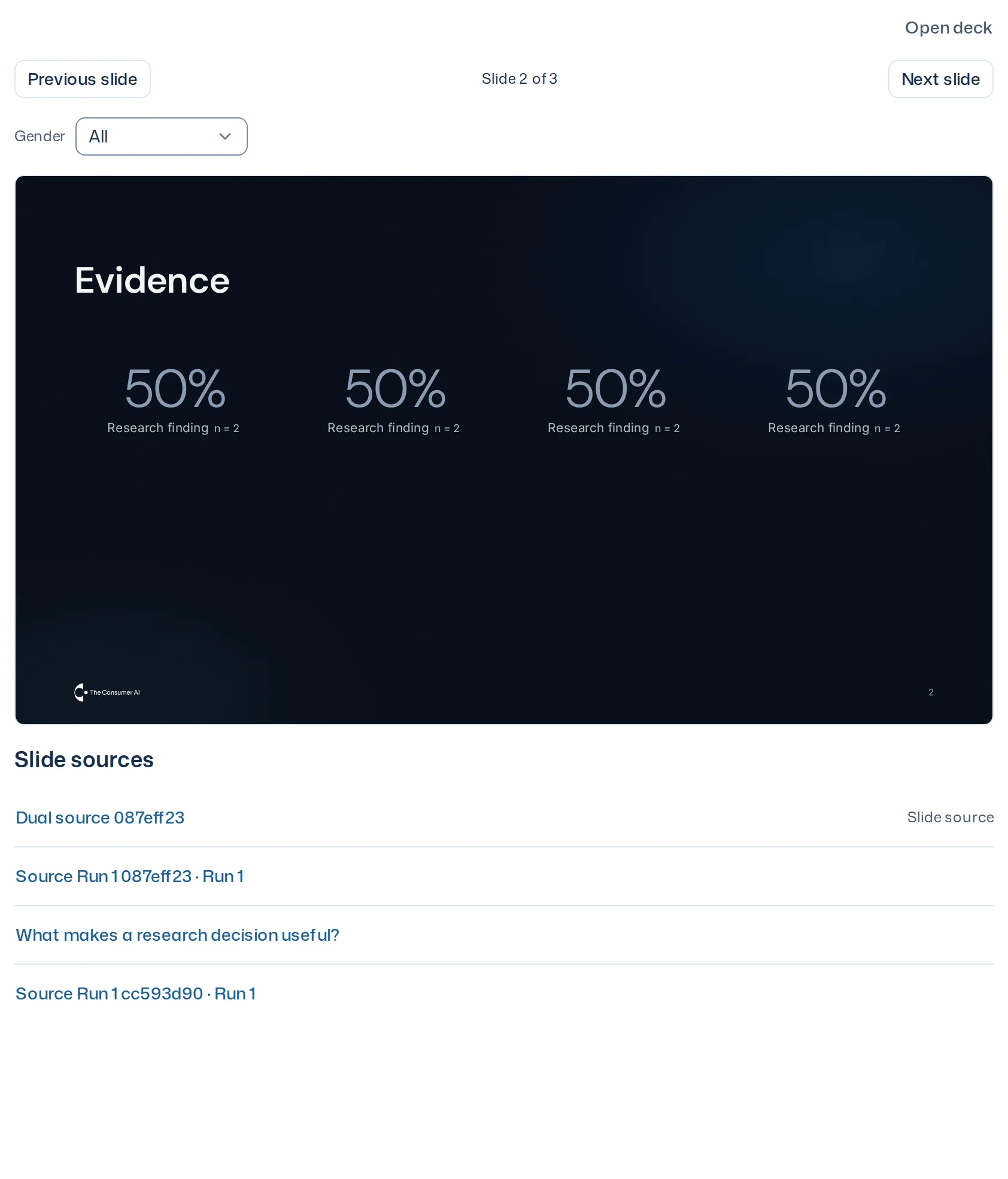
Use Previous slide and Next slide to browse the Presentation. Slide sources opens the exact survey run, question or file in Research, a file with exactly the content the Presentation names. Reloading or changing screen size keeps the same slide, filter and scroll context. A new slide starts at the top.
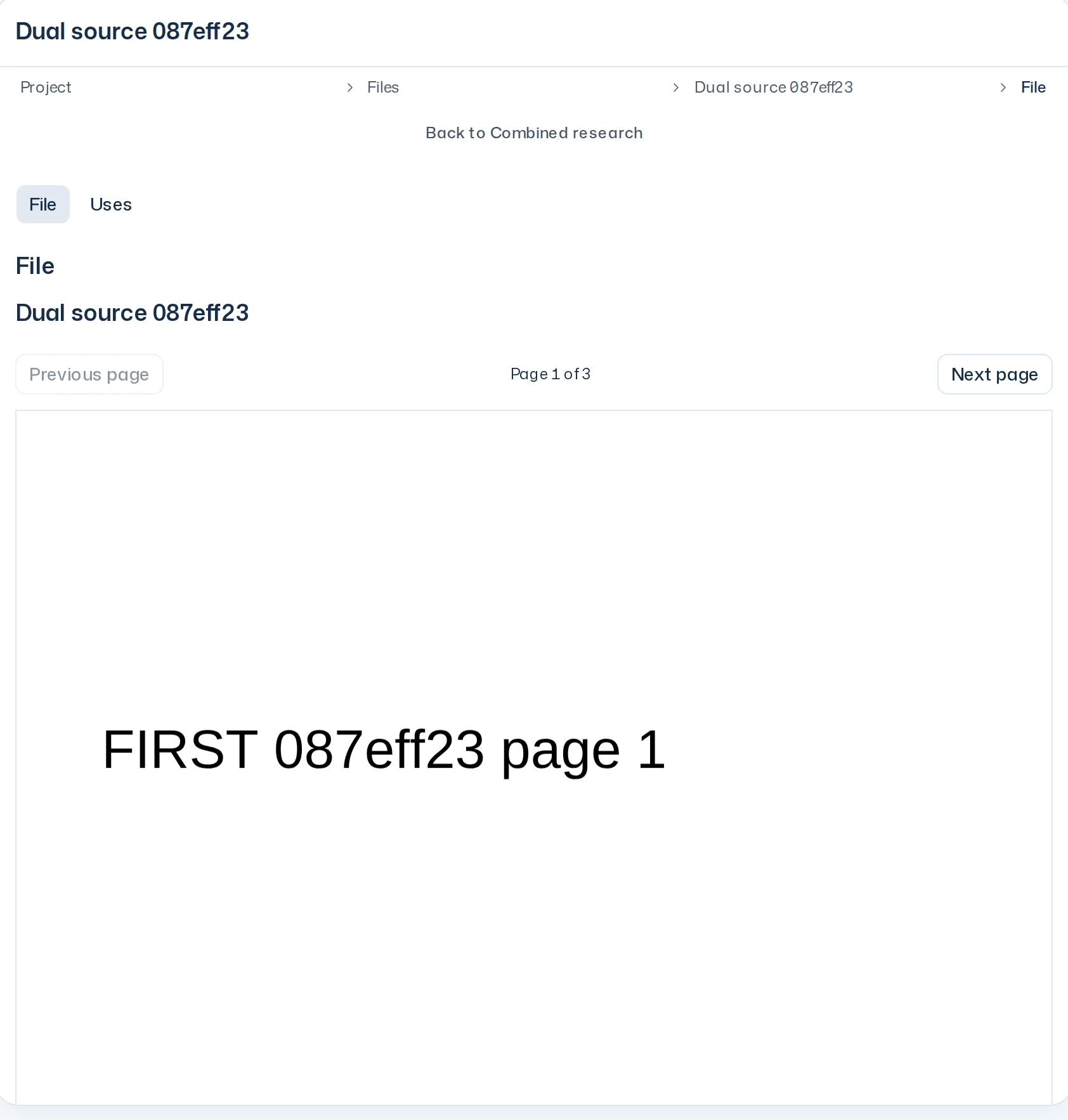
Presentations follow confirmed changes automatically. A Share Link keeps its frozen copy and only the names of its slide sources. A computed slide source from a file keeps its recorded content; an old slide source without that pin stays unavailable. A direct picture uses the current image, as on the Presentation page.
Audiences
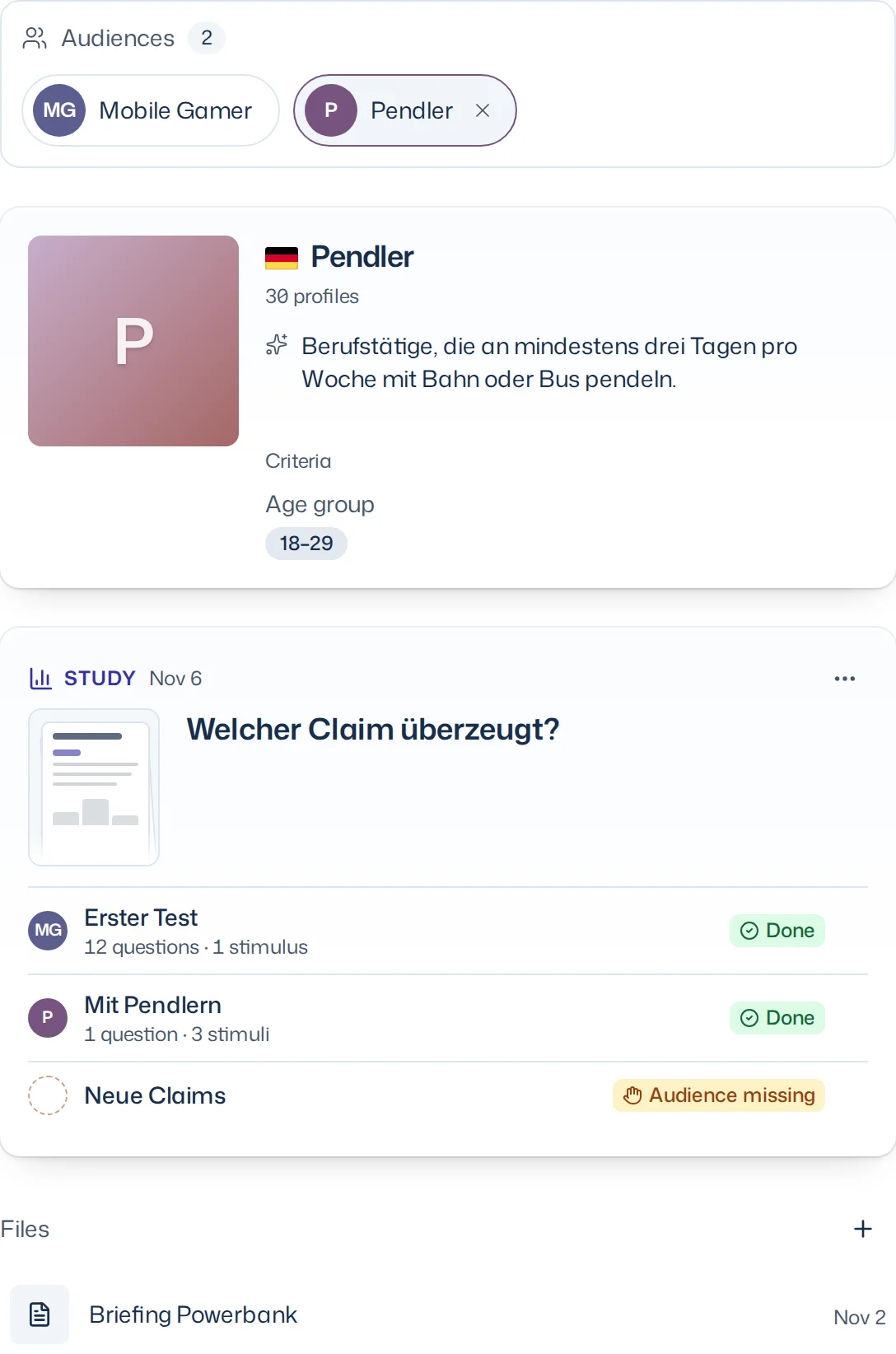
At the top of the Research overview, Audiences lists the project's audiences, the same for every member: those the project's survey runs, preparations or questions use, and those a member added or mentioned, chose or created in one of the project's chats. Each audience shows its image or its initials in its colour and its name; a long name is shortened and shown in full in its tooltip.
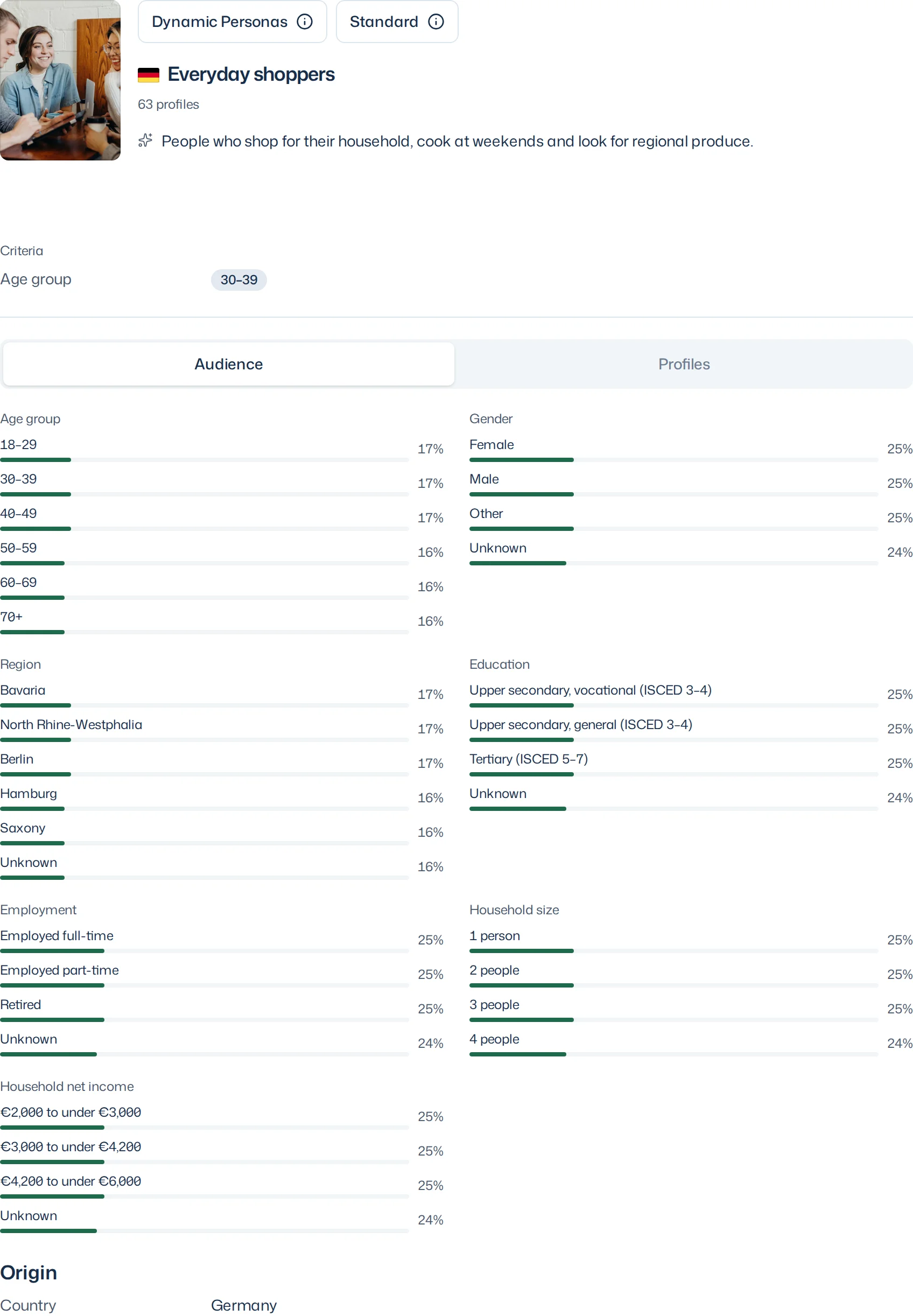
Clicking an audience shows only the cards that use it, together with the audience's image, number of profiles, description and criteria. Its name opens the full view. A second click removes the filter.
+ Audience opens the audience picker. Use this audience adds the chosen audience to the project, for every member. Describe a new audience prepares a message in the composer instead. Existing text and files stay in place. Creation starts only after you send and confirm; its card in the chat shows the progress.
Hovering an audience shows an ×; on touch devices it is always there. After you confirm, it hides the audience for everyone in the project. Its survey runs and results stay available. Undo, later Hidden objects in the picker or + Audience brings it back. A project holds at most 24 added audiences; once it is full, an audience from a chat is no longer added.
An audience you open from a survey run or question shows the same details as the composer's audience picker: criteria and demographic distribution under Audience, individual profiles under Profiles. It keeps the exact saved state used there. If a refresh of an open audience here, or of an audience or file on the project page, fails, the last loaded state stays readable under Could not refresh. This is the last loaded state. and Try again.
An audience you can no longer read is shown as unavailable. Retry repeats a failed read. Other Research items stay accessible; updates preserve your context and never move the cursor out of the chat.
Files
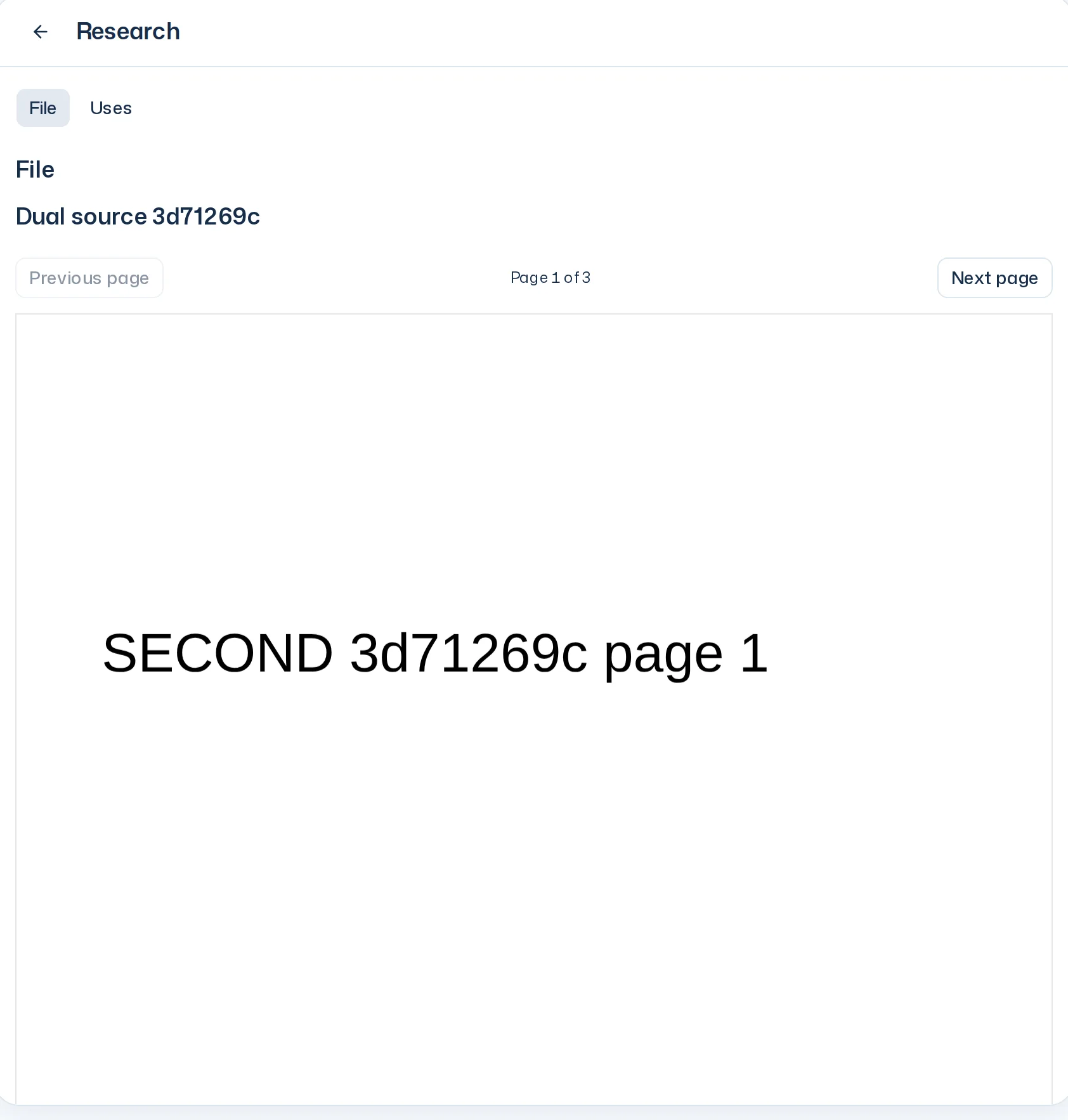
Files contains the project's visible files: uploaded in a chat or on the project page, by you or other members. An unsent file stays in your draft. Each visible file has one compact row. A file opened from a survey run shows the content that run saved.
The detail view shows the file's content. Previous page and Next page control a PDF. Page and scroll position survive reloading, including on a narrow screen.
If a file no longer exists, it says This file is no longer available. If only the preview fails, the file details remain available and Reload preview tries that exact file again.